Quick Answer
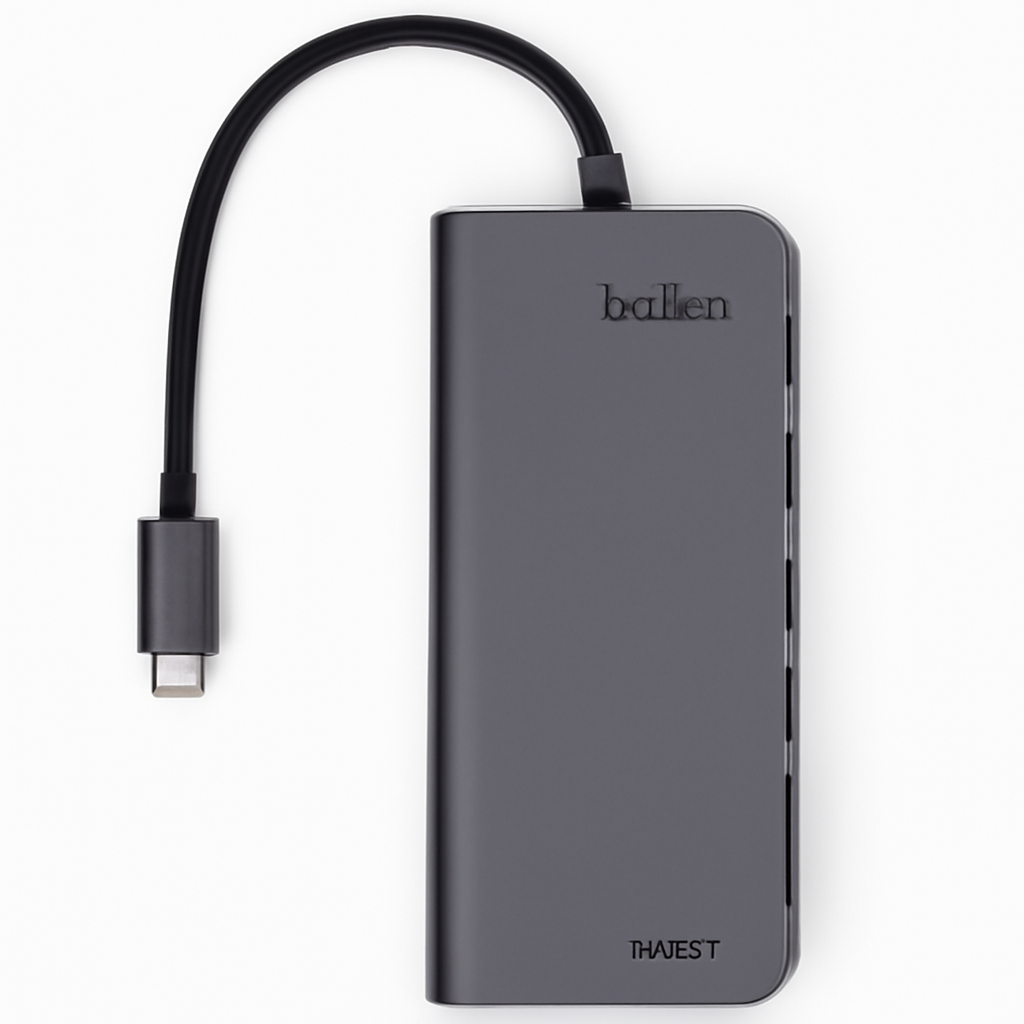
If you’re drowning in cable management nightmares and constantly unplugging devices to plug in others, a USB hub is your home office lifesaver. The best choice depends on your setup: go with the Anker PowerExpand 7-in-1 Hub Belkin INC006 CalDigit TS4 Thunderbolt Hub for premium MacBook integration with charging power. We’ll walk you through everything you need to know to pick the right one.
—
What to Look for in a USB Hub for Your Home Office
Before you buy, here’s what actually matters when choosing a USB hub:
Port Types Matter More Than You Think
Not all USB ports are created equal. You’ll find three main types in modern hubs:
USB-A ports are the traditional rectangular ports you’ve had on computers forever. They’re perfect for older peripherals like mice, keyboards, and external drives. If you’re still using legacy devices, USB-A coverage is essential.
USB-C ports are the modern standard. They’re faster, reversible, and handle both data and power. If you’re buying new peripherals in 2026, many will come with USB-C.
Thunderbolt 3/4 ports are the premium option—they’re insanely fast and deliver serious power, but come with serious price tags. Only worth it if you work with large video files or use multiple high-bandwidth devices.
Speed Tiers: USB 2.0 vs 3.0 vs 3.1
This directly impacts how fast your files transfer:
– USB 2.0: Older, slower (480 Mbps). Fine for keyboards, mice, and printers. Don’t buy a new hub with only 2.0 ports.
– USB 3.0/3.1 Gen 1: The workhorse standard (5 Gbps). Good for external drives and most modern devices.
– USB 3.2 Gen 2×2: The current gold standard (20 Gbps). Necessary if you transfer large video or photo files regularly.
Power Delivery: Can It Charge Your Laptop?
This is huge. Many modern USB hubs include Power Delivery (PD), which means they can charge your laptop through the same cable you use for data and peripherals. This is game-changing for desk setup simplicity.
A good rule: if you work with a laptop, get a hub with at least 60W PD. If your laptop is large or power-hungry, aim for 90-100W.
Physical Build Quality
You’re going to plug and unplug devices dozens of times daily. Look for:
– Sturdy connector that doesn’t feel loose or wobbly
– Durable cable (some hubs have detachable cables—nice bonus)
– Compact size if desk space is tight
– Heat dissipation for hubs with many high-speed ports
—
Best USB Hubs by Port Count and Speed
Not everyone needs the same number of ports. Here’s how to think about it:
Light Users (1-2 Devices)
If you just need to charge your phone while using a mouse and keyboard, a simple 2-port hub works fine. But honestly, save the money and buy one with more ports—future-proofing costs nothing.
Standard Home Office Setup (4-6 Devices)
This is where most people land: a laptop, external mouse, keyboard, monitor (via USB-C), phone, and maybe a USB drive. A 7-port hub is the sweet spot.
Power Users (6+ Devices)
Running multiple monitors, external drives, printers, and specialty devices? You’ll appreciate a 10-13 port hub with multiple USB 3.1 ports and solid power delivery.
Top Picks at a Glance
| Product | Best For | Port Count | Power Delivery | Price Range |
| Anker PowerExpand 7-in-1 | Most people | 7 ports | 60W | $$-$$$ |
| Belkin INC006 | Power users | 13 ports | 96W | $$$ |
| CalDigit TS4 | Mac users | 15 ports | 98W | $$$$ |
| WAVLINK USB 3.0 Hub | Budget buyers | 7 ports | None | $ |
—
USB-C vs Traditional USB Hubs: Which Is Right for You?
This decision might seem simple, but it shapes your entire setup.
USB-C Hubs: The Future (And Present)
A USB-C hub connects to your laptop via a single USB-C port. This is the 2026 standard.
Advantages:
– Cleaner desk setup—one cable does everything
– Often includes Thunderbolt for future-proofing
– Smaller and more portable
– Power delivery is standard on most models
Disadvantages:
– Only works if your device has USB-C (most do now, but check)
– Usually more expensive
– If your hub fails, you lose everything at once
Traditional USB-A Hubs: The Legacy Option
These connect via a standard USB port on older laptops or desktops.
Advantages:
– Works with basically any device
– Often cheaper
– Can mix port types easily
Disadvantages:
– Takes up more desk space
– No power delivery on most budget models
– Slower on some older designs
Our recommendation for 2026: If your laptop has USB-C (95% do), choose a USB-C hub. You’ll get better performance, cleaner cable management, and future-proofing built-in. Only go traditional USB-A if you’re using a desktop system or older device without USB-C.
—
Top-Rated USB Hubs for MacBook and Windows Setup
Your operating system doesn’t really matter—USB is USB. But some hubs are optimized for specific ecosystems.
Best for MacBook Users
CalDigit TS4 Thunderbolt Hub
If you have a MacBook Pro or MacBook Air from 2021 or newer, this is the gold standard. It connects via Thunderbolt 4 and gives you:
– 15 total ports (Thunderbolt, USB-C, USB-A, SD/microSD card readers, 3.5mm audio)
– 98W power delivery (enough for 16-inch MacBook Pro)
– Built-in Ethernet
– Premium aluminum build
Pros:
– Native Thunderbolt support means maximum speed
– Handles all modern Mac workflows
– Professional build quality that lasts
Cons:
– High price point ()
– Overkill if you don’t need Thunderbolt speeds
– Thick cable can be awkward in tight spaces
Best for Windows Users
Belkin INC006 13-in-1 Hub
Designed for anyone needing flexibility and horsepower. You get:
– 13 total ports including multiple USB 3.1
– 96W power delivery
– HDMI and DisplayPort for multi-monitor setups
– Works with any device that has USB-C
Pros:
– Massive port selection
– Great for dual-monitor setups
– Affordable for the feature set
Cons:
– Takes up more desk space
– Overkill if you only need 3-4 ports
– Cable is permanently attached
Best Universal Option
Anker PowerExpand 7-in-1 Hub
This is the Goldilocks hub—just right for most setups. Features:
– 7 ports (4x USB 3.0, 2x USB-C, 1x microSD)
– 60W power delivery
– Works with Mac and Windows equally well
– Compact footprint
Pros:
– Perfect port count for typical home office
– Solid build quality (Anker is reliable)
– Good value for performance
– Portable enough to move between desks
Cons:
– 60W PD might be tight if you have a 16-inch MacBook Pro
– Fewer ports than larger hubs
– USB 3.0 instead of 3.1 on some ports
—
Power Delivery and Charging: Why It Matters
Let’s talk about one of the most misunderstood USB hub features: Power Delivery.
What Power Delivery Actually Does
Power Delivery (PD) means your hub can send power up through the USB-C connection to charge your device. So instead of this:
– USB-C port (for data) + Separate charging cable
You get:
– USB-C port (does data and charging)
This is genuinely revolutionary for desk setup simplicity. One cable powers your laptop, connects your monitor, and connects your peripherals. It’s elegant as hell.
Wattage Matters
Hubs come rated for different power outputs:
– 30W: Charges phones and tablets. Not enough for laptops.
– 45W: Charges small laptops. Might struggle if you’re actively using power-hungry apps.
– 60W: Standard for mid-sized laptops. Sweet spot for most people.
– 90-100W: For large or gaming laptops. Only necessary if you’re running a power-hungry setup.
Quick test: Look up your laptop’s charger. See where it says something like “65W” or “100W”? Get a hub that matches or slightly exceeds that.
Real Example
MacBook Pro 14″ needs 67W. The Anker PowerExpand with 60W might charge it, but slowly during heavy use. The Belkin INC006 at 96W handles it perfectly. The CalDigit TS4 at 98W is overkill but ensures you never worry about it.
—
Budget vs Premium: USB Hubs at Every Price Point
You don’t need to spend a fortune, but the cheapest option often disappoint.
Budget Options ($20-40)
WAVLINK USB 3.0 Hub
A no-frills 7-port hub. Works fine for basic needs: mouse, keyboard, printer. No power delivery, slower speeds, but honestly, if you don’t transfer large files, it handles daily use.
Good if: You’re on a tight budget and only need port expansion, not charging.
Skip if: You use a laptop as your main computer (no power delivery = disaster for cable management).
Mid-Range ($50-120)
Anker PowerExpand 7-in-1 Hub
This is where most home office people should shop. You get reliable performance, decent power delivery, and ports that work every time. No fancy features, but it doesn’t need them.
Good if: You want a hub that “just works” without overthinking it.
Skip if: You need Thunderbolt speeds or 13+ ports.
Premium ($150-300+)
CalDigit TS4
For Mac users and power users. The engineering is exceptional. This is the “buy it once, use it for five years” option.
Good if: You work with video/photos, use multiple monitors, or just want the absolute best.
Skip if: You’re on any kind of budget. The mid-range hubs do 90% of what this does.
—
How to Choose the Right USB Hub for Your Desk Setup
Let’s make this practical. Answer these questions:
1. What’s Your Main Device?
– MacBook? Consider CalDigit TS4 if you can afford it. Otherwise, Anker PowerExpand.
– Windows laptop? Belkin INC006 or Anker PowerExpand, depending on port needs.
– Desktop? WAVLINK or Anker depending on whether you need power delivery.
2. How Many Devices Do You Connect?
Count everything:
– Mouse
– Keyboard
– Monitor (via USB-C)
– Phone charger
– External drive
– Printer
– Microphone
– Webcam
– Anything else?
4 or fewer devices? You need at least 4-5 ports (one for overhead).
6-8 devices? Go with 7-port hub.
9+ devices? Go with 13-port like Belkin.
3. Do You Transfer Large Files?
– Video/photo work? USB 3.1 minimum. Prefer Thunderbolt if you can.
– Regular office stuff? USB 3.0 is fine.
– Cloud-based workflow? Doesn’t matter much.
4. Is Portability Important?
If you move between coffee shops, home, and office, compact matters. The Anker PowerExpand is tiny. The Belkin is brick-sized.
5. What’s Your Budget?
Honestly:
– Under $40: WAVLINK (bare minimum)
– $50-80: Anker PowerExpand (the sweet spot)
– $100-150: Belkin INC006 (if you need more ports)
– $200+: CalDigit TS4 (premium/future-proof)
—
Setup Tips for Maximum Benefit
Once you pick your hub, maximize its usefulness:
Position it strategically. Keep your hub within arm’s reach. Ideally, mount it to the underside of your desk or use a cable organizer to keep it tidy.
Use power delivery for everything. If your hub has PD, plug your laptop in here. This eliminates one cable from your setup entirely.
Organize your cables. Use velcro straps or a cable sleeve so you don’t have spaghetti behind your desk. This makes unplugging devices easier.
Leave one port open. Even if your hub has 7 ports, you’ll want one available for occasional devices or future peripherals.
Check firmware updates. Better hubs get firmware updates that improve compatibility. Check the manufacturer’s website once a year.
—
Our Verdict
For most home office workers in 2026, the Anker PowerExpand 7-in-1 Hub is the best choice. It hits the perfect balance of ports, power delivery, reliability, and price. You won’t find yourself saying “I wish I had more ports” or “why is this so expensive?”
But here’s the real recommendation: Pick based on your specific needs, not general advice.
– MacBook with money to spend? → CalDigit TS4
– Multiple monitors + lots of devices? → Belkin INC006
– Just need it to work? → Anker PowerExpand
– Budget is everything? → WAVLINK
A USB hub might seem like a small purchase, but the right one saves you dozens of cable-swapping frustrations every single week. Spend the extra $20 to get the right one the first time.
Your future self—the one who doesn’t have to unplug the printer to plug in the external drive—will thank you.