Quick Answer
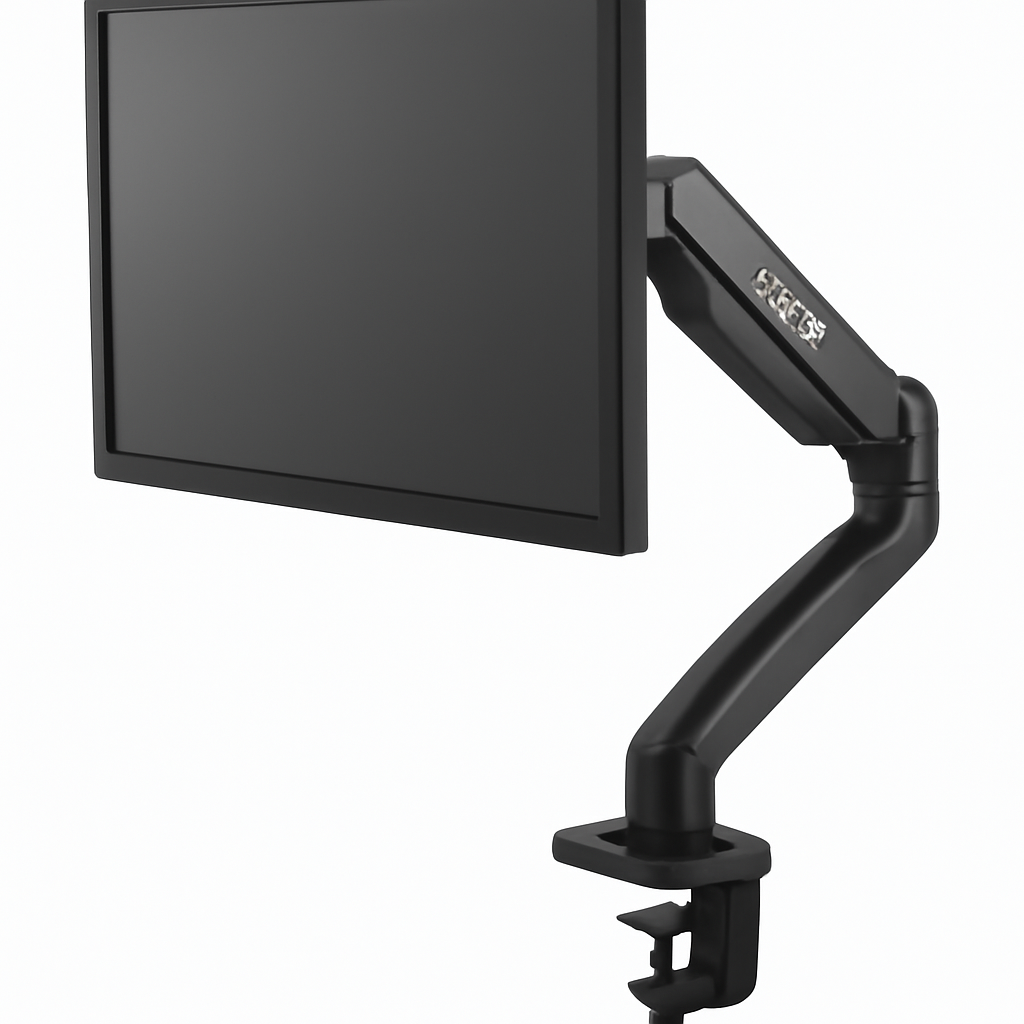
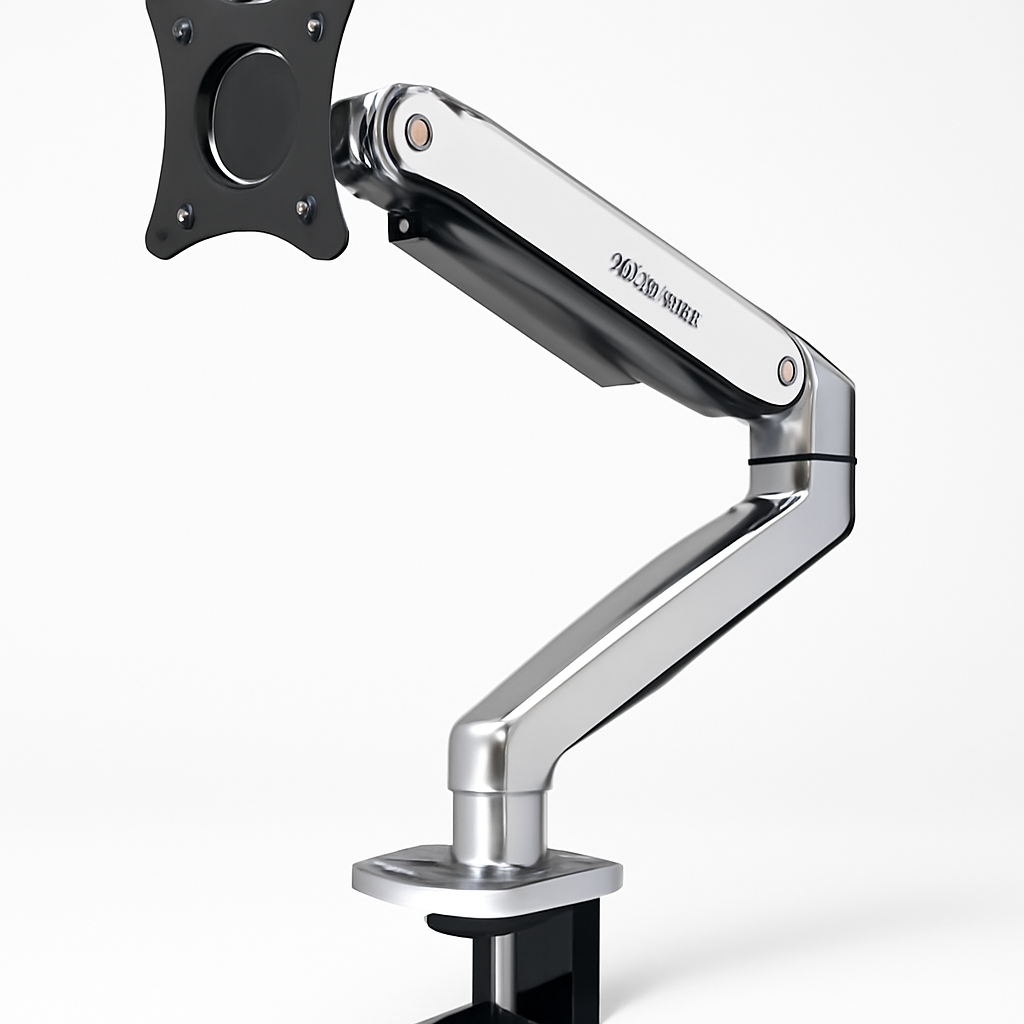
A quality monitor arm saves desk space, improves ergonomics, and lets you position your screen at eye level. The best picks for 2026 balance adjustability, build quality, and value: Ergotron LX Herman Miller Ratio dominates premium setups, [AmazonBasics Monitor Arm HUANUO Monitor Arm offers solid mid-range performance. Most home office workers benefit from a single-monitor arm; dual arms make sense if you run two screens regularly.
—
What to Look for in a Monitor Arm
Before you buy, understand the key specs that separate good monitor arms from great ones.
Weight Capacity and Monitor Size
Monitor arms have weight limits, typically ranging from 4 to 17 pounds. Check your monitor’s weight—most 24–27″ displays fall between 8–12 pounds, while larger ultrawide and gaming monitors can exceed 15 pounds. Always choose an arm rated above your monitor’s weight by at least 2–3 pounds. Undersized arms sag over time and create neck strain.
Adjustment Range
The best monitor arms let you move your screen in multiple directions:
– Height adjustment: Should span at least 6–8 inches vertically
– Tilt: ±20° range is standard; more allows you to reduce glare
– Swivel: 360° rotation is common; useful if you share desk space
– Reach: How far the arm extends from the wall or desk clamp
– Rotation: Portrait-to-landscape flipping on some premium models
If you sit at your desk for 6+ hours daily, prioritize height and tilt adjustment—these directly impact ergonomic comfort and reduce neck/shoulder strain.
Mount Type: Desk Clamp vs. Grommet vs. Wall
– Desk clamp (most common): Attaches to desk edge; easy installation, works on most surfaces
– Grommet mount: Goes through a hole in your desk; cleaner look but requires drilling
– Wall mount: Mounts directly to wall; saves desk space but limits adjustability
– Pole mount: Fits into existing desk poles; increasingly common in standing desks
For flexibility, desk clamp is the default choice for most home offices.
Material and Build Quality
Steel arms outlast aluminum for long-term use, though aluminum is lighter. Look for:
– Smooth-action joints (gas springs should feel effortless to adjust)
– Durable paint or coating that resists chipping
– Cable management clips to keep wires organized
– Rubberized grips and padding where the arm contacts your desk
VESA Mounting Standard
Nearly all modern monitors use VESA mounting (a standardized hole pattern). Check your monitor’s VESA compatibility—common standards are 75×75mm and 100×100mm. Most monitor arms support multiple VESA sizes, but always confirm.
—
Best Overall Monitor Arms This Year
Ergotron LX Monitor Arm
Best for: Professionals who need maximum adjustability
The Ergotron LX remains the industry standard in 2026. This articulating arm has been refined over a decade and combines exceptional ergonomics with rock-solid build quality.
Key specs:
– Weight capacity: 15 lbs
– Height adjustment: 20 inches
– Reach: Up to 20 inches from desk clamp
– Gas spring tension system
– Full VESA compatibility
Pros:
– Smoothest adjustment mechanism available (gas springs feel almost frictionless)
– Exceptional height and reach range—adapts to standing desks and tall monitors
– Integrated cable management keeps your desk tidy
– Lifetime warranty shows manufacturer confidence
– Works equally well for single-monitor or dual-arm setups
Cons:
– Premium price point; not the cheapest option
– Slightly heavier than budget alternatives; requires sturdy mounting
– Overkill for simple, static setups
The Ergotron LX justifies its cost if you adjust your monitor position regularly or use it 8+ hours daily. The buttery-smooth gas spring system reduces cumulative stress on your hands.
—
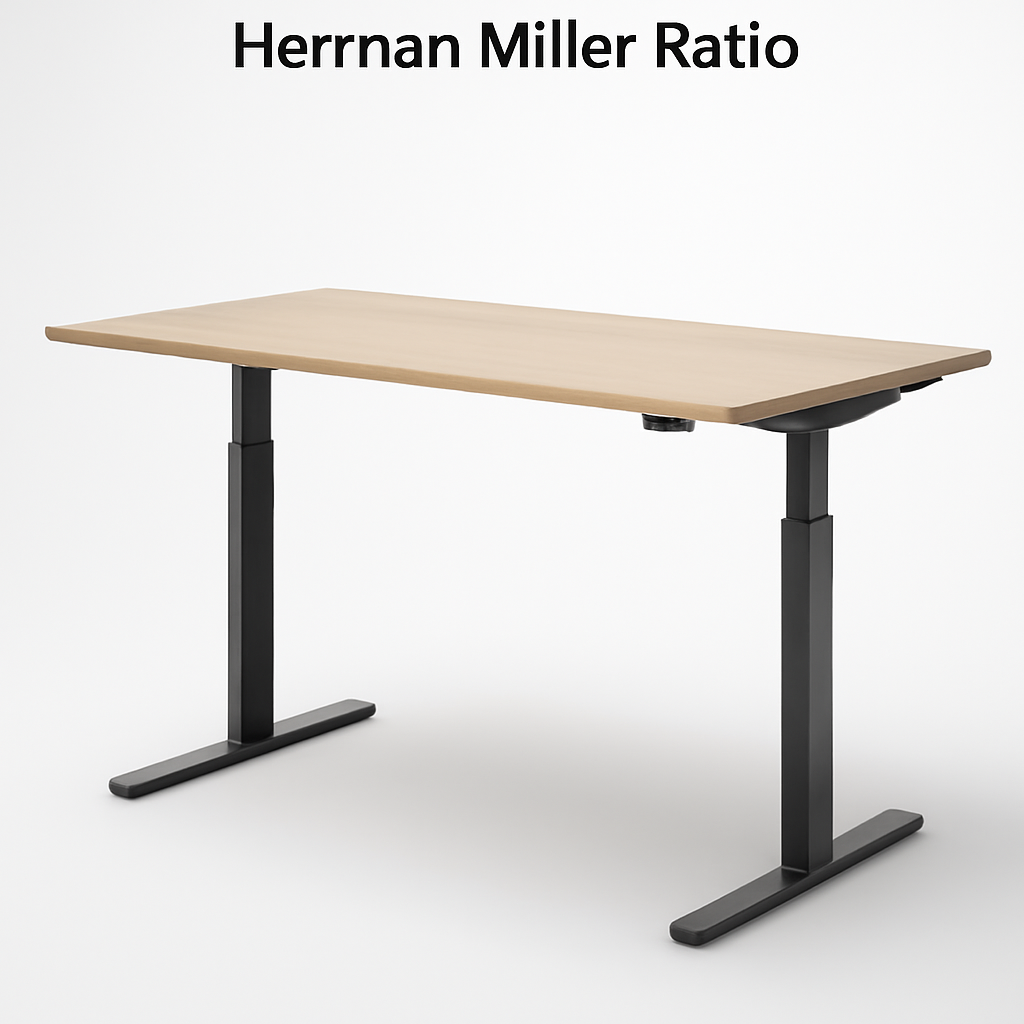
Herman Miller Ratio Monitor Arm
Best for: High-end, design-conscious home offices
Herman Miller Ratio brings premium furniture craftsmanship to monitor arms. This is the choice if your desk setup is a centerpiece, not just functional.
Key specs:
– Weight capacity: 13.5 lbs
– Height adjustment: 20 inches
– Minimalist aesthetic (available in multiple colors)
– Integrated desk pass-through for cables
– Compatible with Herman Miller desks
Pros:
– Award-winning industrial design; looks expensive and professional
– Excellent build quality with premium materials
– Blends seamlessly with modern office aesthetics
– Great warranty and customer service
– Smooth adjustment without being unnecessarily complicated
Cons:
– Premium pricing (higher than Ergotron in some markets)
– Less reach than articulating arms—better for smaller monitors
– Limited color options compared to competitors
– Best paired with Herman Miller desk systems
Choose the Ratio if aesthetics matter—this arm looks like furniture, not equipment. It’s popular in design studios and modern office buildings.
—
Budget-Friendly Monitor Arm Options
AmazonBasics Monitor Arm
Best for: Basic setups and first-time buyers
AmazonBasics Monitor Arm delivers surprising value at an entry-level price. This is the “does what it says” option.
Key specs:
– Weight capacity: 14 lbs
– Height adjustment: 4.3 inches
– Reach: 20 inches
– Single VESA mount (100×100mm and 75×75mm compatible)
– Desk clamp mount
Pros:
– Most affordable option; excellent price-to-function ratio
– Adequate height and reach for standard desk setups
– Quick assembly (15 minutes, minimal tools)
– Works with most monitors 21–27 inches
– Free returns on Amazon (if applicable in your region)
Cons:
– Height adjustment is limited compared to premium arms (4.3″ vs. 20″)
– Tilt range is narrower (±15° vs. ±20°)
– Gas spring has less smooth operation; feels slightly stiff initially
– Warranty is shorter (1 year vs. lifetime on Ergotron)
This arm is perfect if you want a “set and forget” monitor position. It won’t blow your budget and performs the core job well.
—
HUANUO Monitor Arm
Best for: Balanced feature set without premium pricing
HUANUO Monitor Arm sits in the sweet spot: better than basic budget arms, cheaper than premium brands.
Key specs:
– Weight capacity: 17.6 lbs (higher than most competitors)
– Height adjustment: 7.9 inches
– VESA 75/100 compatible
– Full 360° rotation
– Desk clamp and C-clamp options
Pros:
– High weight capacity accommodates heavier monitors and ultrawide displays
– Better articulation than AmazonBasics at half the Ergotron price
– Supports portrait/landscape rotation on some models
– Dual mounting options give flexibility
– Solid build for mid-range budget
Cons:
– Less polished feel than premium brands
– Cable management not as integrated as Ergotron
– Spring tension can feel slightly inconsistent (may loosen over 1–2 years)
– Shorter warranty (2 years)
HUANUO is the smart middle-ground choice if you want more adjustment than budget arms but don’t need (or can’t afford) Ergotron-level engineering.
—
Premium Monitor Arms for Professional Setups
When to Go Premium
Invest in premium arms if:
– You work 8+ hours daily at your desk
– You have multiple monitors or ultrawide displays
– Ergonomics directly impact your income (graphic designers, video editors, traders)
– You want your setup to last 10+ years without degradation
– Your desk is worth $1,000+
Recommended Premium Brands Beyond Ergotron and Herman Miller
Humanscale Monitor Arms excel at simplicity with minimal visual profile. Their weighted-spring systems require almost no force to adjust.
AOC Monitor Arm (Pro Series) combines monitor manufacturer expertise with specialized engineering for gaming and creative work.
Fellowes Lotus Monitor Arm is excellent for standing desks and motorized desk integration.
All of these run $400–$800 but justify the cost through durability and ergonomic precision.
—
Single vs. Dual Monitor Arms: Which Is Right for You?
Single Monitor Arm
Choose this if:
– Your workflow is browser-focused or single-application
– You have limited desk space
– You’re new to monitor arms
– Budget is tight
Advantages:
– Lower cost
– Smaller footprint
– Easier installation
– Sufficient for most office tasks (email, documents, spreadsheets)
Setup: Mount a 24–27″ monitor at eye level; everything else stays traditional.
Dual Monitor Arm (Side-by-Side or Vertical Stack)
Choose this if:
– You reference multiple applications simultaneously
– Your work involves comparison or coordination (trading, design, coding)
– You have adequate desk real estate (at least 24″ width)
– You need both arms rated for your monitor weights
Advantages:
– Massive productivity boost for multi-tasking workflows
– Side-by-side placement is less neck strain than single large displays
– Vertical stacking saves horizontal desk space
– Better than an ultrawide for different content types
Setup: Two matching 24″ monitors use two identical arms. Most Ergotron and premium brands support dual-arm configurations with optional connector kits.
Cost consideration: Dual setup costs roughly 1.8–2x a single arm (you save on one purchase, but need stronger desk clamp brackets).
Ultrawide Alternative
Some professionals replace dual monitors with a 34–38″ ultrawide display on a single heavy-duty arm. This works beautifully for certain workflows (video editing, financial dashboards) but isn’t ideal for all tasks.
For most people: Start with a single monitor arm. Upgrade to dual only if your workflow genuinely needs it.
—
Installation and Compatibility Guide
Before You Buy: Compatibility Checklist
Monitor weight and VESA:
– Weigh your monitor (or check the spec sheet)
– Note your VESA pattern (usually printed on monitor back)
– Choose an arm rated for your weight plus 3 lbs
Desk material and clamp requirements:
– Desk edge thickness: Most clamps work on 0.75″–1.5″ edges
– Desk edge material: Clamps grip best on solid wood/laminate; avoid soft edges or glass
– Available space: Account for cable/power outlet clearance
Monitor connector type:
– Confirm your monitor uses a VESA mount (almost all modern monitors do)
– If it doesn’t, check if an adapter bracket is available
Installation Steps (Most Common Clamp Mount)
Tools needed: Allen wrench (usually included), Phillips screwdriver (optional)
1. Attach the monitor plate to your monitor’s VESA mount holes using provided screws (hand-tight is fine)
2. Assemble the arm according to package instructions (usually just tightening joints)
3. Position the clamp on your desk edge at the desired location
4. Tighten the clamp firmly (but not so tight you crack a thin desk)
5. Connect the monitor bracket to the arm’s connector
6. Adjust tension using the gas spring adjustment knob (takes practice; aim for “effortless but not droopy”)
7. Route cables through the arm’s cable clips; plug in power
Pro tip: Leave gas spring tension slightly stiffer initially. It will loosen 10–15% over the first week as new gas springs settle.
Common Compatibility Issues and Fixes
| Issue | Solution |
| Monitor plate doesn’t fit VESA holes | Use a VESA adapter bracket (often $15–30) |
| Arm sags downward under monitor weight | Tighten the gas spring adjustment knob 1/4 turn at a time |
| Clamp doesn’t fit desk thickness | Use shim pads (foam or rubber) under the clamp |
| Cable management crowded | Use spiral cable wrap ($8–15) to bundle wires |
| Monitor rotates unexpectedly | Check that the ball joint is fully tightened; apply threadlocker if loose |
Pro Tip for Cable Management
Don’t just thread cables through the arm—use separate cable ties or spiral wrap at 6-inch intervals. This prevents the weight of cables from pulling the monitor forward over time.
—
Monitor Arm Maintenance and Longevity
A quality monitor arm lasts 8–15 years with minimal maintenance. Here’s how to maximize lifespan.
Monthly Checks
– Dust the joints: Use a microfiber cloth to wipe dust from crevices and joint areas
– Verify clamp tightness: Give the clamp a gentle tug; tighten if loose
– Check cable routing: Ensure cables aren’t kinked or pinched
Quarterly Maintenance
– Test adjustment smoothness: Move your monitor through its full range of motion; note if any spots feel gritty or sticky
– Inspect for paint chipping: If metal is exposed, apply touch-up paint or clear nail polish to prevent rust
– Clean cable clips: Remove dust buildup that can stress cables
Annual Deep Maintenance
– Lubricate joints: High-quality arms rarely need lubrication, but if adjustment feels stiff, apply light silicone-based lubricant (not WD-40) to joints
– Check gas spring pressure: If your monitor sags significantly despite full tension adjustment, the gas spring may need replacement (usually a $30–80 service or DIY kit)
– Inspect clamp pads: Replace worn rubber pads to prevent desk surface scratching
Signs Your Arm Needs Replacement or Service
– Sagging that won’t correct: Gas spring is depleted
– Creaking or clicking during movement: Internal joint wear (can be fixed by a technician)
– Visible rust or corrosion: Indicates seal failure; likely time to replace
– Unstable rotation: Ball joints failing; safety concern for expensive monitor
Lifespan expectation: Budget arms last 3–5 years with regular use; mid-range arms last 6–10 years; premium arms (Ergotron, Herman Miller) often last 10–15 years.
—
Top Picks at a Glance
| Product | Best For | Price Range | Weight Capacity | Height Adjustment |
| Ergotron LX | Professionals; maximum adjustability | $ | 15 lbs | 20 inches |
| Herman Miller Ratio | Design-conscious setups; premium aesthetics | $ | 13.5 lbs | 20 inches |
| AmazonBasics Monitor Arm | Budget-conscious; simple setups | $ | 14 lbs | 4.3 inches |
| HUANUO Monitor Arm | Mid-range; balanced features | $ | 17.6 lbs | 7.9 inches |
—
Our Verdict
Choose Ergotron LX if you adjust your monitor daily, work 8+ hours at your desk, and want the smoothest adjustment experience available. The lifetime warranty and exceptional engineering justify the premium cost.
Choose Herman Miller Ratio if your home office is a design statement and you’re willing to pay for iconic aesthetics without sacrificing function.
Choose AmazonBasics if you want to dip your toes into monitor arm life without spending much, or if your monitor position rarely changes.
Choose HUANUO if you want a solid middle ground: better than budget options, cheaper than premium brands, and plenty of adjustment range for most users.
Final Recommendations by Scenario
New to monitor arms? Start with AmazonBasics. If you like the concept and use it daily, upgrade to Ergotron or HUANUO later.
Investing in ergonomics? Go straight to Ergotron LX. The gas spring system pays dividends over years of daily use.
Building a showcase home office? Herman Miller Ratio elevates your whole setup if other furniture is modern/designer.
Running dual monitors or a heavy ultrawide? HUANUO or Ergotron LX (17.6 and 15 lb capacities respectively). Budget arms may sag.
In doubt? Buy from a retailer with free returns (Amazon, Best Buy) and test for two weeks. If it feels right, keep it. Monitor arm ergonomics are surprisingly personal—what works for your coworker might not work for your specific monitor, desk height, and posture.
—
Want to dial in your setup further? Pair your monitor arm