Quick Answer
If you spend hours typing daily, an ergonomic keyboard can reduce wrist strain, improve posture, and prevent repetitive strain injuries. The best options depend on your work style: Microsoft Sculpt Ergonomic Keyboard Kinesis Advantage Pro Logitech Ergo K860 balances comfort with an affordable price point. Most ergonomic keyboards cost between $50–$300, and investing in one now can save you from chronic pain later.
—
What Makes an Ergonomic Keyboard Different?
A regular keyboard forces your hands into a flat, unnatural position. Your wrists bend inward, your shoulders rotate inward, and over time—especially if you type 6+ hours daily—this creates tension and inflammation.
An ergonomic keyboard addresses this by:
– Splitting the key layout so each hand rests naturally at shoulder width
– Creating a slight downward slope to keep your wrists neutral (not bent up or down)
– Adding a palm rest for proper wrist support throughout typing
– Reducing key travel distance to minimize finger and hand movement
– Improving key spacing to reduce finger stretching and errors
The goal isn’t just comfort—it’s injury prevention. People who type all day without ergonomic support often develop carpal tunnel syndrome, tendonitis, or chronic pain that can sideline them for months or years.
—
Top Ergonomic Keyboard Features to Look For
Not all ergonomic keyboards are created equal. Here’s what matters:
Split Design
A truly ergonomic keyboard separates the left and right key sections, allowing each hand to sit at its natural angle. Look for designs where the split is adjustable or at least 2–4 inches apart. A minimal split (like some Logitech models) helps, but a full split (like Kinesis) is better for severe strain.
Wrist Tilt and Height
Your wrists should be neutral—not bent up, down, or to the side. The keyboard should be angled so your forearms stay parallel to the ground when your arms hang naturally at your sides. Many ergonomic keyboards include adjustable feet or tenting options to achieve this.
Palm Rest Quality
A good palm rest is firm enough to support your wrist without sinking. Memory foam is nice; hard plastic is acceptable if it’s wide enough (at least 2 inches). The rest should support your palm and base of your hand, not your wrist itself (that can cut off circulation).
Key Switch Type
– Membrane switches (most common): Quiet, softer actuation, good for offices
– Mechanical switches (quieter varieties): More durable, better tactile feedback, some are silent-rated
– Scissor switches: Low-profile, responsive, found on laptop-style keyboards
For ergonomic keyboards, mechanical switches often feel better because each keystroke requires consistent, deliberate pressure—you’re less likely to develop bad typing habits.
Key Cap Design
Look for contoured or sculpted keycaps (not flat). These help your fingers find the home row without looking and reduce awkward finger angles on edge keys.
Wireless or Wired?
– Wireless: Freedom of movement, cleaner desk, but requires charging
– Wired: Always powered, no latency, less cable clutter with a single USB connection
For office work, either is fine. For gaming or coding, some prefer wired for zero latency.
Extra Keys and Programmability
Premium ergonomic keyboards often include:
– Macro keys for custom commands
– Volume and media controls
– Programmable key mapping
– Built-in shortcuts for productivity apps
Nice to have, but not essential for basic ergonomic benefits.
—
Top Ergonomic Keyboards for Different Work Styles
Top Picks at a Glance
| Product | Best For | Key Feature | Price Range |
| Logitech Ergo K860 | Most people / office work | Curved split design, affordable | $75–$120 |
| Microsoft Sculpt Ergonomic Keyboard | Beginners / budget-conscious | Gentle curve, accessible price | $50–$85 |
| Kinesis Advantage Pro | Coders, heavy typists | Full split, mechanical, steep learning curve | $300–$350 |
| Herman Miller x Logitech Enspire | Premium home office | Premium build, adjustable tenting | $200–$250 |
—
Best Ergonomic Keyboards for Different Work Styles
For Most Office Workers: Logitech Ergo K860
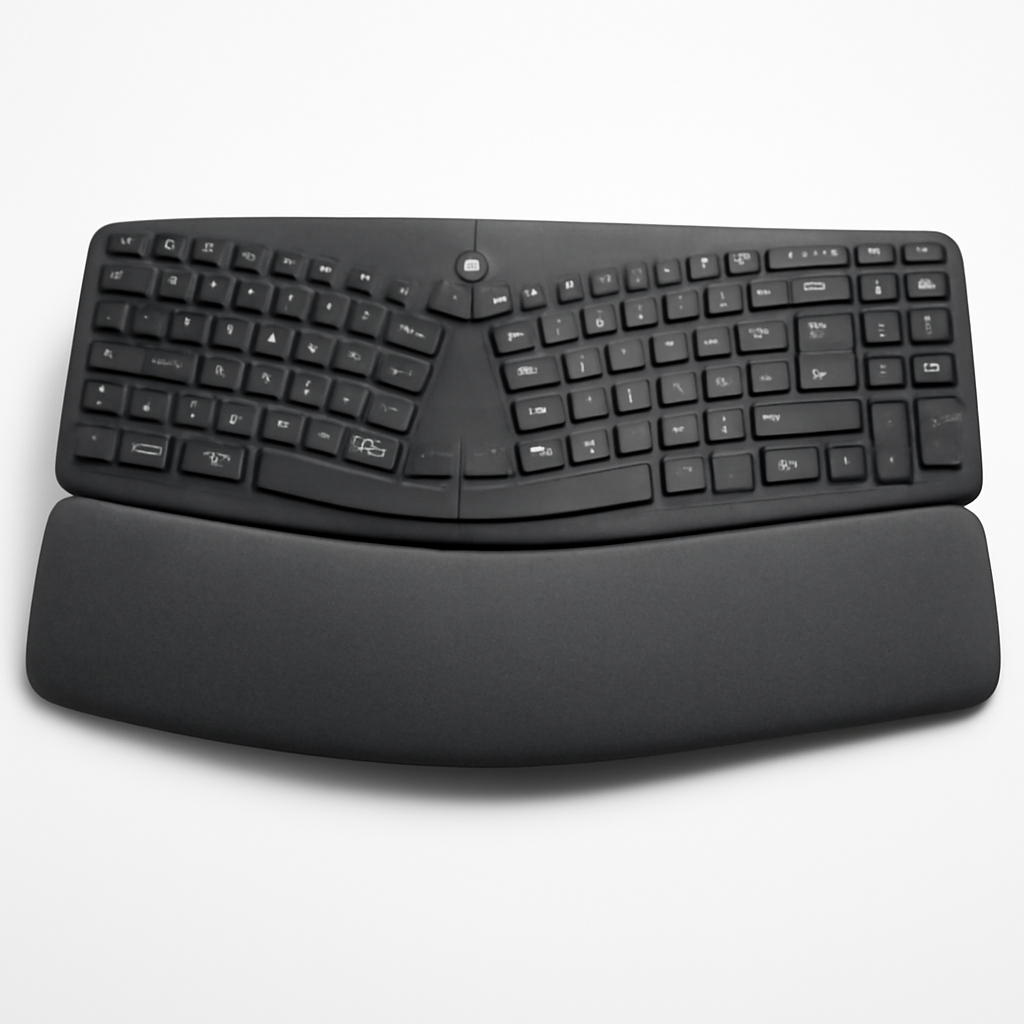
The Logitech Ergo K860 is the Goldilocks keyboard for typical office work. It’s not too radical, not too expensive, but hits the sweet spot for wrist comfort.
Key Features:
– Curved split keyboard with 4-degree tilt
– Integrated palm rests with memory foam
– Wireless connectivity (USB receiver included)
– Quiet keys suitable for shared offices
– Compatible with Windows, Mac, and Chromebooks
Pros:
– ✅ Significant improvement over standard keyboards
– ✅ Reasonable learning curve—you can start typing normally within a day
– ✅ Wireless with good battery life
– ✅ Contoured keycaps reduce finger strain on number row
– ✅ Available on Amazon with fast shipping
Cons:
– ❌ Not a full split—hands are closer together than some might prefer
– ❌ Palm rest is soft; some users prefer firmer support
– ❌ Not programmable; no macro keys
Best for: Office workers, remote employees, anyone new to ergonomic keyboards.
—
For Budget-Conscious Buyers: Microsoft Sculpt Ergonomic Keyboard
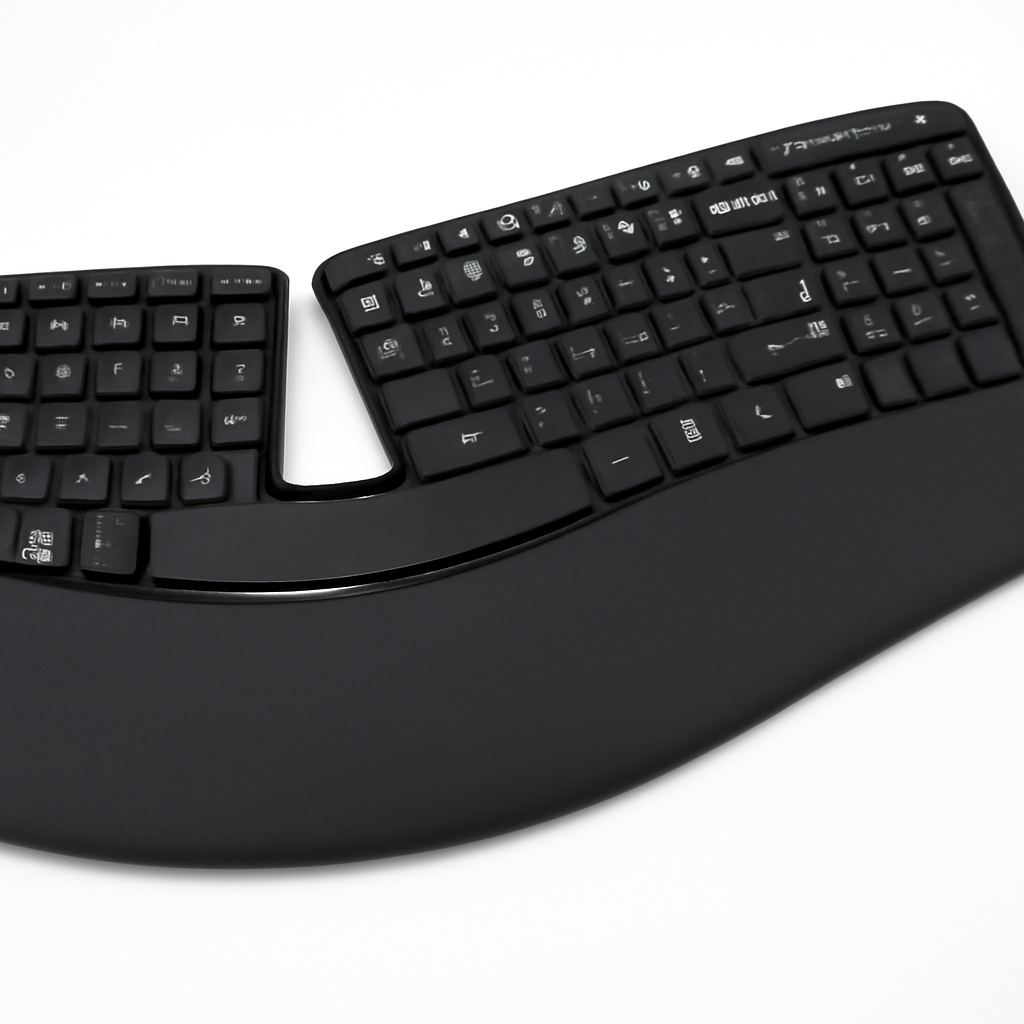
The Microsoft Sculpt Ergonomic Keyboard offers solid ergonomic benefits at the lowest entry price. If you’re skeptical about spending on a premium keyboard, start here.
Key Features:
– Gentle wave design (less aggressive than Logitech)
– Cushioned palm rest
– Quiet scissor switches
– Split number pad positioned to reduce reach
– Wired USB connection
Pros:
– ✅ Most affordable full ergonomic keyboard
– ✅ Super quiet—great for shared spaces
– ✅ Minimal learning curve
– ✅ Durable scissor switches
– ✅ Compact design saves desk space
Cons:
– ❌ Split is subtle; less benefit for severe wrist issues
– ❌ Wired connection (though single USB keeps desk clean)
– ❌ Not as premium-feeling as higher-end options
– ❌ Limited availability at retail
Best for: Budget shoppers, first-time ergonomic keyboard users, anyone with mild wrist discomfort.
—
For Coders and Heavy Typists: Kinesis Advantage Pro
The Kinesis Advantage Pro is the tank of ergonomic keyboards. It looks alien, feels weird for the first week, but users who stick with it report massive improvements in hand pain and typing speed.
Key Features:
– Fully separated split design with adjustable spacing
– Mechanical Cherry MX switches (silent options available)
– Contoured, concave keywells (your fingers rest in cups, not on flat keys)
– Fully programmable
– Macro keys and layer switching
– Tenting options for maximum angle customization
Pros:
– ✅ Most aggressive ergonomic design—best for chronic pain
– ✅ Mechanical switches are satisfying and durable
– ✅ Highly customizable; programmable for workflows
– ✅ Built for 8+ hours daily of intensive typing
– ✅ Steep learning curve is worth it for serious users
Cons:
– ❌ Significant adjustment period (2–4 weeks to feel natural)
– ❌ Expensive; premium price point
– ❌ Not portable; bulky design
– ❌ Mechanical switches are louder (not ideal for shared offices)
– ❌ Requires learning programmable features to get full value
Best for: Software developers, writers, anyone with existing carpal tunnel or tendonitis, remote workers with dedicated desk space.
—
For Premium Home Office: Herman Miller x Logitech Enspire
The Herman Miller x Logitech Enspire is the luxury option. Herman Miller’s furniture design philosophy meets Logitech’s keyboard engineering.
Key Features:
– Full split with adjustable tenting (0–40 degree angle)
– Premium materials and build quality
– Wireless with excellent battery life
– Responsive mechanical switches (quiet variant)
– Integrated cable management
– Designed to pair with Herman Miller workspace
Pros:
– ✅ Premium build quality and aesthetics
– ✅ Fully adjustable tenting for perfect positioning
– ✅ Excellent for minimalist, high-end home offices
– ✅ Great mechanical switch feel
– ✅ Will last 5+ years of daily use
Cons:
– ❌ Very expensive; luxury price point
– ❌ Requires investment in proper desk setup
– ❌ Overkill for casual typing
– ❌ Aesthetic doesn’t suit all desk styles
Best for: Premium home offices, design-conscious professionals, people building a high-end ergonomic workspace.
—
How to Set Up Your Ergonomic Keyboard Correctly
An ergonomic keyboard only works if you set it up properly. Here’s the checklist:
1. Desk Height
Your desk should be positioned so your elbows are at 90 degrees when your arms hang naturally at your sides. Your wrists should be at the same height as your desk surface when your fingers are resting on the keyboard.
– Too high: Your shoulders rise, creating neck and shoulder strain
– Too low: Your wrists bend down unnaturally
2. Keyboard Position
Position the keyboard directly in front of you, not to one side. If it’s a split keyboard, center it so each hand is in line with its respective keypad.
3. Keyboard Angle
Your wrists should be neutral—not bent backward (angled up), not bent forward (angled down), and not twisted to either side. For most people, this means:
– A slight downward slope (negative tilt) of 5–15 degrees
– OR flat placement (0 degrees)
– Avoid upward slopes entirely
4. Chair Height and Back Support
A good ergonomic keyboard is only half the solution. You need:
– A chair with lumbar support
– Feet flat on the floor (or footrest) with knees at 90 degrees
– Armrests adjusted so your forearms are parallel to the ground
5. Monitor Position
Your screen should be 20–26 inches away, with the top of the monitor at or slightly below eye level. If you’re looking down at your screen, you’ll create neck strain that negates keyboard ergonomics.
6. Break Schedule
Even with the best keyboard, take a 5-minute break every hour. Stand, stretch, rest your hands. Ergonomic equipment reduces strain, but movement is also essential.
—
Ergonomic Keyboard vs. Standard Keyboard: Health Benefits
The Problem With Standard Keyboards
Standard keyboards force your hands into a problematic position:
– Wrists are bent inward (ulnar deviation) at an unnatural angle
– Forearms rotate inward (pronation), creating tension in the forearms
– Shoulders roll forward, tightening chest muscles and creating upper back pain
– Repetitive motion in this compromised position leads to inflammation
Over months and years, this can develop into:
– Carpal tunnel syndrome: Nerve compression in the wrist causing numbness and tingling
– Tendonitis: Inflammation of tendons in the forearm and wrist
– Cubital tunnel syndrome: Nerve compression at the elbow
– Thoracic outlet syndrome: Nerve and blood vessel compression in the neck and shoulders
How Ergonomic Keyboards Help
An ergonomic keyboard addresses this by:
1. Keeping wrists neutral so no nerve is compressed
2. Reducing repetitive strain through better positioning
3. Improving posture by encouraging proper alignment
4. Decreasing inflammation by removing constant tension
Clinical Evidence
Studies show:
– Users of split keyboards report 30–40% reduction in wrist pain within 4 weeks
– Ergonomic keyboards reduce typing errors by 5–10% (fewer awkward reaches)
– Prevention is more effective than treatment—investing now saves thousands in physical therapy later
Bottom line: If you type more than 3 hours daily, an ergonomic keyboard isn’t luxury—it’s preventive medicine.
—
Price Guide: Budget to Premium Options
Budget: $40–$80
Best pick: Microsoft Sculpt Ergonomic Keyboard
– Genuine ergonomic benefits at entry price
– Good for testing if ergonomic keyboards work for you
– Modest improvement over standard keyboard
Mid-Range: $80–$150
Best pick: Logitech Ergo K860
– Sweet spot for most office workers
– Noticeable comfort improvement
– Good build quality and reliability
– Most popular recommendation for home offices
Other options:
– Kinesis Freestyle2 (if you want more split width)
– Perixx Periboard (mechanical option under $100)
Premium: $150–$250
Best pick: Herman Miller x Logitech Enspire
– Furniture-grade build quality
– Adjustable tenting for perfect positioning
– Beautiful design
– Worth it if you’re building a premium workspace
Specialist/Gaming: $250–$350+
Best pick: Kinesis Advantage Pro
– Most aggressive ergonomic design
– Fully programmable
– Mechanical switches
– Steep learning curve justified by benefits
– Best for coders, writers, and people with existing injuries
—
FAQs About Ergonomic Keyboards
Will an ergonomic keyboard immediately stop my wrist pain?
No. Pain relief usually takes 2–4 weeks as your hands adjust to proper positioning and inflammation decreases. If you have serious pain, see a physical therapist in parallel with using an ergonomic keyboard.
How long does it take to adjust to an ergonomic keyboard?
Most people adjust within 1–3 days for curved keyboards like the Logitech. Full split keyboards like Kinesis take 2–4 weeks. During adjustment, your typing speed may drop 10–20% initially, then improve.
Can I switch between ergonomic and standard keyboards?
Yes, but it’s best to pick one and stick with it during your adjustment period. Switching back and forth extends the learning curve and can create confusion in muscle memory.
Are ergonomic keyboards good for gaming?
Some are. Mechanical ergonomic keyboards (like Kinesis) work fine for gaming. Avoid overly separated split designs if you need quick keyboard shortcuts. Many gamers prefer standard gaming keyboards for faster response on edge keys.
Should I also get an ergonomic mouse?
Yes. An ergonomic keyboard without an ergonomic mouse leaves half the problem unsolved. Vertical or contoured mice reduce wrist rotation and strain. Combine an ergonomic keyboard with a good ergonomic mouse for maximum benefit.
Which ergonomic keyboard is best for Mac?
All the keyboards mentioned here work with Mac. The Logitech Ergo K860 is particularly good for Mac users due to its wireless connectivity and compatibility. The Microsoft Sculpt also works well but has Windows-style keys (easily remappable in Mac settings).
Do I need a wrist rest if I have an ergonomic keyboard?
A good palm rest is built into most ergonomic keyboards. If you type for very long sessions (8+ hours), a separate wrist rest can provide additional support during breaks. However, your wrist should never rest on the rest while actively typing—it should only be supported when your hands are still.
What’s the difference between ergonomic and mechanical keyboards?
These are different things:
– Ergonomic = shape and positioning of the keyboard
– Mechanical = type of switch under each key
You can have a mechanical ergonomic keyboard (Kinesis) or a membrane ergonomic keyboard (Logitech, Microsoft). Mechanical switches are more durable and responsive; membranes are quieter.
Will an ergonomic keyboard improve my typing speed?
Initially, no—you may type slower during adjustment. But after 4 weeks, most users report faster, more accurate typing because they make fewer errors and finger reaches are shorter.
—
Our Verdict
The best ergonomic keyboard depends on your situation:
Choose Logitech Ergo K860 if:
– You’re new to ergonomic