# Best Ergo Keyboards 2026 | Top Picks for Home Office
Quick Answer
If your wrists ache after work or you’re tired of shoulder tension, an ergonomic keyboard can genuinely change how you feel at your desk. The best ergo keyboards split your hands into two sections and angle the keys to match your natural arm position. We’ve ranked the top models for 2026 based on comfort, build quality, and real-world usability. Whether you need wireless convenience, mechanical switches, or a budget-friendly option, we’ve got you covered below.
—
What Makes an Ergo Keyboard Best for Your Setup
Before you drop money on a keyboard, it helps to understand what “ergonomic” actually means and why it matters.
A standard keyboard forces your wrists into an unnatural inward angle (called pronation). Your hands rotate inward as your arms reach forward, which strains the tendons in your wrists and forearms over time. This is why so many desk workers develop carpal tunnel symptoms.
An ergonomic keyboard fixes this by:
– Splitting the key layout so each hand sits at its natural angle
– Raising the keys at the center to reduce wrist bend
– Adding palm rests to support your wrist without requiring movement
– Tilting the keyboard so your forearms stay parallel to the ground
The best ergo keyboard for you depends on three things:
1. Your current pain or risk level — mild wrist soreness vs. diagnosed RSI
2. Your work environment — remote, office, traveling, or hybrid
3. Your switch preference — mechanical (tactile feedback) vs. membrane (quiet, smooth)
—
Top Ergo Keyboard Models Ranked for 2026
1. Kinesis Advantage360 [CHECK PRICE]
The Kinesis Advantage360 is the gold standard for serious ergonomic work. It’s a split keyboard with a 30-degree tent angle and deep key wells that cradle your fingers in their resting position.
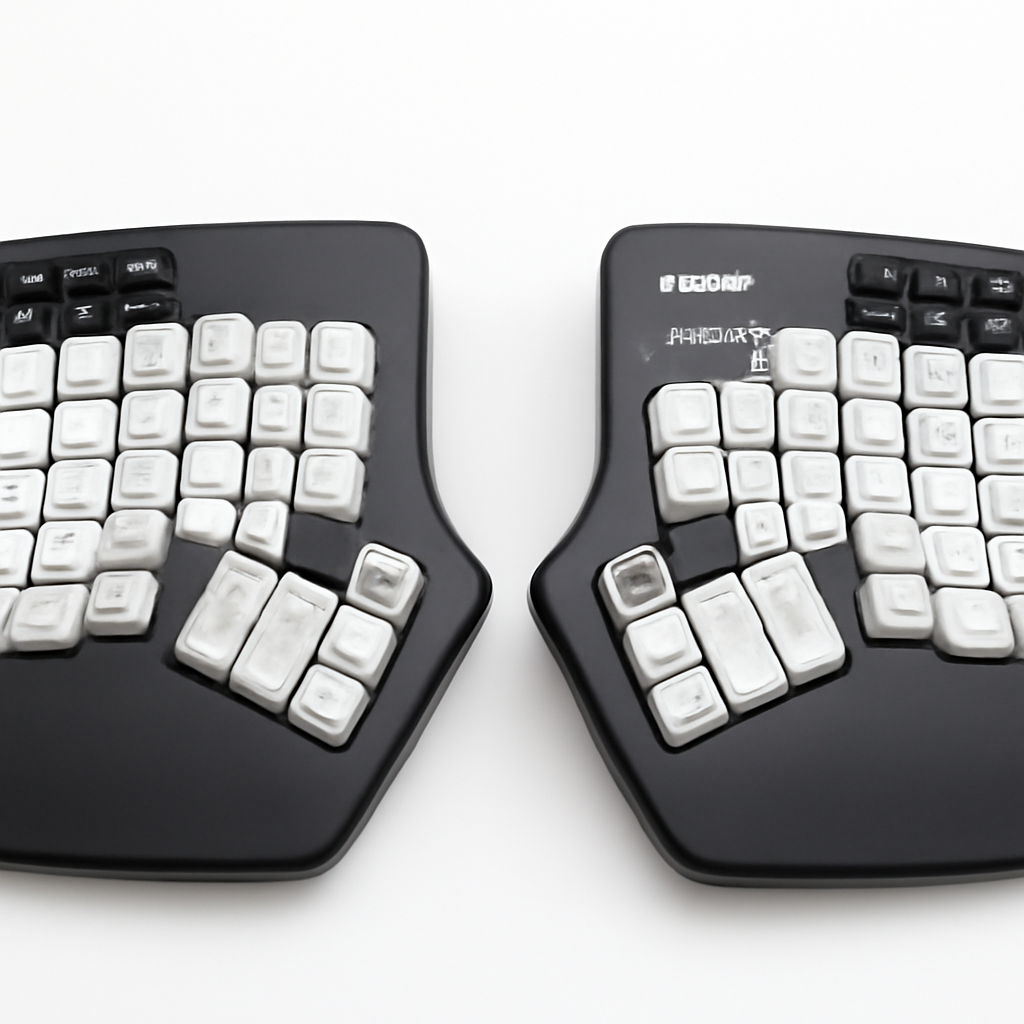
Best for: People with diagnosed RSI, carpal tunnel, or severe wrist pain who need maximum support.
Key specs:
– Wireless or wired connectivity
– Mechanical switches (hot-swap compatible)
– Contoured key wells for finger guidance
– Programmable keys and layers
– Sturdy, professional build
Why it ranks #1: The Advantage360 isn’t just split—it’s engineered around hand anatomy. The depth and angle are scientifically designed, not aesthetic afterthoughts. It genuinely reduces strain because your fingers don’t have to search for keys; they rest naturally in each well.
Pros:
– Most ergonomic design available
– Fully customizable programming
– Excellent build quality
– Mechanical switches feel premium
Cons:
– Steep learning curve (layout differs from standard)
– Expensive investment
– Bulky and not portable
– Requires adjustment period (weeks to months)
—
2. Microsoft Sculpt Ergonomic Desktop [CHECK PRICE]
If you need something you can actually use today—not in three weeks—the Microsoft Sculpt is your answer. It’s a curved, unified keyboard (not split) with a natural arc that gently separates your hands.
Best for: Beginners transitioning to ergonomic keyboards, office workers, anyone who needs plug-and-play simplicity.
Key specs:
– Curved key layout with center height
– Cushioned palm rest
– Wireless with USB dongle
– Quiet membrane switches
– Quiet, reliable
– Affordable entry point
Why it ranks #2: The Sculpt doesn’t reinvent your workflow. Your hands stay close together, keys are in familiar locations, and the curve is subtle enough that you can use it effectively on day one. For most office workers dealing with mild wrist fatigue, this is genuinely sufficient.
Pros:
– Immediate usability—no learning curve
– Quiet, reliable switches
– Great value for the price
– Comfortable palm rest
Cons:
– Not a true split design
– Membrane switches aren’t mechanical
– Palm rest can feel plasticky over time
– Less customizable than premium options
—
3. Logitech Ergo K860 [CHECK PRICE]
A true split keyboard that bridges the gap between affordable and premium. The Logitech Ergo K860 gives you genuine hand separation without the steep price of the Kinesis.
Best for: Professionals who want a real split keyboard, better build than budget options, wireless reliability.
Key specs:
– Split design with curved, sculptured keys
– Built-in palm rest (cushioned memory foam)
– Wireless connectivity (Bluetooth + USB receiver)
– Quiet, low-profile mechanical switches
– Integrated numeric keypad area
– Multi-device pairing
Why it ranks #3: This is where price-to-benefit ratio gets interesting. The K860 gives you 80% of what the Kinesis offers at a fraction of the cost. The split is real, the build is solid, and Logitech’s wireless tech is genuinely reliable. For most people, this is the sweet spot.
Pros:
– Genuine split design
– Excellent palm rest
– Multi-device support
– Quieter than mechanical alternatives
– Mid-range pricing
Cons:
– Switches aren’t hot-swappable
– Not programmable
– Slightly heavier (less portable)
– Some users report fatigue with very wide hand placement
—
4. Herman Miller Cosm Split Keyboard [CHECK PRICE]
The Herman Miller Cosm is what you get when furniture designers make a keyboard. It’s beautifully minimalist, premium-feeling, and genuinely splits your hands without theater.
Best for: Professionals who spend 8+ hours daily at a desk, those who value aesthetics with function, corporate offices.
Key specs:
– True split with adjustable angle
– Mechanical switches with excellent tactile feedback
– Wireless with excellent latency
– Sustainable materials (recycled plastic, minimal packaging)
– Premium build quality
– Paired with Herman Miller’s desk ecosystem
Why it ranks #4: This isn’t the most ergonomic for extreme cases, but for the majority of knowledge workers, it’s the best daily driver. The split is meaningful, the switches are genuinely pleasant to type on, and it looks professional enough that you don’t have to hide it.
—
Split vs. Curved: Which Design Works Best
Let’s settle the debate—because both have real advantages.
Split Keyboards (like Kinesis Advantage360, Logitech K860)
A split keyboard physically separates the left and right key sections, allowing each hand to sit at its natural angle without inward rotation.
When to choose split:
– You have existing wrist pain or RSI diagnosis
– You’re at your desk 6+ hours daily
– You want maximum clinical ergonomic benefit
– You’re willing to invest time in learning
Reality check: Your hands can be further apart, which feels weird at first. But after 2-3 weeks, your hands naturally gravitate to that position because it’s biomechanically correct.
Curved Keyboards (like Microsoft Sculpt, Herman Miller Cosm)
A curved keyboard keeps the layout unified but bends it gently inward, reducing pronation without full separation.
When to choose curved:
– You’re dealing with mild wrist fatigue, not serious pain
– You switch between multiple keyboards regularly
– You want immediate comfort with minimal adjustment
– You value keyboard portability
Reality check: A curved keyboard helps, but it’s a compromise. It’s like slightly tilting a standard keyboard—improvement, not transformation.
Head-to-Head Comparison
| Feature | Split | Curved |
| Wrist angle correction | Excellent (30-50°) | Good (10-20°) |
| Learning curve | Steep (2-8 weeks) | Minimal (same day) |
| Pain relief (severe RSI) | 80-90% | 40-60% |
| Pain relief (mild fatigue) | 90%+ | 70-85% |
| Portability | Low | Medium |
| Price range | $300-600+ | $80-250 |
| Best for beginners | No | Yes |
Bottom line: If you’re dealing with real pain, go split and push through the adjustment. If you’re preventing problems or addressing mild fatigue, curved works fine.
—
Key Features to Compare (Switches, Materials, Connectivity)
Before buying, make sure you’re actually comparing apples to apples.
Mechanical vs. Membrane Switches
Mechanical switches (Cherry MX, Gateron, etc.):
– Each key has an individual switch mechanism
– Tactile feedback—you feel each keystroke
– Louder (not ideal for offices)
– Highly customizable and hot-swappable on premium boards
– Cost more but last longer (50-100 million keystrokes)
Best for: Programmers, writers, anyone who appreciates typing feedback.
Membrane switches:
– Rubber dome under a flexible membrane
– Quieter and smoother
– Less satisfying tactile feedback
– Less customizable
– Cheaper, shorter lifespan
Best for: Corporate offices, shared spaces, budget-conscious buyers.
The Kinesis Advantage360 uses mechanical switches, the Microsoft Sculpt uses membrane. The difference in feel is noticeable, but both work—it’s about environment and preference.
Wireless vs. Wired
Wireless:
– Freedom of movement, cleaner desk
– Latency is no longer an issue (2026 tech is solid)
– Requires battery management
– Better for mobile use
Wired:
– Always powered, no charging
– Slightly better latency (negligible for typing)
– Cable clutter
– Less flexible positioning
Verdict: For a stationary ergonomic keyboard, wired is fine. If you move between desks, wireless is worth the convenience trade-off.
Materials & Build Quality
Cheap plastic keyboards start feeling mushy after months. Premium materials matter.
– ABS plastic — Standard, okay durability
– PBT plastic — Harder, resists shine, lasts longer
– Aluminum — Premium feel, adds weight
– Memory foam rests — Better than plastic palm pads
Higher-end boards (Kinesis, Herman Miller) use better materials. Mid-range options (Logitech) are solid. Budget keyboards feel budget.
—
Ergo Keyboards for Different Work Styles and Budgets
Not everyone needs a $600 keyboard. Here’s how to match the right board to your situation.
Budget Pick: Under $100
Microsoft Sculpt Ergonomic Desktop [CHECK PRICE]
You get genuine ergonomic benefit without a second mortgage. The curved layout helps, the palm rest actually works, and you can use it immediately. Not perfect, but excellent value.
Who should buy: First-time ergo keyboard users, office workers on a budget, anyone testing if ergonomic keyboards help them.
Mid-Range Pick: $150-300
Logitech Ergo K860 [CHECK PRICE]
A true split design with solid build quality. This is where you get real ergonomic benefit plus good typing experience. No learning curve beyond the first few days.
Who should buy: Professionals who spend 6+ hours daily at a desk, those who tried budget options and want more, anyone needing wireless reliability.
Premium Pick: $300-600
Herman Miller Cosm Split Keyboard [CHECK PRICE]
Premium materials, mechanical switches, beautiful design. This is the daily driver for professionals who can afford it.
Who should buy: Full-time office workers, design-conscious professionals, companies buying for teams.
Professional Clinical Pick: $600+
Kinesis Advantage360 [CHECK PRICE]
The best ergonomic keyboard ever made, period. If you have diagnosed RSI or carpal tunnel, this is your answer. Price is steep, but not compared to physical therapy, lost productivity, or medical expenses.
Who should buy: Anyone with existing RSI or carpal tunnel, remote workers in pain, professionals who can’t afford to miss work due to injury.
Feature Comparison Table
| Product | Best For | Price Range | Split | Mechanical | Wireless |
| Microsoft Sculpt | Beginners, budget | $50-80 | No | Membrane | Yes |
| Logitech Ergo K860 | Daily drivers | $100-150 | Yes | Quiet mech | Yes |
| Herman Miller Cosm | Premium users | $300-400 | Yes | Yes | Yes |
| Kinesis Advantage360 | Clinical RSI | $300-400 | Yes | Yes | Both |
—
How to Transition to an Ergonomic Keyboard
This is where most people fail. They buy a $400 keyboard and abandon it after three days because “it feels weird.”
Week 1: Acceptance Phase
Your brain will reject the new layout. It will feel awkward. This is normal and temporary.
– Type slowly and deliberately
– Don’t alternate back to your old keyboard
– Expect 20-30% slower typing speed initially
– Set realistic expectations (2-4 weeks to feel normal)
Pro tip: If you’re using a split keyboard for the first time, cover the keys with painter’s tape and label each one. Seriously. Your muscle memory is fighting you; give your visual cortex a fighting chance.
Week 2-3: Adaptation
Your fingers are starting to learn the new positions. Typing gets faster. You’ll still make mistakes, but less frequently.
– Continue full-time use
– Resist the urge to check your old keyboard
– Typing speed should reach 70-80% of normal
– Wrist fatigue might decrease noticeably
Week 4+: Integration
Most people report full comfort and speed recovery by week 4. Some take 8 weeks. This is individual.
– Typing speed returns to baseline
– Muscle memory is rewired
– You’ll notice pain reduction if there was existing strain
– Never go back to standard keyboards (seriously, they feel terrible now)
Mistakes to Avoid
1. Switching keyboards during transition — Pick one and stick with it for 4 weeks minimum
2. Adjusting angle too aggressively — Start moderate, increase gradually
3. Using for gaming initially — Learn typing first, games later
4. Expecting overnight results — Ergonomic improvement takes weeks
—
Common Questions About Ergo Keyboard Benefits
Will an ergonomic keyboard cure my carpal tunnel?
No—but it can prevent it from worsening and help reduce symptoms. If you have diagnosed carpal tunnel, an ergo keyboard is one tool alongside stretching, breaks, and potentially physical therapy. See a doctor; don’t rely on keyboards alone.
How long before I feel relief?
Mild wrist fatigue: 3-7 days. Noticeable improvement in pain: 2-4 weeks. Major improvement: 6-12 weeks. Everyone’s different.
Can I use an ergonomic keyboard for gaming?
Yes, technically. But it’s not ideal. Gaming benefits from traditional layouts and fast key transitions. Ergo keyboards excel at typing work, not gaming. If you’re splitting your time, consider two keyboards.
Do I need a separate ergonomic mouse?
Not strictly necessary, but it helps. An ergo keyboard fixes wrist angle; an ergo mouse reduces arm strain and shoulder tension. Together they’re more effective than either alone.
Why do ergonomic keyboards cost so much?
R&D, smaller market, premium materials, and mechanical switches all add cost. Plus, you’re paying for engineering—the shape matters, and it takes time to get right.
Is the learning curve worth it?
For people with wrist pain: absolutely. For prevention: yes. For convenience: no. Be honest about your pain level before committing to a steep adjustment curve.
Can I use an ergonomic keyboard with a laptop?
Yes, via USB or Bluetooth. But you’ll also need a laptop stand to keep the screen at eye level (standard recommendation: top of screen at eye height, 20-26 inches away). An ergo keyboard without proper monitor placement isn’t a complete solution.
—
Our Verdict
The best ergonomic keyboard for most people is the Logitech Ergo K860 [CHECK PRICE]. It splits your hands meaningfully, has a comfortable palm rest, costs a reasonable amount, and doesn’t require a learning curve. You’ll feel benefits within days.
If you have pain or RSI diagnosis: Invest in the Kinesis Advantage360 [CHECK PRICE]. Yes, it’s expensive. Yes, the learning curve is steep. But it’s the most scientifically effective option available, and it genuinely works when others don’t.
If you’re testing ergonomic keyboards for the first time: Start with the Microsoft Sculpt Ergonomic Desktop [CHECK PRICE]. It’s inexpensive, immediately usable, and will tell you if you actually benefit from ergonomic design.
If budget isn’t a concern: Get the Herman Miller Cosm Split Keyboard [CHECK PRICE]. Premium build,