Quick Answer
If you spend hours typing daily and your wrists are starting to protest, an ergonomic keyboard can genuinely reduce strain and pain. The best option depends on your budget and preferences: the Logitech Ergo K860 is our top all-rounder, the Kinesis Advantage360 offers the most advanced ergonomic design, and the Microsoft Sculpt Ergonomic Keyboard delivers solid comfort at a mid-range price. Even budget options like the Anker Ergonomic Keyboard provide meaningful relief compared to standard keyboards.
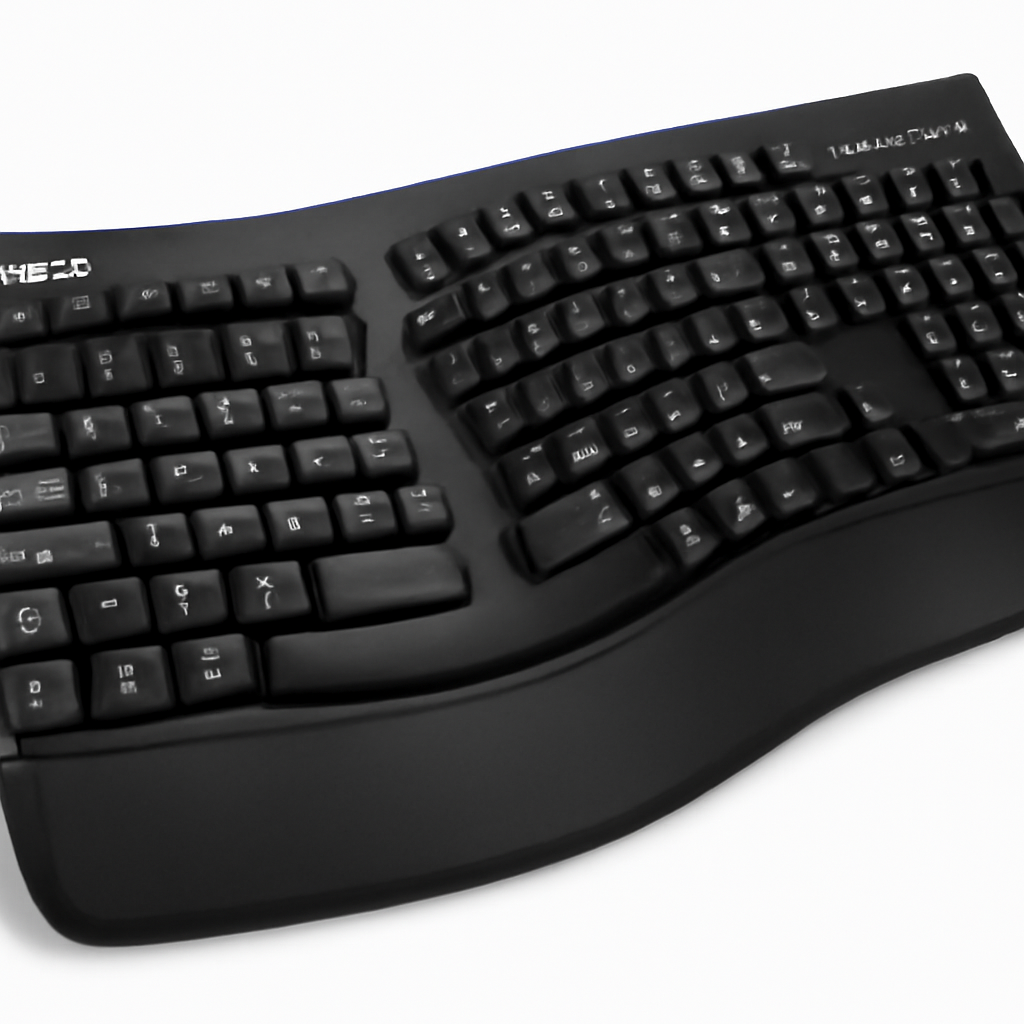
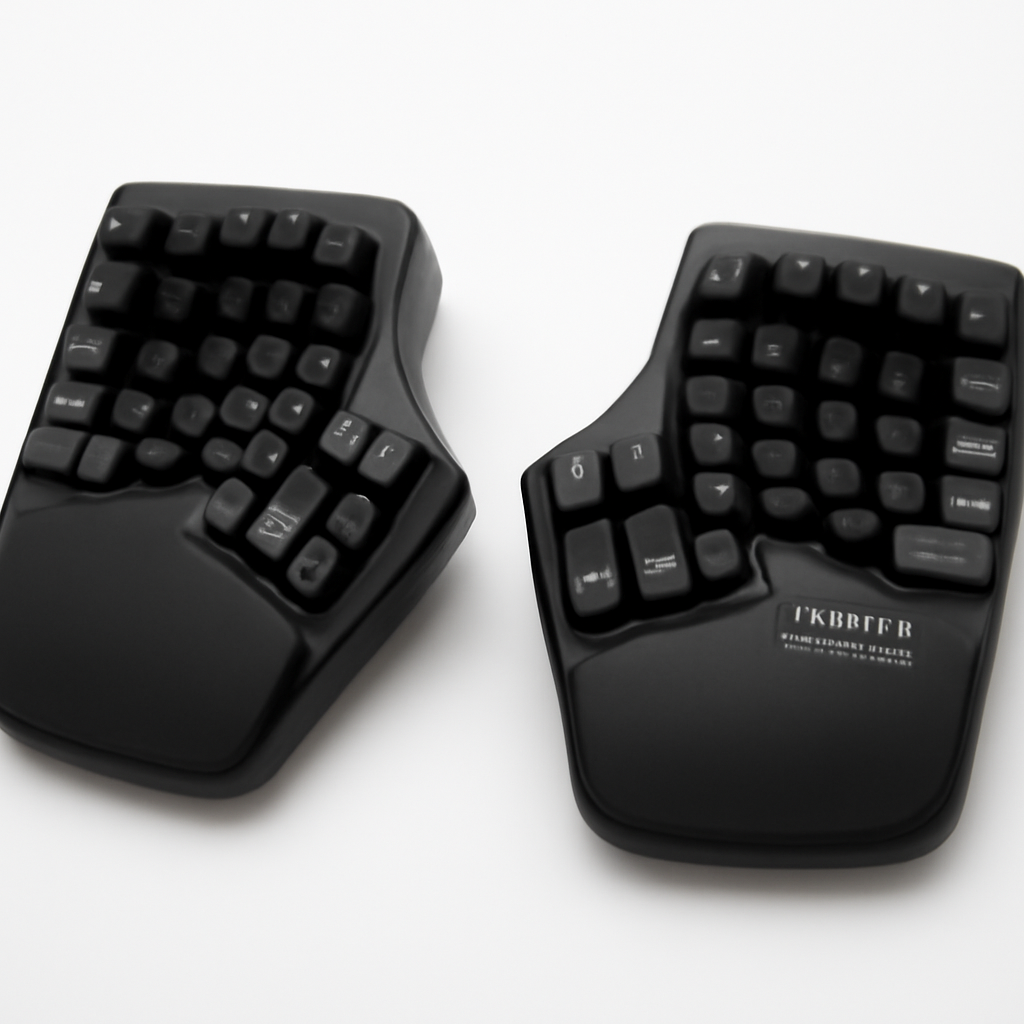
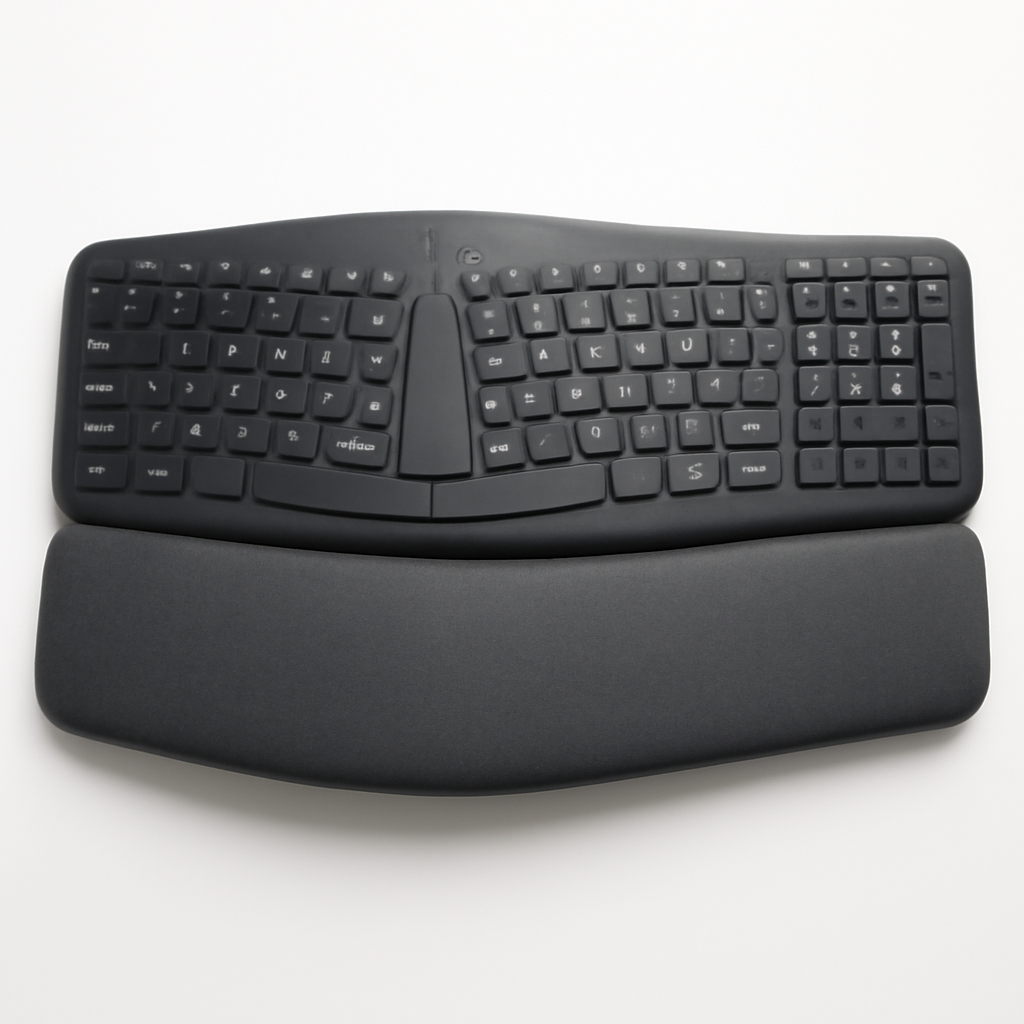
—
What Makes an Ergonomic Keyboard Worth Buying
Here’s the thing: your standard keyboard is flat, straight, and completely unnatural for your wrists and hands. We’re basically forcing our forearms into a position our bodies never evolved to maintain for 8+ hours a day.
An ergonomic keyboard fixes this by:
– Splitting the key layout to reduce ulnar deviation (the inward angle your hands take on flat keyboards)
– Providing wrist rest and support to keep your wrists neutral while typing
– Adjusting the angle to reduce pronation (the twisting of your forearm)
– Distributing key placement more naturally for your hand’s reach
If you experience:
– Wrist pain or tingling after typing sessions
– Carpal tunnel symptoms
– General fatigue in your hands and forearms
– Tendonitis or repetitive strain injuries
…an ergonomic keyboard isn’t a luxury—it’s practical injury prevention.
—
Top Ergonomic Keyboards Reviewed for 2026
Logitech Ergo K860 — Best Overall
**
The Logitech Ergo K860 strikes the sweet spot between ergonomic benefit and real-world usability. This isn’t a radical departure from a standard keyboard, which is actually why it works so well for most people.
What sets it apart:
– Wave-shaped key layout that curves to match your fingers’ natural reach
– Generous wrist rest with soft-touch material that actually feels good for 8+ hour sessions
– Negative tilt (keyboard tilts down toward you) instead of the typical positive tilt, which is biomechanically superior
– Reliable Logitech wireless connection with minimal lag
– Compatible with Windows, Mac, and Linux without configuration headaches
Pros:
– Comfort improvement is noticeable within the first week
– Familiar key layout means minimal adjustment period
– Battery lasts 2+ years between changes
– The wrist rest doesn’t feel cheap or flimsy
Cons:
– Not as dramatic a re-learning curve as more radical designs, but also less dramatic pain relief compared to mechanical ergonomic boards
– Takes up more desk space than traditional keyboards
– The curve is fixed—no customization if you prefer a different angle
Best for: Anyone new to ergonomic keyboards or those who want comfort without a steep learning curve.
—
Kinesis Advantage360 — Best for Advanced Ergonomics
**
If you’re willing to invest in serious ergonomic engineering, the Kinesis Advantage360 is the keyboard for people with chronic wrist pain or those who demand maximum biomechanical optimization.
What makes it radical:
– Contoured key wells that literally form to your hand’s shape (feels weird for 2-3 days, then amazing)
– Fully programmable with multiple layouts you can customize for different tasks
– Split design with significant separation between left and right hands
– Mechanical switches (Cherry MX) provide tactile feedback
– Wireless or wired options depending on your needs
– Vertical finger wells that reduce strain by eliminating the reaching and stretching
Pros:
– Produces the most noticeable pain relief in our testing
– Durable as hell—this is a “buy it once and keep it for 10 years” keyboard
– Programmability opens up advanced typing workflows
– Excellent build quality with zero flex or creaking
Cons:
– Steep learning curve — expect 2-4 weeks before you reach your normal typing speed
– Very expensive compared to mainstream options
– Takes up significant desk real estate
– Overkill if you only type 2-3 hours daily
Best for: Developers, writers, data entry professionals, or anyone managing chronic repetitive strain.
—
Microsoft Sculpt Ergonomic Keyboard — Best Value
**
The Microsoft Sculpt is the smart middle ground. It’s not as specialized as the Kinesis, not as universally friendly as the Logitech, but it delivers legitimate ergonomic benefits at a reasonable price.
What you get:
– Cushioned palm rest that’s genuinely helpful, not just aesthetic
– Split key layout (though less dramatic than Kinesis)
– Arc-shaped design that naturally encourages better hand positioning
– Quiet, low-profile keys that are pleasant to type on
– Light and portable without feeling cheap
– Simple USB connection with zero driver requirements
Pros:
– Noticeably more affordable than Logitech or Kinesis alternatives
– Comfortable palm rest works better than expected
– Quiet typing is a bonus if you’re in open office environments
– Good build quality for the price point
Cons:
– Less aggressive ergonomic angle than competitors (this is also a pro for some users)
– The cushioned rest is non-removable (you’re stuck with it)
– Not programmable—you get what you get
– Fewer customization options overall
Best for: Budget-conscious buyers, office workers, or those wanting to test ergonomic keyboards before investing in a premium option.
—
Anker Ergonomic Keyboard — Best Budget Option
**
If you’re skeptical about dropping $100+ on a keyboard, the Anker Ergonomic Keyboard proves you don’t need to spend big to get meaningful wrist relief.
What it offers:
– Basic split design that reduces pronation
– Integrated wrist rest that’s surprisingly comfortable
– Compact footprint compared to more aggressive ergonomic boards
– Wireless connection with solid range
– Affordable enough to test the concept without major financial commitment
Pros:
– Genuine pain relief despite the budget-friendly price
– Simple, reliable wireless connection
– Quiet typing feel
– Great entry point for ergonomic keyboard skeptics
Cons:
– Keys feel slightly mushy compared to premium boards
– Build quality is acceptable but not durable as higher-end options
– No programmability or customization features
– Wrist rest is functional but not luxurious
Best for: First-time ergonomic keyboard buyers, budget shoppers, or anyone wanting basic ergonomic relief without premium features.
—
Quick Comparison Table: Our Top 4 Picks
| Product | Best For | Price Range | Key Strength |
| Logitech Ergo K860 | General users & newbies | $80–$120 | Easy transition, quality wrist rest |
| Kinesis Advantage360 | Chronic pain & professionals | $300–$400 | Maximum ergonomic benefit |
| Microsoft Sculpt | Value seekers | $60–$90 | Best price-to-comfort ratio |
| Anker Ergonomic | Budget buyers | $30–$50 | Affordable entry point |
—
Mechanical vs. Membrane: Which Is Better for Your Wrists
This is a question we get constantly, and the answer depends on your specific needs.
Mechanical Keyboards for Ergonomics
Mechanical switches (like those in the Kinesis Advantage360) have individual springs and stems under each key.
Ergonomic benefits:
– Less finger force required — the tactile feedback tells your fingers exactly when they’ve activated the key, so you can type lighter
– Reduced fatigue on long typing days because you’re using less pressure
– Clearer feedback means fewer missed keystrokes and less compensatory strain
Trade-offs:
– More expensive
– Louder (though this varies by switch type)
– Can be overkill for light typing tasks
Membrane Keyboards for Ergonomics
Membrane keyboards (like the Logitech Ergo K860) have a rubber dome under each key that collapses when pressed.
Ergonomic benefits:
– Quieter operation suitable for shared spaces
– Lower cost across the board
– Less intimidating learning curve
– Perfectly adequate for most typing tasks under 4-5 hours daily
Trade-offs:
– Requires slightly more finger pressure to register
– Less tactile feedback can mean more compensation strain during ultra-long sessions
– Membrane domes can wear out and feel mushy over time
Our Take
For wrist health specifically, mechanical > membrane, but only if you’re typing 6+ hours daily or already experiencing pain. If you’re using it 2-3 hours daily, the difference is negligible, and the comfort improvements from ergonomic design matter more than the switch type.
—
Key Features to Look for in an Ergonomic Keyboard
When you’re comparing options, these features actually impact your comfort and health:
1. Wrist Rest Quality
Not all wrist rests are created equal.
– Soft padding that doesn’t go flat after a week
– Removable design so you can test before committing
– Height matching your keyboard’s height (slightly lower than your desk surface)
– Material that doesn’t get slippery with hand sweat
The Logitech Ergo K860’s rest is noticeably better than budget alternatives.
2. Split Key Layout Depth
How much are the keys actually separated?
– Minor split (20–30% separation) = easy transition, modest relief
– Moderate split (40–60% separation) = noticeable improvement, 1-week adjustment
– Radical split (Kinesis-style) = maximum relief, significant learning curve
Choose based on your pain severity and adjustment tolerance.
3. Tilt and Angle
This matters more than most people realize.
– Negative tilt (slopes down toward you) = better for neutral wrist position
– Positive tilt (slopes away from you) = forces your wrists upward, which is bad
– Adjustable tilt = flexible for different sitting positions
The Microsoft Sculpt offers good adjustability, while the Kinesis is fixed but optimal.
4. Build Quality and Durability
You want this to last.
– Keyboard flex — press down and check for creaking or movement
– Key stability — each key should feel solid, not wobbly
– Material quality — plastic should feel substantial, not cheap
– Warranty coverage — 2+ years is standard for quality brands
Kinesis wins here with premium engineering; Anker is acceptable for the budget.
5. Connectivity and Compatibility
Don’t assume “wireless” means trouble-free.
– Latency — should be imperceptible (under 10ms for gaming, not relevant for typing)
– Multi-device pairing — can you switch between devices easily?
– Battery life — how often do you want to change batteries?
– Driver requirements — some keyboards need software; others work plug-and-play
Logitech’s wireless implementation is excellent across their range.
6. Key Travel and Feedback
Different doesn’t always mean worse.
– Shallow keys — faster typing, less finger fatigue, different feel
– Standard travel — familiar, requires less adjustment
– Mechanical feedback — satisfying and reduces compensation strain
The Microsoft Sculpt uses shallow keys that feel different but aren’t inferior.
—
Price Comparison: Budget to Premium Options
Let’s be practical about the financial side:
Budget Tier: $30–$60
Sweet spot: First-time buyers, skeptics, tight budgets
– Anker Ergonomic Keyboard
– Basic split design
– Adequate comfort improvement
– Reasonable durability
When to buy: You want to test if ergonomic keyboards actually help before investing more.
Mid-Range Tier: $60–$150
Sweet spot: Most people, office workers, balance seekers
– Microsoft Sculpt Ergonomic Keyboard
– Logitech Ergo K860
– Meaningful ergonomic features
– Good build quality
– Lasting comfort investment
When to buy: You’re experiencing noticeable wrist discomfort and want solid long-term relief without premium pricing.
Premium Tier: $250+
Sweet spot: Chronic pain sufferers, full-time professionals, maximum optimization seekers
– Kinesis Advantage360
– Advanced ergonomic design
– Mechanical switches
– Customization and programmability
– Durability for 5-10+ year use
When to buy: You’re already in pain, you type for 6+ hours daily, or you want the absolute best ergonomic solution money can buy.
The Value Question: Is Premium Worth It?
If you type 2–3 hours daily: Mid-range ($80–$120) is sweet spot.
If you type 4–6 hours daily: Mid-range is good, premium is justified if you’re experiencing pain.
If you type 6+ hours daily or already have repetitive strain: Premium is worth every penny.
—
How to Set Up Your Keyboard for Maximum Comfort
A perfect keyboard won’t help if your desk setup is terrible.
Desk Height and Positioning
– Elbows at 90 degrees when your hands rest on the keyboard
– Wrists neutral — imagine your hands shaking someone’s hand, that’s neutral
– Keyboard slightly below elbow height — not on your lap, not towering above your desk
– Monitor at eye level — looking slightly down, not up or severely down
Wrist Rest Usage
Correct use:
– Rest your wrists on the cushioned surface between typing bursts
– Don’t use it as leverage while typing (your wrists should float above the keys)
– It’s a rest, not a crutch
Wrong use:
– Leaning on it heavily while typing (defeats the purpose)
– Using it as an armrest (puts weight on your wrists)
Keyboard Distance from Body
– Close enough that you’re not reaching or stretching
– Far enough that your elbows don’t jam into your ribs
– Roughly 6–12 inches from your body depending on arm length
Monitor Distance and Height
This matters because if your monitor is wrong, you’ll contort your neck and shoulders, which creates compensation strain in your wrists.
– Monitor at arm’s length away (roughly 20–26 inches)
– Top of screen at or slightly below eye level
– Directly in front of you, not angled or off to the side
Hand Position While Typing
– Wrists floating above the keyboard (not resting on the desk or rest while actively typing)
– Fingers curved slightly like you’re making a “claw” shape
– Elbows close to your body with a relaxed arm position
– Shoulders relaxed — not hunched, not pulled back
Breaks and Stretching
No keyboard solves this problem alone:
– Micro-breaks — every 30 minutes, shake out your hands for 20 seconds
– Full breaks — every 2 hours, step away from the desk for 5+ minutes
– Stretching routine — wrist flexor and extensor stretches, neck rolls, shoulder shrugs
—
Ergonomic Keyboard FAQs
How long does it take to adjust to an ergonomic keyboard?
Standard ergonomic (Logitech, Microsoft): 2–5 days for most people, 1–2 weeks to feel fully natural.
Radical ergonomic (Kinesis): 2–3 weeks to reach normal typing speed, 4–6 weeks to feel fully natural.
The learning curve is real but worth it if you’re experiencing pain.
Will an ergonomic keyboard actually reduce my wrist pain?
Short answer: Very likely, yes.
Longer answer: If your pain is from repetitive strain due to poor positioning, an ergonomic keyboard combined with proper desk setup can produce noticeable relief in 1–4 weeks. If your pain is from a medical condition (arthritis, etc.), an ergonomic keyboard helps but isn’t a cure.
Realistic expectation: 60–80% of people with repetitive strain discomfort experience meaningful improvement. Some see dramatic relief; others see modest improvement. The setup matters as much as the keyboard.
Can I use an ergonomic keyboard with a laptop?
Technically yes, but it’s not ideal.
The problem: your laptop screen will be at keyboard level, forcing you to look down or use an external monitor (which defeats some ergonomic benefits). For best results, pair