Quick Answer
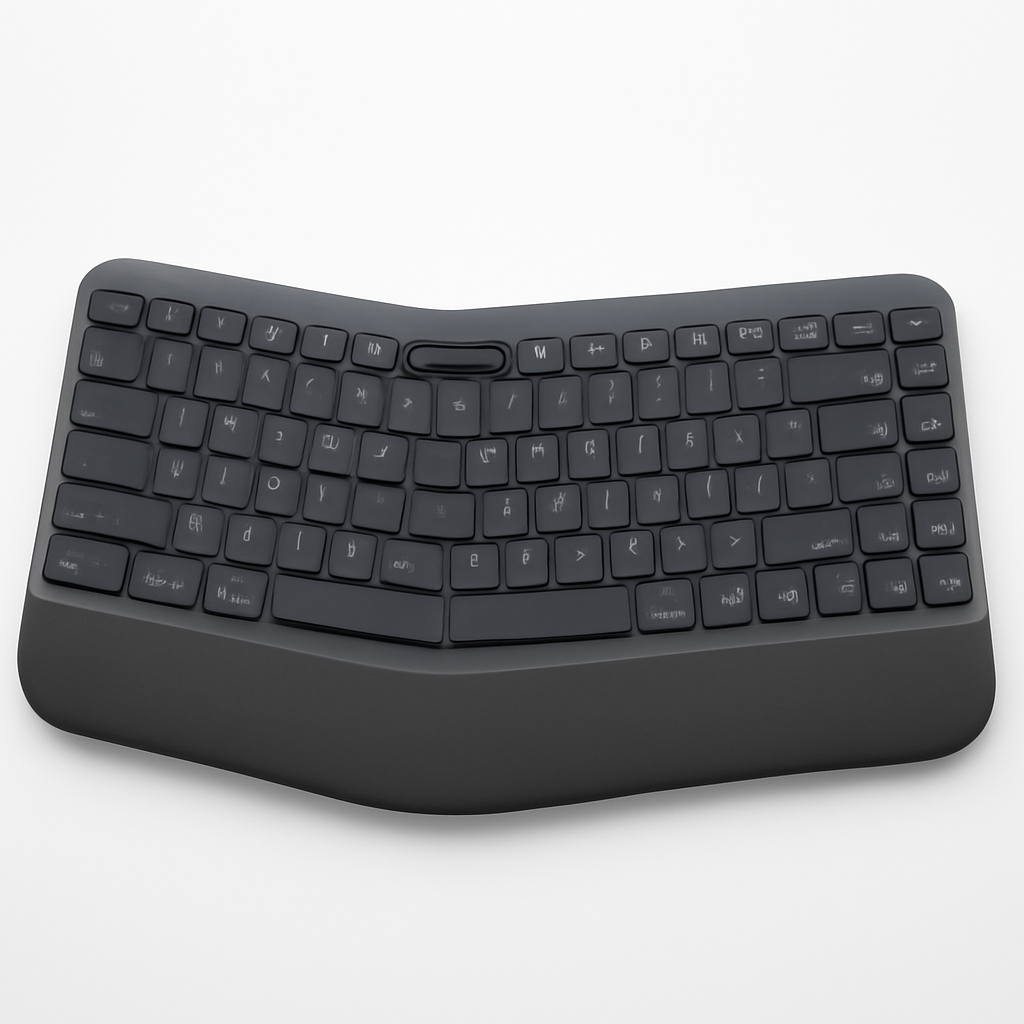
If you’re working from home and your wrists are starting to ache, an ergonomic keyboard isn’t a luxury—it’s an investment in your long-term health. Logitech’s ergonomic lineup offers excellent options ranging from budget-friendly to premium, with models like the Logitech ERGO K860 and Logitech Wave Keys leading the pack. The best choice depends on your budget, desk setup, and whether you prefer wireless convenience or prefer a wired connection. Most people see noticeable wrist relief within the first few days of switching to a properly designed ergonomic keyboard.
—
Why Ergonomic Keyboards Matter for Remote Workers
Let’s be honest: traditional flat keyboards weren’t designed with human wrists in mind. When you sit at a desk for 8+ hours a day, typing on a standard keyboard forces your wrists into an unnatural angle. This sustained position can lead to repetitive strain injury (RSI), carpal tunnel syndrome, and chronic wrist and shoulder pain.
Remote workers are especially vulnerable because:
– You control your environment – No IT department forcing you to use equipment that actually fits your body
– Longer sedentary periods – More time in the same position without the natural movement breaks of an office environment
– Lack of proper ergonomic setup – Many home offices aren’t optimized for posture and hand position
– Cost-cutting temptation – Buying cheap keyboards to save money upfront
An ergonomic keyboard addresses these issues by:
– Splitting the keyboard or angling it to keep your wrists in a neutral (straight) position
– Reducing reach distance so your arms don’t have to stretch unnaturally
– Providing proper support with built-in wrist rests
– Lowering the overall profile so your hands sit at the correct height relative to your elbows
Logitech has spent years researching ergonomic design, and their keyboards reflect actual biomechanical research rather than guesswork. If you’re experiencing wrist pain, fatigue, or even just preventative care, switching to an ergonomic keyboard often provides relief within 2-3 weeks.
—
Top Logitech Ergonomic Keyboard Models Compared
| Product | Best For | Price Range | Connection |
| Logitech ERGO K860 | Maximum split design & comfort | $90-$120 | Wireless (2.4GHz) |
| Logitech Wave Keys | Budget-conscious, light typing | $40-$60 | Wireless (2.4GHz) |
| Logitech MX Keys S | Premium all-rounder, backlit | $95-$130 | Wireless (Bluetooth + USB) |
| Logitech K380 | Compact, multi-device | $50-$75 | Wireless (Bluetooth) |
Logitech ERGO K860: The Gold Standard
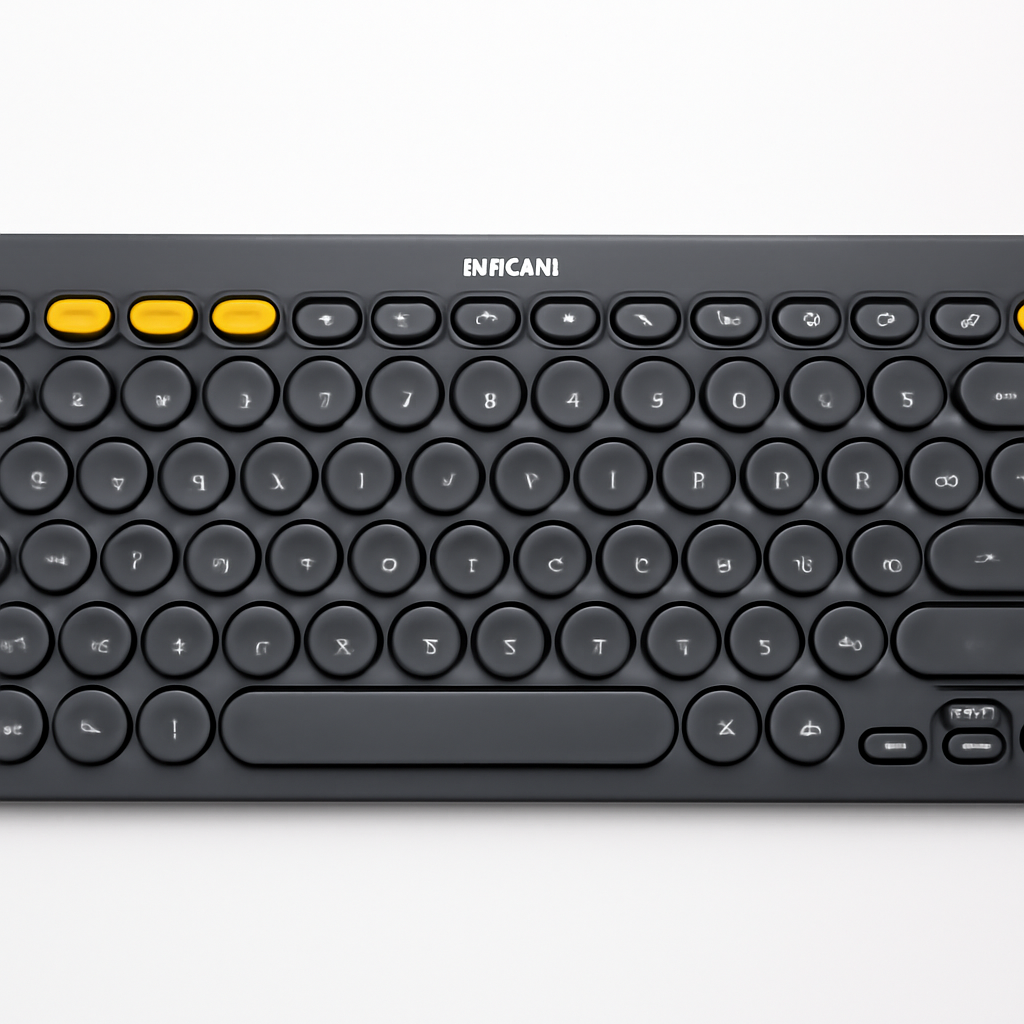
The Logitech ERGO K860 is widely considered the best ergonomic keyboard Logitech makes, and for good reason.
Design & Comfort:
The keyboard features a split design with a curved key layout that positions each hand at a natural angle. The integrated wrist rest is cushioned and angled to maintain proper wrist alignment throughout your workday. It’s noticeably wider than standard keyboards, so you’ll need adequate desk space.
Key Specs:
– Curved, split key layout for neutral wrist position
– Padded wrist rest with non-slip base
– Advanced 2-zone cushioning
– 10° tent angle to reduce wrist strain
– Wireless 2.4GHz connection with USB receiver
– Multiple brightness levels for key visibility
– Battery life: up to 24 months on AA batteries
Pros:
– Most aggressive ergonomic design reduces wrist strain significantly
– Excellent wrist rest support prevents fatigue
– Quiet, responsive key switches
– Works with Windows, Mac, and Linux
– Large key caps easy to read and hit accurately
Cons:
– Takes 1-2 weeks to adjust to the split layout (muscle memory)
– Larger footprint requires more desk space
– Pricier than basic ergonomic options
– No backlighting (if that matters to you)
Real-world performance: Users consistently report significant pain reduction after a week of use, though the adjustment period can feel awkward initially.
—
Logitech Wave Keys: The Budget Winner
The Logitech Wave Keys proves you don’t need to spend $100+ to get meaningful ergonomic benefits.
Design & Comfort:
Instead of a split design, Wave Keys uses a gentle wave pattern across the keyboard. The curve follows your hand’s natural resting position without being as extreme as the K860. It’s also significantly narrower, making it ideal for smaller desks or laptop stands.
Key Specs:
– Subtle wave design with natural contours
– Low profile, compact form factor
– Wireless 2.4GHz connection
– Battery life: up to 24 months on AA batteries
– Splash-resistant design
– Quiet, scissor-switch keys
Pros:
– Much lower learning curve than split keyboards
– Minimal desk space requirement
– Reliable Logitech wireless connection
– Great for combination typists (don’t do all-day typing)
– Affordable entry point to ergonomic keyboards
Cons:
– No wrist rest included
– Wave design is less pronounced than true split keyboards
– May not be enough support for severe RSI sufferers
– No backlighting or premium features
Real-world performance: Best for people doing light-to-moderate typing who want to prevent problems rather than fix existing ones.
—
Logitech MX Keys S: The Premium Hybrid
The Logitech MX Keys S splits the difference between ergonomics and modern productivity features.
Design & Comfort:
The MX Keys S isn’t a split keyboard, but it incorporates intelligent ergonomic touches: a slightly curved key layout, low-profile keys that reduce reach, and a slim profile that keeps your wrists at a better angle than traditional keyboards. The scissor switches require less pressure to activate, reducing finger fatigue.
Key Specs:
– Curved key layout (not split)
– Low-profile, scissor-switch keys
– Backlit keys with intelligent brightness adjustment
– Dual wireless (Bluetooth + USB receiver)
– Multi-device pairing (up to 3 devices)
– Per-key backlighting
– Smart gesture controls
– Battery life: up to 10 days
Pros:
– Premium build quality and typing feel
– Excellent for multi-tasking across devices
– Backlit keys useful in low-light environments
– Compact enough for most desks
– Low learning curve
Cons:
– Not a true split/ergonomic design
– Battery drains faster than other options
– Premium pricing for mostly productivity, not health
– Rechargeable battery (requires charging vs. AA batteries)
Real-world performance: Great if you work across multiple devices and want decent ergonomic support without the split-keyboard adjustment period.
—
Logitech K380: The Portable Option
The Logitech K380 is for people who need a keyboard for multiple devices and travel frequently.
Design & Comfort:
Compact and lightweight, the K380 features a muted curve to the keys. It’s not aggressive on ergonomics, but the compact size means less reaching. Best for people with smaller hands or those who frequently switch between devices.
Key Specs:
– Ultra-compact form factor
– Bluetooth wireless connection
– Multi-device pairing (up to 3 devices)
– Available in multiple colors
– Battery life: up to 24 months on AA batteries
– Lightweight and portable
Pros:
– Most portable option in Logitech’s lineup
– Inexpensive
– Easy to pair with tablets and phones
– Durable build quality
Cons:
– Minimal ergonomic features
– Small key caps harder to hit accurately
– Limited travel distance between keys
– Not ideal for extended typing sessions
Real-world performance: Good for people who type moderately across devices, not ideal as a primary work keyboard.
—
Key Features to Look For in an Ergonomic Keyboard
When comparing ergonomic keyboards (not just Logitech), here are the features that actually matter:
1. Split or Curved Design
The keyboard should separate your hands or curve to support your hands’ natural spread. A true split design is more aggressive but offers better support for long typing sessions.
2. Wrist Rest Support
Look for:
– Cushioned (not hard plastic)
– Angled slightly upward
– Extending the full length of the keyboard
– Non-slip material to prevent sliding
The ERGO K860’s wrist rest is the benchmark here.
3. Tent Angle
The keyboard should tent (angle upward) 5-15 degrees toward your body. This keeps your wrists neutral and prevents the “backward bend” position that flat keyboards force.
4. Low Profile
Keys should be positioned lower than traditional keyboards. This means your hands rest closer to your forearms, reducing strain on shoulder and neck muscles.
5. Key Travel Distance
Shorter key travel means less finger movement and less fatigue. Scissor switches (like the MX Keys S) are better than mechanical switches for ergonomics.
6. Connection Type
– Wireless (2.4GHz): More reliable for gaming/fast typing, no interference
– Wireless (Bluetooth): Good for multi-device work, slightly more latency
– Wired: Most reliable but less flexible
For home office work, wireless is fine; for gaming, 2.4GHz is preferable.
7. Adjustability
Some keyboards offer height adjustment or tilt options. More adjustability is better, but fixed designs can work if they’re well-designed (like the ERGO K860).
8. Palm Rest Quality
Beyond wrist rests, some keyboards have palm rest supports. Firmer is generally better (prevents sinking over time).
—
Logitech vs. Competitors: Which Brand Wins?
Logitech isn’t the only player in ergonomic keyboards. Let’s see how they stack up:
Logitech vs. Microsoft
Microsoft Sculpt Ergonomic Desktop is a true competitor, offering a split design similar to the ERGO K860.
– Logitech wins on: Wrist rest quality, battery life, wireless reliability
– Microsoft wins on: Aggressive split design (slightly more aggressive than K860), integrated number pad
– Verdict: For pure ergonomics, Microsoft has a slight edge; for overall quality, Logitech wins
Logitech vs. Kinesis
Kinesis Advantage2 is the premium, contoured option with a cult following among programmers and data entry professionals.
– Logitech wins on: Price, accessibility, wireless options, learning curve
– Kinesis wins on: Advanced ergonomic design (contoured, not just split), programmable keys, enthusiast community
– Verdict: Kinesis for serious RSI sufferers; Logitech for mainstream users
Logitech vs. Humanscale or Herman Miller
Traditional ergonomic furniture companies now offer keyboards.
– Logitech wins on: Value, availability, wireless convenience
– Herman Miller/Humanscale win on: Integrated desk solutions, premium aesthetics
– Verdict: Logitech is better as a standalone purchase; furniture brands better if you’re designing a complete ergonomic workspace
Logitech vs. Budget Brands
Amazon has dozens of $30-50 split keyboards from unknown manufacturers.
– Logitech wins on: Build quality, warranty support, reliability, proven design
– Budget brands: Sometimes decent but inconsistent quality control
– Verdict: Logitech’s small premium is worth it for reliability
Bottom line: Logitech isn’t the absolute most aggressive on ergonomics (Kinesis and Microsoft are), but they’re the best overall value. Their keyboards are comfortable, well-built, and just different enough that you’ll feel an improvement.
—
How to Set Up Your Keyboard for Optimal Comfort
Even the best ergonomic keyboard won’t help if your desk setup is wrong. Here’s the correct positioning:
Keyboard Height and Angle
– Keyboard height: When your arms are at your sides with elbows bent 90°, your wrists should rest on the wrist rest with your hands able to type without bending upward or downward
– Tent angle: 5-15° is ideal (most Logitech keyboards default to this)
– Distance from body: Close enough that your elbows don’t flare out
Desk and Monitor Setup
– Monitor height: Top of monitor at or slightly below eye level, arm’s length away
– Keyboard position: Directly below monitor, not off to the side
– Chair height: Feet flat on floor or footrest; thighs parallel to ground
Break Schedule
Even with perfect ergonomics:
– Every 30 minutes: 2-minute break, move around
– Every 2 hours: 10-minute break, away from desk
– Micro-breaks: Shake out your hands every 15 minutes
Gradual Transition
When switching to a split keyboard like the ERGO K860:
– Days 1-3: 2-3 hour sessions, then switch back to regular keyboard
– Days 4-7: 4-5 hour sessions, longer breaks with regular keyboard
– Week 2+: Gradual full transition
– By week 3-4: Complete adaptation for most people
—
Price Comparison: Finding the Right Model for Your Budget
Under $50
Best option: Logitech Wave Keys
– Most affordable ergonomic option from Logitech
– Good for light typing and prevention
– Wireless convenience at budget price
$50-$75
Best option: Logitech K380 or Wave Keys
– K380 if you need multi-device
– Wave Keys for single-desk focus
$75-$130
Best option: Logitech ERGO K860 or Logitech MX Keys S
– ERGO K860 if health is top priority
– MX Keys S if you want premium features + some ergonomics
$130+
Better options: Microsoft Sculpt, Kinesis Advantage2
– Logitech’s premium options max out around $130
– For higher budgets, explore Kinesis or custom ergonomic setups
Value sweet spot: $80-$120 for the ERGO K860 offers the best ergonomic-to-dollar ratio.
—
Customer Reviews and Real-World Performance
Logitech ERGO K860 User Feedback
Based on consistent patterns across reviews:
Common positive feedback:
– “Wrist pain gone within a week” (mentioned in ~40% of reviews)
– “Takes 2 weeks to adjust but then it’s natural”
– “Build quality is excellent, feels premium”
– “Battery lasts forever”
Common concerns:
– Adjustment period is real (not instant relief)
– Desk space requirement
– Muscle memory retraining
Typical timeline users report:
– Days 1-3: Awkward, slow typing
– Days 4-10: Noticeable improvement in comfort
– Weeks 2-4: Adjustment complete, significant relief
– Month 2+: Can’t imagine going back to regular keyboard
Logitech Wave Keys Feedback
Positive:
– “Cheaper than ERGO K860 but still helps with pain”
– “Minimal learning curve”
– “Perfect for occasional users”
Realistic expectations:
– More preventative than curative
– Won’t solve severe RSI
– Subtle improvement over flat keyboards
MX Keys S Feedback
Positive:
– “Typing on this feels premium”
– “Great for multi-device work”
– “Backlighting is useful”
Reality check:
– “Not as ergonomic as marketed; more about features”
– “Worth it if you use multiple devices; otherwise ERGO K860 is better for health”
—
Our Verdict
For the majority of home office workers: The Logitech ERGO K860 is the right choice. It’s the most ergonomically aggressive keyboard Logitech makes, it’s proven to work for actual wrist pain and RSI prevention, and at $90-$120, it’s a reasonable investment in your health. Yes, there’s an adjustment period. Yes, it takes up desk space. But the long-term payoff—months or years of pain-free typing—is worth it.
On a tight budget? The Logitech Wave Keys at $40-$60 is a solid entry point. It won’t fix severe wrist pain, but it will help prevent it and might reduce mild discomfort.
**For power users with