# Monitor Riser and Stand Guide 2026 | Best Picks
Quick Answer: If you spend hours at a desk, a monitor riser or stand is one of the cheapest upgrades that delivers real health benefits. A good riser elevates your screen to eye level, reducing neck strain and back pain. Budget options like the AmazonBasics Monitor Riser CHECK PRICE] work fine for single monitors, while those needing storage or multiple screens should invest in a stand like the [Autonomous Monitor Stand [CHECK PRICE]. The sweet spot for most home offices is $50–$150.
—
Why You Need a Monitor Riser and Stand for Your Home Office
Your monitor’s position matters more than you probably think. When your screen sits too low, you naturally crane your neck downward—sometimes for 8+ hours a day. Over weeks and months, this poor posture creates a cascade of problems: neck tension, shoulder pain, back strain, and even eye fatigue.
The American Academy of Orthopaedic Surgeons recommends your monitor’s top line should be at or slightly below eye level when you’re sitting upright. Most laptops and off-the-shelf monitor stands don’t achieve this.
A monitor riser does one simple job: it elevates your screen to the right height. The bonus? Most risers create storage space underneath, letting you store keyboard, papers, or small items—reclaiming precious desk real estate.
The health benefits are measurable:
– Reduced neck strain – Less downward tilting
– Better posture – Your spine stays neutral
– Fewer headaches – Less tension in neck and shoulders
– Improved focus – Better eye angle reduces fatigue
– More desk space – Storage underneath adds functionality
If you’re working from home or spend significant time at a desk, a monitor riser is one of the best $50–$300 investments you can make.
—
Types of Monitor Risers and Stands: Which One Fits Your Setup
Not all monitor risers are created equal. Understanding the categories helps you pick the right one for your space and workflow.
Fixed Monitor Risers
These are static platforms that sit on your desk. They don’t adjust—you pick the height when you buy.
Best for: People with limited budgets, single-monitor setups, and stable desk arrangements.
Typical height: 4–6 inches
Common materials: Wood, plastic, or composite materials
Pros:
– Ultra-affordable ($20–$60)
– Stable and durable
– No moving parts to break
– Often includes storage
Cons:
– No height adjustment
– Not ideal if you share the desk or use multiple monitors
– Limited to one viewing angle
Adjustable Monitor Stands
These allow you to change height and sometimes tilt or rotate your monitor.
Best for: People who need flexibility, hot-desk scenarios, or those with neck/back issues requiring adjustment.
Height range: Usually 3–8 inches, sometimes more
Typical materials: Metal, aluminum, or sturdy plastic
Pros:
– Customize height to your exact needs
– Can adjust for different monitor sizes
– Better for ergonomic tweaking
– Some rotate for portrait/landscape mode
Cons:
– More expensive ($80–$250)
– More moving parts = more maintenance
– Takes up more desk space than fixed risers
Monitor Arm Mounts
These clamp to your desk and suspend the monitor via an articulating arm. Not technically a “riser,” but worth understanding.
Best for: Multi-monitor setups, minimal desk footprint, maximum flexibility.
Common brands: Ergotron, AmazonBasics, HUANUO
Pros:
– Extreme adjustability
– Space-saving (no footprint)
– Can hold multiple monitors
– Professional look
Cons:
– Highest price point ($150–$400+)
– More complex installation
– Can feel less stable if not mounted properly
Standing Desk Risers
These elevate your entire monitor and keyboard setup for standing work.
Best for: People alternating between sitting and standing throughout the day.
Height adjustment: 4–10+ inches, sometimes powered
Pros:
– Supports healthier work habits (sitting/standing transition)
– Great for dual-purpose desks
– Some electric models auto-adjust
Cons:
– More expensive
– Takes up more desk space
– Heavier and harder to move
—
Key Features to Look For When Buying a Monitor Riser
When shopping, focus on these core features:
Height Range
Most people need 4–6 inches of elevation. If you’re very tall or have a standing desk, look for 6–8 inches minimum. Check the exact measurements—some brands fudge these numbers.
Weight Capacity
If you’re using a monitor larger than 27 inches or stacking equipment, check the load limit. Most quality risers support 25–50 lbs. Ultra-budget options sometimes max out at 15 lbs.
Material Quality
– Metal/aluminum: Most durable, best for heavy monitors
– Wood: Aesthetically pleasing, good weight distribution
– Plastic: Budget-friendly, less stable long-term
– Composite/MDF: Affordable sweet spot between cost and durability
Storage Underneath
The main selling point of risers is reclaimed desk space. Look for:
– Open shelving (easy to access items)
– Compartments or drawers (contains clutter)
– Ventilation (important if stacking equipment)
Stability
A wobbly riser is worthless. Check:
– Wide base (less likely to tip)
– Non-slip pads underneath
– Reviews mentioning stability with your monitor size
Adjustability
If you share a desk or have multiple monitors, adjustable height is valuable. This adds cost but flexibility.
Cable Management
Look for built-in cable channels or holes that keep wires organized and out of sight.
—
Best Monitor Risers and Stands for Different Budgets
Top Picks at a Glance
| Product | Best For | Price Range | Key Feature |
| AmazonBasics Monitor Riser | Budget single monitor | $25–$45 | Simple, affordable, storage |
| Autonomous Monitor Stand | Adjustable height/large monitors | $150–$200 | Motorized, premium materials |
| Rain Design mStand | Mac users, aesthetics | $40–$70 | Aluminum, sleek design |
| Monoprice Monitor Mount Arm | Multi-monitor/VESA | $90–$130 | Dual-arm, cable management |
—
Budget Option: Under $50
AmazonBasics Monitor Riser [CHECK PRICE]
The entry point for most people. This simple riser works exactly as advertised.
Specs:
– Height: 4.5 inches
– Material: Black plastic with wood grain top
– Weight capacity: 25 lbs
– Storage: Open shelf design
Our take: It’s not fancy, but it gets the job done. The height is fixed, and it won’t win design awards, but for $30–$40 it elevates your monitor and creates usable storage. Thousands of positive reviews confirm it’s stable for standard monitors up to 32 inches.
Best for: Single monitor home offices, tight budgets, minimalist setups
Pros:
– Affordable
– Stable for standard monitors
– Open design keeps desk feeling spacious
– Quick setup
Cons:
– Not adjustable
– Plastic won’t age as elegantly as wood or metal
– Limited to one height option
—
Mid-Range Option: $50–$150
Rain Design mStand [CHECK PRICE]
Premium aluminum construction that looks like it belongs in a professional office.
Specs:
– Height: 4.75 inches
– Material: Brushed aluminum
– Weight capacity: 25 lbs
– Design: Minimalist, angled platform
Our take: This is the riser for people who care about aesthetics. The aluminum feels solid, it coordinates with any modern desk, and the angled design naturally tilts your monitor slightly back—improving viewing angle. It’s become the standard in creative agencies and tech offices.
Best for: Mac users, design-forward spaces, professionals who see clients on video calls
Pros:
– Premium aluminum construction
– Excellent visual design
– Proper tilt angle included
– Durable (no plastic to degrade)
Cons:
– Higher price point ($50–$70)
– Still fixed height (no adjustment)
– Less storage space than plastic alternatives
—
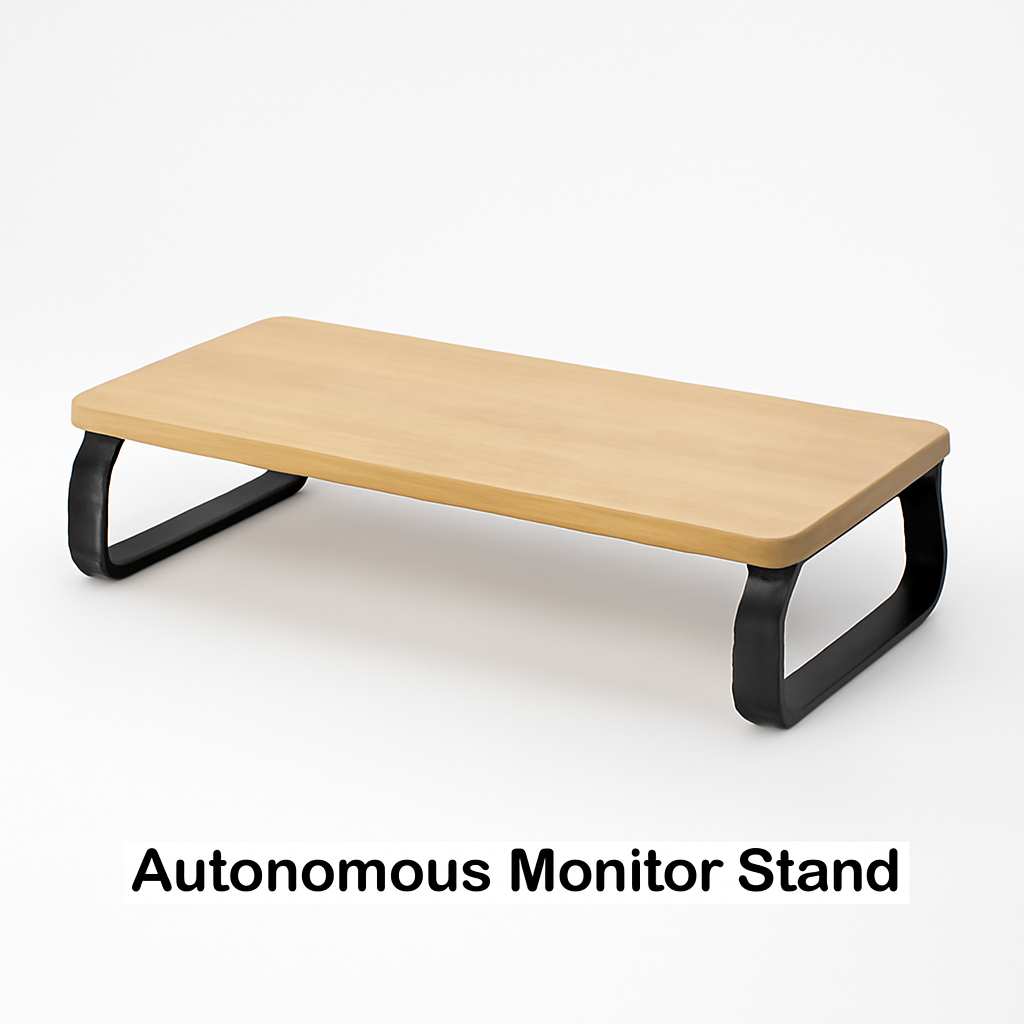
Autonomous Monitor Stand [CHECK PRICE]
For those who want adjustability and don’t mind spending for it.
Specs:
– Height range: 3–8 inches (motorized adjustment)
– Material: Steel frame with bamboo top option
– Weight capacity: 40 lbs
– Power: Electric with memory presets
– Cable management: Integrated channels
Our take: This is the stand that justifies the price. Motorized height adjustment means you can set three presets—one for sitting, one for standing, one for video calls where you want to angle down. The bamboo surface feels premium, and the cable management actually works.
Best for: Flexible desk setups, people with adjustability needs, shared desks
Pros:
– Motorized height adjustment (very convenient)
– Memory presets
– Sturdy steel construction
– Good cable management
– Bamboo option looks excellent
Cons:
– Expensive ($150–$200)
– Requires power outlet
– More complex to set up
– Heavy (harder to move)
—
Premium Option: $150+
Monoprice Monitor Mount Arm [CHECK PRICE]
For multi-monitor professionals and extreme adjustability needs.
Specs:
– Type: Dual-arm VESA mount
– Adjustment: Full tilt, swivel, rotate capability
– Weight capacity: 26 lbs per arm
– Material: Aluminum
– VESA compatibility: 75mm–100mm
– Clamp type: C-clamp or grommet
Our take: This isn’t a riser—it’s a mount system. But if you need two monitors (or one very large one) with complete freedom of movement, this delivers. The aluminum arms look clean, they support smooth adjustments, and they don’t consume desk space. Installation takes patience, but it’s a one-time effort.
Best for: Professional traders, developers with dual-monitor setups, space-limited desks
Pros:
– Extreme flexibility (tilt, swivel, rotate)
– Premium aluminum construction
– Frees up desk space
– Handles large/heavy monitors
– Professional appearance
Cons:
– Highest price ($120–$180 per arm)
– Installation more complex
– Requires proper desk mounting
– Not suitable if you want portability
—
How to Set Up Your Monitor Riser for Optimal Ergonomics
Just putting your monitor on a riser isn’t enough. Position matters for maximum health benefits.
The Ideal Setup
1. Eye Level Height
– Your eyes should align with the top third of your monitor
– If using a laptop, the top of the screen should be at or slightly below eye level
– Sit naturally upright—don’t crane your neck to measure
2. Viewing Distance
– Keep your monitor 20–30 inches away from your face
– A good rule: stretch your arm; your fingertips should reach the screen
– Further back for larger monitors, closer for smaller ones
3. Angle
– Slight downward tilt (10–20 degrees) reduces glare and eye strain
– Don’t tilt upward—this creates neck strain
– Some risers include built-in angles; adjust if yours is adjustable
4. Lighting
– Position monitor perpendicular to windows to avoid glare
– Use a monitor hood or anti-glare screen if needed
– Adequate room lighting prevents eye fatigue
Quick Setup Checklist
– [ ] Monitor top is at or slightly below eye level
– [ ] Screen is 20–30 inches away
– [ ] Monitor tilts slightly downward
– [ ] Keyboard and mouse are at elbow height
– [ ] Riser is stable with no wobble
– [ ] Cables are organized underneath
Testing Your Setup
After 30 minutes of use, notice:
– Are you craning your neck? (Height is too low)
– Are you looking up? (Height is too high)
– Does your back feel supported? (You may need a different chair)
– Any eye strain? (Distance or angle adjustment needed)
Small adjustments compound over months and years.
—
Monitor Riser vs. Desk Mount: What’s Right for You?
Both solve the height problem, but they approach it differently.
Monitor Riser (Passive Platform)
Setup: Sits on your desk, you set your monitor on top
| Aspect | Rating |
| Cost | $$$ (cheapest) |
| Adjustability | Low (fixed height) |
| Space efficiency | Medium (takes desk footprint) |
| Stability | Excellent |
| Installation | Instant |
| Flexibility | Low (move = reinstall everything) |
| Aesthetics | Varies widely |
Choose this if:
– Budget is tight
– Your desk arrangement is permanent
– You have limited technical skills
– You want maximum stability
—
Desk Mount (Articulating Arm)
Setup: Clamps to desk edge, arm suspends monitor above
| Aspect | Rating |
| Cost | $$$$$ (most expensive) |
| Adjustability | Excellent (full range) |
| Space efficiency | Excellent (no footprint) |
| Stability | Good (if mounted properly) |
| Installation | Moderate (takes 20–30 min) |
| Flexibility | Excellent (move with one adjustment) |
| Aesthetics | Modern/professional |
Choose this if:
– Space is premium
– You need multiple monitors
– You adjust your setup frequently
– You want the most flexibility
– Budget isn’t the primary concern
—
The Hybrid Approach
Many professionals use both: a riser for their main monitor (stability + storage) and a mount arm for a secondary monitor (flexibility + space). This combines the best of both worlds.
—
Top-Rated Options and Where to Buy in 2026
Where to Buy in 2026
Amazon
– Huge selection, fast shipping
– Easy returns
– Customer reviews are genuine
– Price matching common
Best for: Budget options, trying before committing
Autonomous.com (direct)
– Original Autonomous products
– Sometimes cheaper than Amazon
– Better customer service
– Warranty coverage
Best for: Motorized stands, premium options
Monoprice.com (direct)
– Excellent for monitor arms
– Competitive pricing
– Good return policy
– Technical support available
Best for: VESA mounts, multi-monitor setups
B&H Photo / Adorama
– Professional-grade equipment
– Knowledgeable staff
– Generous return windows
– Pricing often competitive
Best for: Ergonomic consultations, professional setups
Herman Miller / Autonomous Direct
– Premium ergonomic furniture
– Design consultation available
– Warranty/support included
– Higher price point but justified for some
Best for: Complete office redesigns, premium budgets
—
Quick Product Comparison Table
| Product | Price Range | Height Adjustment | Best for | Stability |
| AmazonBasics Monitor Riser | $25–$45 | Fixed | Budget-conscious | Excellent |
| Rain Design mStand | $50–$70 | Fixed | Design-focused | Excellent |
| Autonomous Monitor Stand | $150–$200 | Motorized | Flexible setups | Very good |
| Monoprice Dual Monitor Arm | $120–$180 | Full articulation | Multi-monitor | Very good |
—
Our Verdict
The best monitor riser for you depends on three factors: budget, space, and flexibility needs.
Go with a Fixed Riser (AmazonBasics or Rain Design) if:
– You’re spending under $100
– Your desk setup is permanent
– You have a single monitor
– You value simplicity and stability
The AmazonBasics Monitor Riser [CHECK PRICE] is the obvious entry point—it’s under $40, stable, and creates useful storage. If budget allows, spend $50–$70 on the Rain Design mStand [CHECK PRICE] for a premium feel that’ll last years.
Invest in an Adjustable Stand (Autonomous) if:
– You’re willing to spend $150–$200
– You need flexibility (shared desk, multiple users)
– You’re alternating between sitting and standing
– You want motorized convenience
The Autonomous Monitor Stand [CHECK PRICE] justifies its price through motorized presets and professional materials. It’s a one-time investment that improves daily ergonomics.