Quick Answer
The ideal monitor arm position puts your screen at eye level (top of monitor at or slightly below eye height), 20-26 inches away from your face, with the screen tilted 10-20 degrees downward. Your arms should rest at 90-110 degree angles at the elbows, and your neck should remain neutral—not tilted up or down. Getting this right prevents neck pain, eye strain, and long-term posture damage.
—
Eye Level Positioning: The Ideal Height and Distance
Getting your monitor height right is the single most important factor in a proper setup. When it’s positioned correctly, you’ll naturally look straight ahead or with a slight downward gaze—exactly how your neck prefers to work.
The 20-Degree Rule
Your eyes should naturally fall on the screen with a downward gaze of about 15-20 degrees below horizontal. This isn’t random—it’s how ophthalmologists have found our eyes are most comfortable for extended periods. When you look straight ahead or slightly down, you’re using the upper portion of your eye opening, which allows the eyelids to cover more of the eye surface. This reduces tear evaporation and keeps your eyes from drying out.
To find this angle: sit normally in your chair (this is important—don’t lean forward or back). Find the point directly ahead of your eyes. Your monitor’s top edge should be at or slightly below this line. Many people place the monitor too high, forcing an upward gaze that causes neck strain and headaches.
Distance from Your Face
The sweet spot is 20-26 inches (about an arm’s length). This is roughly the distance from your elbow to your fingertips when your arm is extended. Why this range?
– Closer than 20 inches: You’ll strain to focus. Your eyes have to work harder, and you’ll naturally lean forward, compressing your spine.
– Farther than 26 inches: You’ll lean forward or squint to read text clearly, again creating tension in your neck and shoulders.
– The adjustment: If you wear glasses (especially progressive lenses), you might need to sit slightly closer. If you have a 32-inch 4K monitor, you might need to sit farther back.
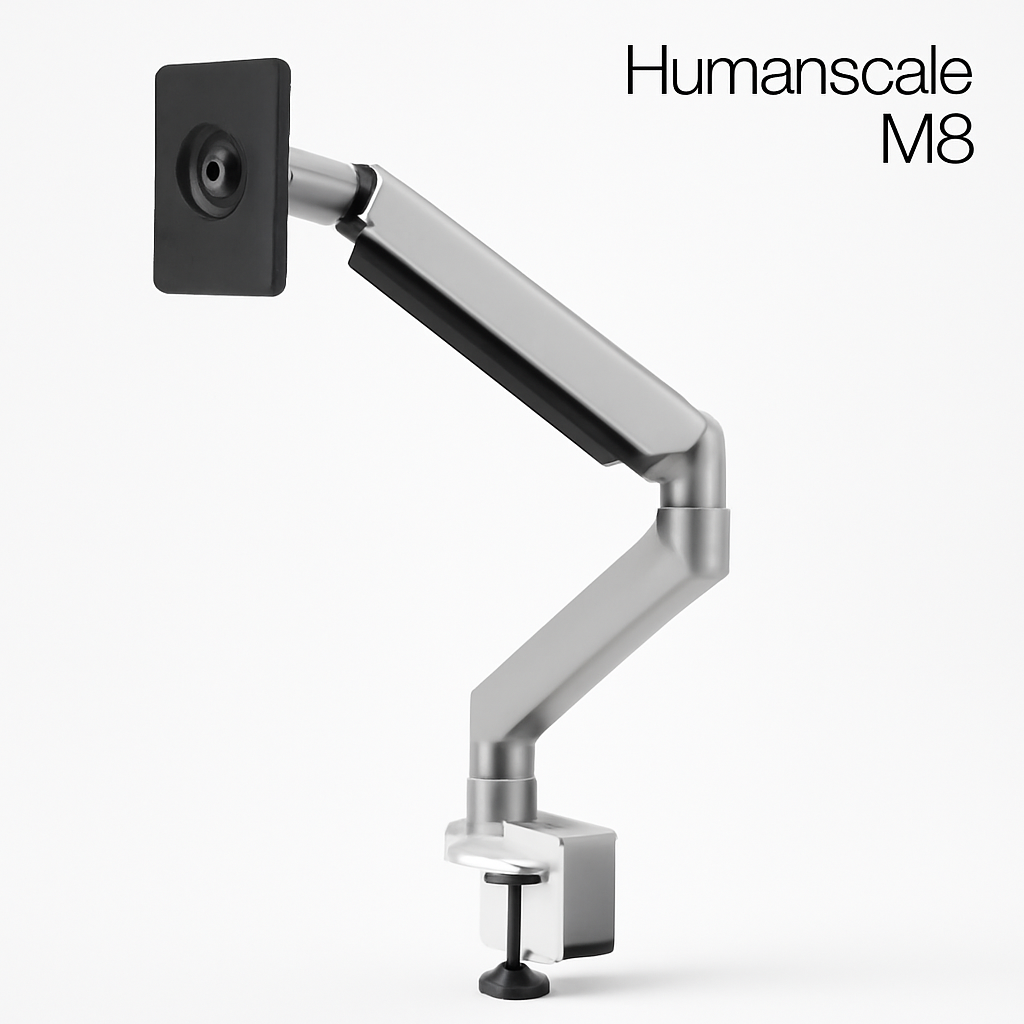
A monitor arm that extends and retracts makes this adjustment easy. Products like the Humanscale M8 specifically allow this fine-tuning without any tools.
—
Ergonomic Angles: Neck and Shoulder Alignment Tips
Once height and distance are right, the angle becomes crucial. This is where most people either nail it or create problems over months of use.
Tilt Angle (Forward/Backward)
Your monitor should tilt downward slightly—typically 10-20 degrees from vertical. This angle:
– Aligns the screen plane with your natural line of sight
– Reduces glare from overhead lighting
– Prevents you from tilting your head back (which compresses discs in your neck)
Many people set their monitors flat or even tilted backward (leaning away). This forces you to crane your neck upward, which over time can cause cervical spondylosis—premature wear on your neck’s vertebrae.
Swivel and Rotation
Horizontal rotation matters too. Your monitor should face you directly—not angled left or right. Even a 5-10 degree angle forces your head to rotate slightly, and after 8 hours, this creates muscle tension on one side of your neck.
If you have multiple monitors, each should maintain proper distance and height. The primary screen (where you focus most) should be directly ahead.
Rotation (Portrait vs. Landscape)
For most work, landscape (horizontal) orientation is standard. However, if you’re doing specific tasks—document writing, coding with long vertical sections, or design work—portrait mode (vertical) can be beneficial for that specific screen. Just ensure your monitor arm can handle the rotation. The Herman Miller Aeron with Remastered Arms offers full rotation capability.
—
Desk Setup Considerations for Monitor Arms
Your desk environment shapes whether a monitor arm can achieve ideal positioning. Before buying, assess your setup:
Available Desk Space
Monitor arms require mounting—either clamp-mount, grommet-mount (through a hole in the desk), or bolt-down. Consider:
– Clamp mounts: Work on desks with 0.6-3.0-inch thickness. They’re reversible and non-permanent.
– Grommet mounts: Need a drilled hole (1.5-2 inches). Some desks come pre-drilled; others require you to drill.
– Bolt-down: Permanent installation, typically for sit-stand desks or heavy-duty setups.
Your mounting choice affects how far the monitor can extend from the desk. A clamp-mounted arm might extend 12-18 inches, while a grommet mount can go 20+ inches.
Depth Consideration
Some monitor arms let you pull the screen forward and back. This is crucial for:
– Deep desks: You can position the screen closer than your desk’s overall depth
– Small desks: You can push the screen back to free up desk space for keyboard/mouse
– Hot desk environments: Quickly adjusting for different operators
Keyboard and Mouse Placement
Here’s the often-missed part: your monitor position is only half the equation. Your keyboard and mouse matter equally.
The ergonomic rule: your keyboard should be at elbow height (90-110 degree elbow angle), with your wrists straight—not bent up, down, or to the sides. Your monitor arm needs to position the screen so you naturally have this arm angle when typing.
If your monitor sits too high or too far, you’ll reach upward to see it and forward to type, creating a twisted posture.
Lighting and Glare
Position your monitor perpendicular to windows when possible. Bright light sources (windows, overhead lights) behind or beside the monitor increase strain. Some monitor arms let you angle the screen to reduce glare—take advantage of this.
The BenQ SW240 with an adjustable arm specifically addresses glare reduction through its matte finish and adjustable tilt.
—
Common Positioning Mistakes to Avoid
These are the patterns we see repeatedly that create problems:
Mistake 1: Monitor Too High
The problem: You look up, extending your neck backward. This compresses the discs at the back of your cervical spine and fatigues your neck muscles.
The fix: Lower it. The top of your monitor should be at eye level or slightly below—not above.
Mistake 2: Monitor Too Close
The problem: You lean forward to focus, rounding your shoulders and creating forward head posture. Over time, this weakens your neck muscles and creates “tech neck.”
The fix: Push it back to 20-26 inches. If you can’t read it, increase font sizes or move it back gradually as your eyes adapt.
Mistake 3: Tilting the Monitor Backward
The problem: You tilt backward to see it, which forces you to look up. It seems minor, but over 8+ hours daily, it’s problematic.
The fix: Tilt downward (10-20 degrees forward), not backward.
Mistake 4: Uneven Multi-Monitor Height
The problem: Different screens at different heights force your head to bob up and down, creating neck fatigue and postural strain.
The fix: Use dual monitor arms that maintain consistent height. Some people use a monitor stand under one screen and an arm on another—avoid this.
Mistake 5: Ignoring Keyboard and Mouse Position
The problem: You have a perfect monitor position but type on a keyboard positioned at shoulder height. Your arms stay elevated the whole time, causing shoulder and upper back tension.
The fix: Adjust keyboard height first, then position the monitor. They work together.
Mistake 6: Not Testing the Position
The problem: You set it once and forget about it. Your body changes—you gain/lose weight, your chair wears, you add more screens.
The fix: Reassess every 3-6 months.
—
Monitor Arm Adjustment Features to Look For
Not all monitor arms are created equal. When evaluating options, prioritize these adjustment capabilities:
Height Adjustment Range
Look for at least 8-12 inches of height adjustment. Ideally, the arm should allow:
– Top of 24″ monitor: 24-32 inches above desk surface
– Top of 27-32″ monitor: 28-36 inches above desk surface
The Ergotron LX Monitor Arm offers 9 inches of height adjustment and 11 inches of reach extension, giving flexibility for various desk depths.
Smoothness and Friction Control
A good monitor arm should:
– Be easy to adjust with light finger pressure (under 5 pounds of force to reposition)
– Hold position solidly once adjusted (no drifting downward)
– Feature friction control so you can adjust resistance
Gas spring mechanisms work better than friction-only designs for quick adjustments.
Weight Capacity
Ensure the arm supports your monitor. A 27-inch 4K display can weigh 8-12 pounds. A 32-inch can exceed 15 pounds. Most quality arms support 15-25 pounds, but verify this matches your setup.
Cable Management
Look for arms with:
– Built-in cable clips to route cables neatly
– Open design (not enclosed arms) that makes cable access easier
– Cable paths that don’t kink or stress connectors
Swivel Range
Verify the arm allows adequate swivel:
– Full 360-degree rotation: Not always necessary, but useful
– At least 90 degrees left and right: Sufficient for most setups
– Independent screen rotation: So the monitor can rotate while the arm stays fixed
—
Best Practices for Multi-Monitor Setups
If you’re using 2+ monitors, positioning becomes more complex.
Dual Monitor Layout
Standard approach (both monitors straight ahead):
– Primary monitor directly in front of you
– Secondary monitor beside it, with the edge closest to you at a similar distance and height
– Both at the same height (use two monitor arms if necessary)
– Angle the secondary monitor 30 degrees inward if it’s farther than 26 inches away
This keeps your head position relatively centered, preventing constant rotation.
The Chevron Approach (Advanced)
For some workers, positioning monitors in a slight “V” shape works:
– Both monitors at eye level
– Each tilted 30-40 degrees inward
– Positioned so you look straight ahead at the corner where they meet
This reduces neck rotation but requires two quality monitor arms.
Ultrawide vs. Dual Monitors
A single 34-inch ultrawide monitor (often supported by a standard monitor arm) can replace dual 27-inch screens. The advantage: single height/distance setting, no bezel in the middle. The trade-off: monitors at the edges require slight eye movement rather than head rotation.
If you use an ultrawide, position it so the center is at eye level (not the top edge).
Triple or More Monitors
Beyond two monitors, you need a multi-monitor mount system. Standard single monitor arms become impractical. Consider:
– Monitor mount poles (vertical stacks)
– Monitor wall mounts (mounted to the wall behind your desk)
– Specialized triple-monitor arms
These require more planning but allow consistent positioning across multiple screens.
—
Testing Your Position: Signs You’ve Got It Right
Don’t just set it and hope. Test your position systematically:
The 20-Minute Test
Set your position, then work normally for 20 minutes without adjusting. After 20 minutes:
– Is your neck tired or tense? (Move the monitor down)
– Are you squinting or leaning forward? (Move it closer or increase font size)
– Are your shoulders tense? (Check that your keyboard height matches monitor height)
– Is your lower back uncomfortable? (This usually indicates overall chair position, not monitor position)
The Mirror Test
Place a mirror beside your monitor and periodically check your posture:
– Is your head forward of your shoulders? (Move monitor closer)
– Are you looking up? (Lower the monitor)
– Is your back rounded? (Often unrelated to monitor position; check chair support)
The Day-End Assessment
At the end of your workday, note:
– Neck tension or pain?
– Headaches?
– Eye strain or dryness?
– Shoulder tension?
– Wrist/hand pain?
Any of these suggests a positioning issue. Track which area hurts and adjust accordingly.
The Hour-by-Hour Tracking
Day 1: Position the monitor and note any discomfort.
Days 2-7: Make small adjustments (1-2 inches) based on how you feel.
Day 8+: You should notice improvement.
If you don’t see improvement after a week, the issue might be elsewhere (chair, keyboard position, monitor distance, or an unrelated condition).
—
Top Picks at a Glance
| Product | Best For | Price Range | Key Feature |
| Ergotron LX | General use, flexibility | 9″ height adjustment, smooth gas spring | |
| Humanscale M8 | Minimal desk clutter | Counterbalance mechanism, compact | |
| Herman Miller Aeron Arms | Premium build, durability | Full rotation, enterprise quality | |
| BenQ SW240 | Design/photo work | Glare reduction, color-critical |
—
Detailed Look at Top Choices
Ergotron LX Monitor Arm
Best for: Most people, general office work, flexible positioning needs
Why it ranks high:
– Pros: Smooth height and depth adjustment, excellent build quality, supports up to 25 lbs, polished gas spring mechanism
– Cons: Mid-range price point, black finish shows fingerprints
– Adjustment range: 9 inches vertical, 11 inches depth extension, full rotation
Humanscale M8
Best for: Minimalists, people who frequently adjust, compact desks
Why it ranks high:
– Pros: Requires only 3 fingers to adjust, self-balancing design, eco-friendly materials
– Cons: Higher price, single-screen focus (not ideal for dual monitors)
– Adjustment range: Infinite positioning within range, smooth counterbalance
Herman Miller Aeron with Remastered Arms
Best for: Long-term investment, premium builds, ergonomic-conscious professionals
Why it ranks high:
– Pros: Lifetime warranty, highest build quality, integrates with Aeron chair, portrait/landscape rotation
– Cons: Premium pricing, can be over-engineered for basic needs
– Adjustment range: Comprehensive adjustability, enterprise-grade durability
—
Our Verdict
The best monitor arm position is the one you actually maintain. A perfect setup done once isn’t ergonomic if it drifts over weeks.
Here’s the priority order for finding your ideal position:
1. Start with height: Top of monitor at or slightly below eye level (typically 22-30 inches above desk surface)
2. Set distance: 20-26 inches from your face, measured center screen
3. Adjust tilt: 10-20 degrees downward from vertical
4. Verify keyboard height: Elbows at 90-110 degrees when typing—this is non-negotiable
5. Test for 1-2 weeks: Small adjustments based on how you feel
6. Reassess quarterly: Your body, chair, and desk change over time
Monitor arm recommendation: If you’re choosing between options, the Ergotron LX offers the best balance of adjustability, durability, and price for most people. It’s been the standard in ergonomic setups since the early 2020s and remains relevant in 2026.
For premium builds where cost isn’t the limiting factor, the Herman Miller Aeron Arms integrate seamlessly with their chair system and offer unmatched adjustability.
The investment in a quality monitor arm pays dividends in comfort, productivity, and long-term health. Poor positioning costs thousands in eventual pain management and lost productivity. Get this right, and you’ve solved one of the largest contributors to workplace discomfort.