# Ergonomic Keyboard vs Split Keyboard: 2026 Guide
Quick Answer
Both ergonomic and split keyboards reduce wrist strain, but they work differently. Ergonomic keyboards feature a curved, contoured design that fits your hands naturally—ideal if you want a single unit that’s easy to use immediately. Split keyboards separate into two halves, allowing you to position each half independently for a completely neutral wrist angle—best for those with existing pain or who want maximum customization.
If you’re just starting to address typing discomfort, an ergonomic keyboard is the practical choice. If you’ve tried other solutions and still have wrist or shoulder pain, a split keyboard is worth the learning curve.
—
What’s the Difference Between Ergonomic and Split Keyboards?
These terms often get confused, but they’re distinctly different products solving similar problems in different ways.
Ergonomic Keyboards Explained
An ergonomic keyboard is a single unit with a curved, wave-like, or tent-shaped design. The keys are arranged so your hands rest in a more natural position than on a standard flat keyboard. Think of brands like the Microsoft Sculpt [CHECK PRICE]—it has a pronounced middle ridge that encourages your wrists to be slightly bent upward and outward.
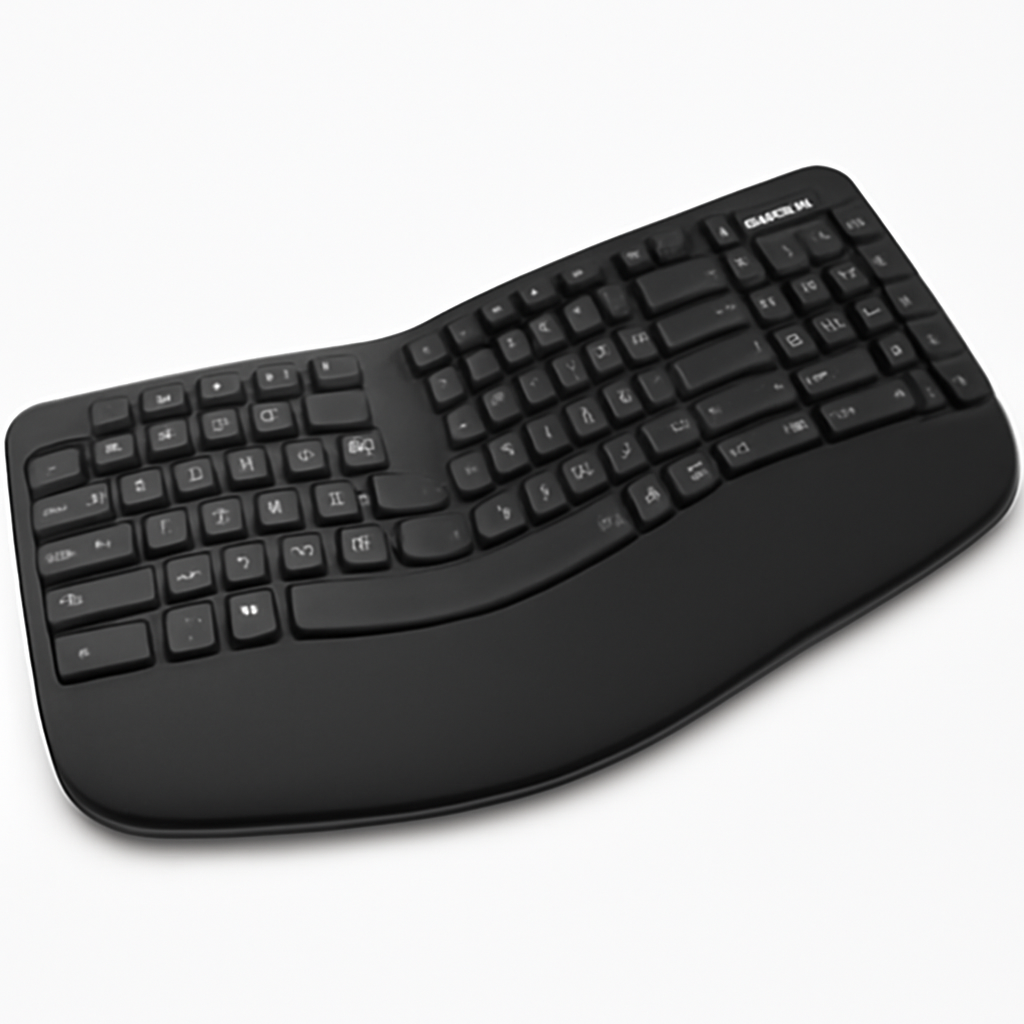
Key characteristics:
– Single integrated unit
– Built-in slope or curve
– Usually slightly higher in the middle
– Minimal learning curve—feels natural immediately
– Works with any existing monitor setup
Split Keyboards Explained
A split keyboard literally divides the keyboard into two separate halves. Each half can be positioned, angled, or rotated independently. The Kinesis Advantage360 [CHECK PRICE] is a prime example—you can adjust each side to match your exact arm position, shoulder width, and wrist angle.
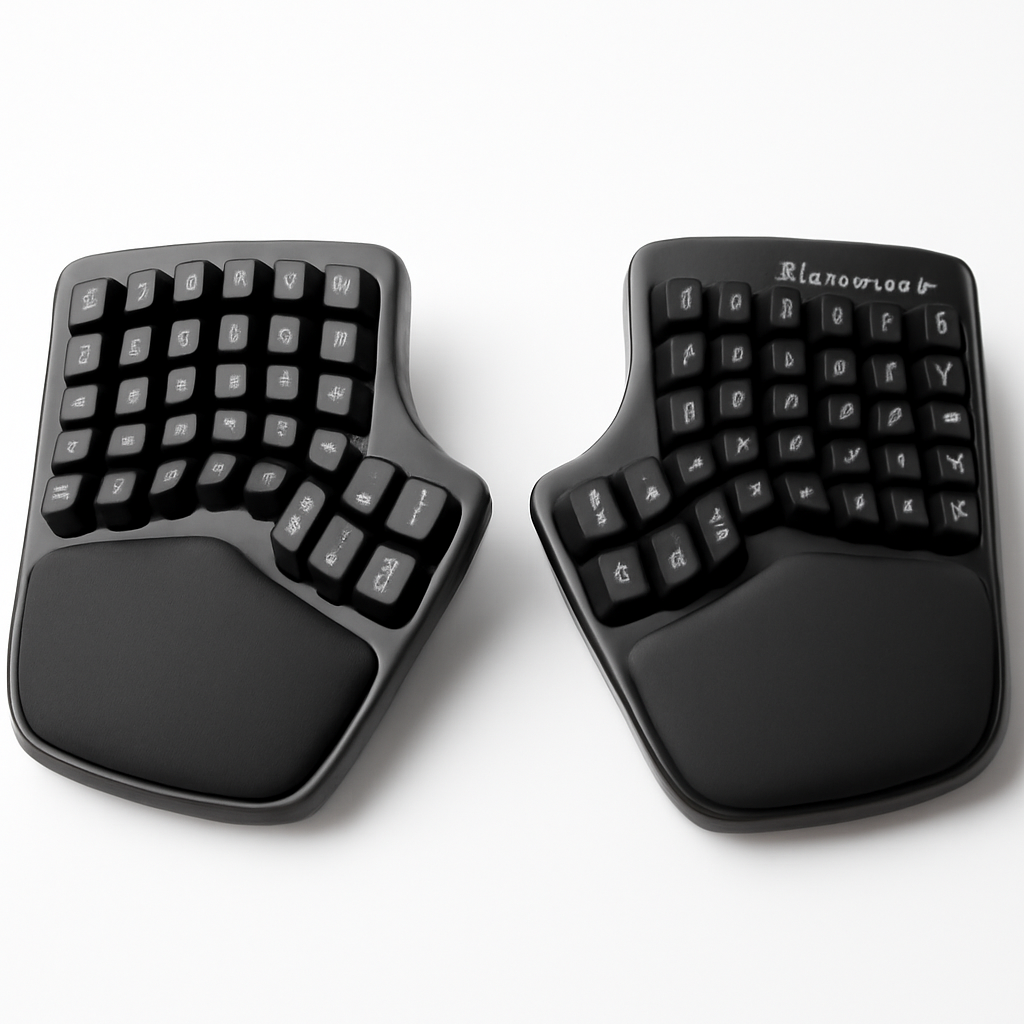
Key characteristics:
– Two independent halves
– Full customization of angle and distance
– Steep learning curve (usually 2-4 weeks)
– More desk space required
– Often mechanical switches (highly tactile and durable)
The fundamental difference: ergonomic keyboards position your hands better, while split keyboards let you position each half however you need.
—
Health Benefits: Which Type Reduces Strain Better?
This depends on your specific situation.
Ergonomic Keyboard Benefits
When they work: Ergonomic keyboards are most effective for people who haven’t developed chronic pain yet. They’re preventative. By naturally encouraging a more neutral wrist position, they reduce the cumulative strain of daily typing.
Studies on curved ergonomic designs show modest but measurable benefits in reducing EMG (muscle) activity in the forearm and wrist extensors—meaning your muscles work less hard, which translates to less fatigue by day’s end.
Real-world scenario: Sarah types 6 hours daily for her marketing job. She switched from a flat Apple keyboard to an ergonomic design and noticed less end-of-day wrist soreness within a week. No adjustment period needed.
Split Keyboard Benefits
When they excel: Split keyboards shine for people with existing tendinitis, carpal tunnel syndrome, or chronic pain. By allowing complete customization of hand position, they can reduce strain in ways standard keyboards—even ergonomic ones—can’t.
The key benefit is neutral wrist alignment. On a traditional keyboard (even curved ones), your hands are still somewhat twisted inward toward the middle of the board. A split keyboard lets you position each half so your wrists are straight, like when your arms hang naturally at your sides.
Real-world scenario: James developed moderate carpal tunnel symptoms from 10+ years of coding. A standard ergonomic keyboard helped slightly, but only after switching to a split mechanical keyboard (where he could adjust the tenting angle and horizontal spacing) did his pain significantly decrease.
The Research-Backed Answer
Meta-analyses of ergonomic keyboard studies show they provide about a 15-25% reduction in strain-related symptoms for prevention. Split keyboards, in clinical studies of people with existing repetitive strain injuries, show 40-60% symptom improvement when properly configured—but require 3-4 weeks of adaptation.
Bottom line: Ergonomic keyboards are better for prevention and quick relief. Split keyboards are better for treatment of existing pain, but require commitment.
—
Best Ergonomic Keyboards for Home Office Workers
Top Picks at a Glance
| Product | Best For | Price Range | Key Feature |
| Microsoft Sculpt Ergonomic [CHECK PRICE] | Budget-conscious beginners | $40-60 | Classic curved design, wireless |
| Logitech MX Keys [CHECK PRICE] | Hybrid work, multi-device | $90-120 | Backlit, fast key switches, premium build |
| Kinesis Freestyle Pro [CHECK PRICE] | Maximum adjustability | $150-180 | Tethered palm rests, height adjustment |
| Anker ErgoPro [CHECK PRICE] | Value seekers | $35-50 | Wrist rest included, quiet switches |
Microsoft Sculpt Ergonomic [CHECK PRICE]
Pros:
– Iconic wave design trusted by thousands since 2013
– Wireless connectivity is genuinely convenient
– Includes padded palm rest
– Works immediately—no learning curve
– Affordable entry point
Cons:
– Key travel is shallow (chicklet-style keys)
– Sculpting feels mild compared to newer designs
– Wireless reliability sometimes drops
– Not mechanical (quieter but less tactile feedback)
Best for: Office workers who type in bursts rather than continuously, anyone wanting low-risk ergonomic upgrade.
Logitech MX Keys [CHECK PRICE]
Pros:
– Premium construction (aluminum frame)
– Fast, responsive switches that feel good
– Backlighting is genuinely useful for low-light offices
– Multi-device connectivity (one keyboard, multiple computers)
– Excellent battery life
– Minimal ergonomic learning curve
Cons:
– Price is premium compared to competitors
– Curved less aggressively than pure ergonomic designs
– Compact size might feel crowded for large hands
– Limited wrist rest support
Best for: Professionals juggling multiple devices, anyone wanting a high-quality typing experience with subtle ergonomic benefits. This is more “ergonomic-adjacent” than fully ergonomic, but the key quality makes it worth including.
Kinesis Freestyle Pro [CHECK PRICE]
Pros:
– Two separate halves that can spread apart
– Adjustable tenting legs (angle customization)
– VIP3 palm rests are legitimately comfortable
– Mechanical switches for tactile feedback
– Gradually bridges the gap between ergonomic and split
Cons:
– Learning curve—it’s not as intuitive as other ergonomic keyboards
– Tether connecting the halves limits flexibility
– Higher price point
– Bulkier than standard keyboards
Best for: People who find single ergonomic keyboards not customizable enough but aren’t ready for a full split keyboard.
—
Top Split Keyboard Options in 2026
Kinesis Advantage360 [CHECK PRICE]
The gold standard for split mechanical keyboards. Each half is completely independent, with columnar key arrangement (keys are arranged vertically rather than in straight rows, matching your finger length).
What makes it special:
– Fully programmable (remap any key)
– Adjustable tent angle (0-60 degrees)
– Ergonomic thumb cluster
– Mechanical switches (proprietary Kinesis Red)
– Works with Mac, Windows, Linux
Reality check: The 6-week learning curve is real. Your WPM will drop by 40-50% initially. Expect 2-3 months before exceeding your previous typing speed.
Price: [CHECK PRICE] (Premium, but it’s the reference standard)
Moonlander Mark I [CHECK PRICE]
ZSA’s popular split keyboard, known for its beauty and customization.
Key features:
– Columnar key layout
– Adjustable tent (20-90 degrees)
– Programmable via ZSA’s Oryx web app
– Hot-swap switches (easily replaceable)
– RGB lighting (optional)
Pros:
– Easier learning curve than Advantage360
– Great community support and documentation
– Customizable key switches
– Visually appealing
Cons:
– Keys arranged in columns (takes adjustment)
– Requires soldering if building yourself
– More expensive than single ergonomic keyboards
Best for: Enthusiasts and hobbyists who enjoy tinkering, or programmers who want full key remapping.
Keychron Q11 Max [CHECK PRICE]
A newer, more affordable entry into split keyboards (though not as fully featured as the above).
What you get:
– Wireless and wired connectivity
– Mechanical switches
– Separated halves (though not as adjustable as Kinesis)
– More traditional QWERTY layout
– Budget-friendly compared to Advantage360
Reality: This is “split keyboard lite.” You get the wrist neutrality benefit, but less customization. Good for testing whether split keyboards work for you before committing $300+.
—
Comfort and Typing Speed: Performance Comparison
Comfort (Immediate)
Winner: Ergonomic keyboards
You’ll feel more comfortable typing on an ergonomic keyboard within minutes. The curved design naturally supports better wrist position from day one.
Split keyboards require an adjustment period. Your fingers have to relearn key positions (especially if using a columnar layout), so the first 1-2 weeks actually feel less comfortable as you build muscle memory.
Comfort (After 3+ Months)
Winner: Split keyboards (for those with pain)
Once adapted, split keyboards provide superior comfort for people with existing strain, because you can dial in perfectly neutral wrist alignment. Ergonomic keyboards, while helpful, still have your hands slightly angled toward the center.
For healthy typists with no pain, the difference is negligible after adaptation.
Typing Speed
Winner: Ergonomic keyboards (initially and long-term)
Since you don’t need a learning curve, ergonomic keyboards maintain your baseline WPM from day one. With a split keyboard, expect:
– Week 1-2: 40-50% speed loss
– Week 3-4: 70-80% of normal speed
– Month 2: Back to baseline
– Month 3+: Potential for 5-10% speed increase due to more efficient finger movement
This matters if your job depends on typing speed. For most office roles (emails, documents, coding), the adjustment period is an annoying non-event. For transcriptionists or journalists, it’s a bigger consideration.
Typing Feel
Ergonomic keyboards: Usually membrane switches (quiet, smooth, shorter travel distance).
Split keyboards: Usually mechanical switches (tactile, audible click or bump, longer travel distance).
If you love mechanical switches, you’ll enjoy split keyboards more. If you prefer quiet, quick switches, ergonomic keyboards (especially the Logitech MX Keys) will feel better.
—
Price Comparison: Budget to Premium Models
Budget Tier ($30-60)
– Anker ErgoPro [CHECK PRICE]: ~$40
– Microsoft Sculpt Ergonomic [CHECK PRICE]: ~$50
– Entry-level split option: Keychron Q11 Max (wireless, split) ~$99
Sweet spot: Microsoft Sculpt. It’s affordable, proven, and solves the problem for most people. No need to spend more unless you have specific pain issues.
Mid-Range ($60-150)
– Logitech MX Keys [CHECK PRICE]: ~$99
– Kinesis Freestyle Pro [CHECK PRICE]: ~$150
– Moonlander Mark I [CHECK PRICE]: ~$119
Sweet spot: If you want premium quality, the Logitech MX Keys is an excellent all-rounder. If you’re seriously considering split keyboards, the Moonlander is more affordable than the Kinesis Advantage while still offering most features.
Premium Tier ($150+)
– Kinesis Advantage360 [CHECK PRICE]: ~$299
– Moonlander (assembled) [CHECK PRICE]: ~$179
– Custom split boards (Dactyl, Iris): $200-400+
What you’re paying for: Full mechanical customization, complete wrist/hand positioning control, durability (these keyboards last 10+ years), and resale value (custom keyboards hold value well).
Value Analysis
Best price-to-benefit ratio: Microsoft Sculpt if you want ergonomic, Keychron Q11 Max if you want to try split without breaking the bank.
Best investment: Kinesis Advantage360 if you have chronic pain and budget allows it. The improvement in comfort pays dividends over years of 8-hour workdays.
Overkill unless: You’re a professional gamer, extreme enthusiast, or have specific pain that demands customization.
—
How to Choose: Ergonomic or Split for Your Setup?
Choose Ergonomic Keyboard If:
✅ You’ve never tried an ergonomic keyboard before
✅ You don’t have existing wrist/arm pain
✅ You want to use the keyboard immediately without adaptation
✅ Your desk setup is fixed and can’t accommodate a split layout
✅ You type in short bursts rather than continuous long sessions
✅ You’re on a tight budget
✅ You use multiple keyboards across different devices
Choose Split Keyboard If:
✅ You have existing carpal tunnel, tendinitis, or RSI symptoms
✅ You’re willing to invest 2-4 weeks in learning
✅ You have desk space to spread out the halves
✅ You want maximum customization of hand/wrist position
✅ You spend 6+ hours daily typing
✅ You enjoy mechanical keyboards and gear customization
✅ You want a long-term investment (10+ year lifespan)
Decision Tree
Do you have arm or wrist pain right now?
– No → Start with an ergonomic keyboard. Try the Microsoft Sculpt or Logitech MX Keys depending on budget.
– Yes → Consider a split keyboard, but give a mid-range ergonomic keyboard 2 weeks first. If pain persists, upgrade to split.
Are you willing to spend 3+ weeks relearning typing?
– No → Ergonomic keyboard only.
– Yes → Split keyboards are an option.
How many hours do you type daily?
– Under 4 hours → Ergonomic keyboard provides 90% of the benefit at half the cost.
– 4-6 hours → Either works; ergonomic is safer bet.
– 6+ hours → Split keyboard becomes more worthwhile from a pain-prevention standpoint.
—
Real-World Scenarios: What Would Work Best?
Scenario 1: Office Manager (Moderate Typing, No Pain)
Setup: 5 hours daily of email, spreadsheets, document editing. Using a laptop stand with external keyboard.
Recommendation: Logitech MX Keys [CHECK PRICE]
Why: Office managers benefit from multi-device connectivity (switching between laptop, desktop, tablet). The MX Keys’ premium feel and backlighting are genuinely useful. No pain means no split keyboard complexity is needed. It’s also compact enough for a tidy desk.
Scenario 2: Software Developer (Heavy Typing, No Current Pain)
Setup: 8+ hours daily of coding. Workstation with large desk. No pain yet, but concerned about prevention.
Recommendation: Kinesis Advantage360 [CHECK PRICE]
Why: Developers benefit from full programmability (remap keys for faster coding shortcuts). The columnar layout matches finger length naturally, reducing long-term strain. Programmers have the patience for the learning curve. The investment pays off in a 10-year career.
If budget is tight, start with Kinesis Freestyle Pro [CHECK PRICE] to get adjustability without fully committing.
Scenario 3: Content Writer (Moderate Typing, Growing Wrist Pain)
Setup: 6 hours daily of writing. Uses laptop at desk. Mild wrist soreness by end of day.
Recommendation: Microsoft Sculpt Ergonomic [CHECK PRICE], with upgrade path to Keychron Q11 Max if pain worsens.
Why: The Sculpt addresses the problem affordably with immediate relief from the curved design. If pain persists after 2 weeks (which is possible with a mild issue), the Q11 Max split keyboard provides the next level of customization without a huge financial commitment.
Scenario 4: Designer (Moderate Typing, Chronic Pain)
Setup: 4 hours daily of typing (rest is mouse/trackpad use). Existing mild carpal tunnel symptoms.
Recommendation: Kinesis Advantage360 [CHECK PRICE]
Why: Chronic pain sufferers need the precision customization that split keyboards offer. Designers typically already have one “quality gear” setup mindset, so investing in a premium keyboard aligns with their workflow philosophy. The Advantage360 directly addresses carpal tunnel through full wrist neutrality.
—
Hybrid Approach: Using Both
This is rarely discussed but worth mentioning: **some people benefit from using both