Quick Answer
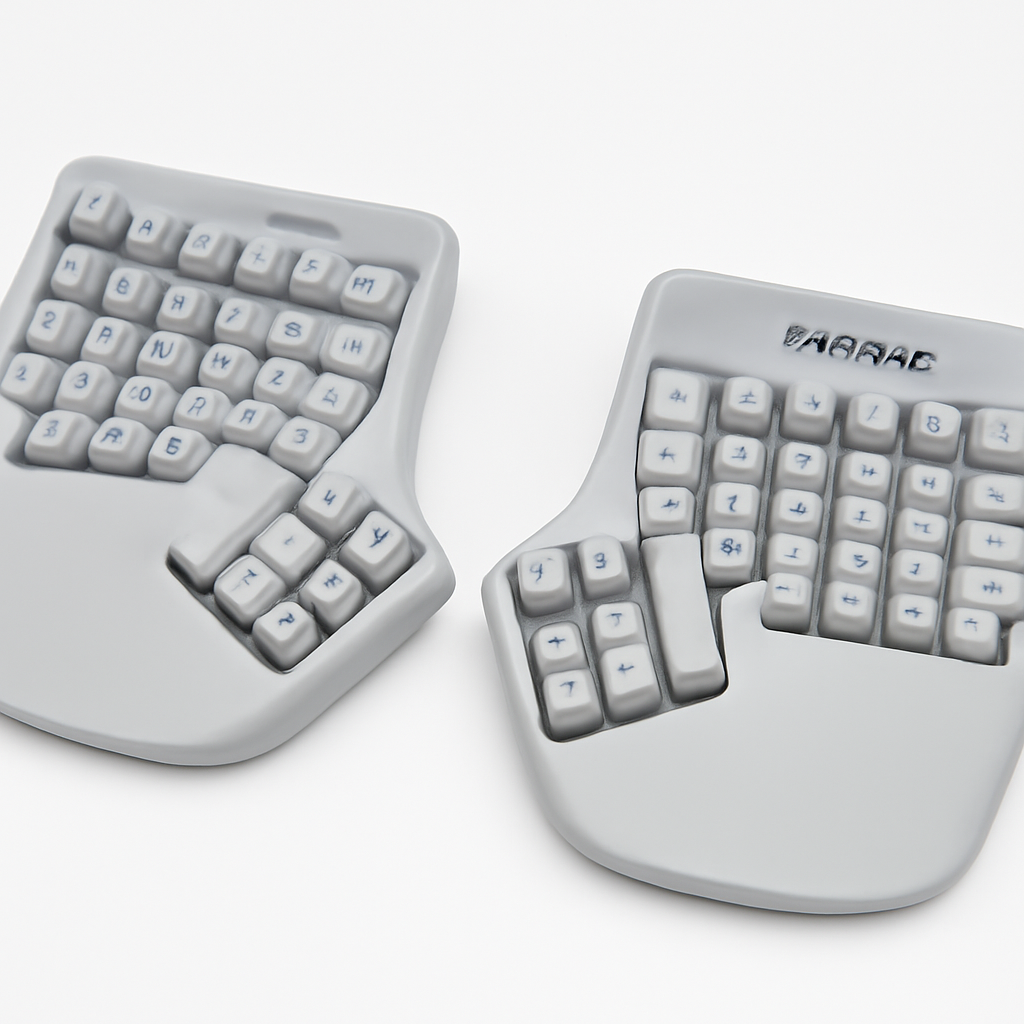
If wrist and neck pain from typing has become your daily battle, a split ergonomic keyboard can be a game-changer. Unlike traditional keyboards, split designs separate the left and right halves, allowing your hands to rest at a natural angle and reducing strain on your shoulders and wrists.
Our top pick for 2026? The Kinesis Advantage360 offers the deepest learning curve but the most dramatic pain relief for professionals. For a balance between comfort and ease of transition, the Microsoft Sculpt Ergonomic Keyboard is hard to beat. And if you want a wireless split board that doesn’t break the bank, the Logitech Wave Pro is a solid everyday choice.
Keep reading to find your ideal match, plus practical setup tips to make the transition smooth.
—
What Makes a Split Keyboard Ergonomic?
Before diving into specific models, let’s talk about what actually makes a split keyboard “ergonomic”—because not all split keyboards are created equal.
The Anatomy of Ergonomic Design
A truly ergonomic split keyboard should address three core issues traditional keyboards create:
1. Wrist Alignment
Your hands naturally want to angle outward (called ulnar deviation). Standard keyboards force both hands toward the center, twisting your wrists. A split design lets each hand follow its natural angle, reducing strain on the tendons and nerves in your wrist.
2. Shoulder Width
When your keyboard is too narrow, your shoulders rotate inward toward the center of your body. Over hours of typing, this creates neck and shoulder tension. A properly split keyboard lets your arms sit parallel to your sides, just as they would if you’re sitting with your hands in your lap.
3. Key Depth & Reach
Some split keyboards also add vertical elevation (called a tent) and adjust the depth of the key wells, reducing how far your fingers have to stretch. Less reach = less fatigue.
Real-World Impact
Studies from ergonomic researchers have shown that split keyboards can reduce muscle activity in the forearms by up to 20% compared to flat, traditional boards. If you’re dealing with carpal tunnel syndrome, repetitive strain injury (RSI), or just want to prevent these issues before they start, the investment matters.
—
Top Split Ergonomic Keyboards for 2026
1. Kinesis Advantage360
Best For: Serious users, those with existing RSI, professionals typing 6+ hours daily
The Kinesis Advantage360 is the gold standard in split ergonomic keyboards—if you’re willing to pay for it and invest time learning.
What Sets It Apart:
– Fully programmable keys and macros
– Deep key wells reduce finger reach by 50% compared to flat boards
– Built-in footrest support
– Available in both wired and wireless versions
– Thumb cluster for common keys (spacebar, enter, alt)
– Curved key layout that mirrors your finger anatomy
Pros:
– Maximum wrist and finger alignment
– Durable mechanical construction (lasts 10+ years)
– Excellent for coders and writers who benefit from macro customization
– Steep learning curve actually means your muscle memory becomes very efficient
Cons:
– $ price point (highest in the market)
– 2-3 week adaptation period is real—expect 30-40% slower typing initially
– Bulky desk footprint (larger than traditional keyboards)
– Not portable—this is a desktop-only solution
Who Should Buy: If you have diagnosed wrist pain or spend your entire day typing, the Kinesis is an investment that pays back in pain reduction and productivity. The price tag stings, but it’s comparable to a few months of physical therapy.
—
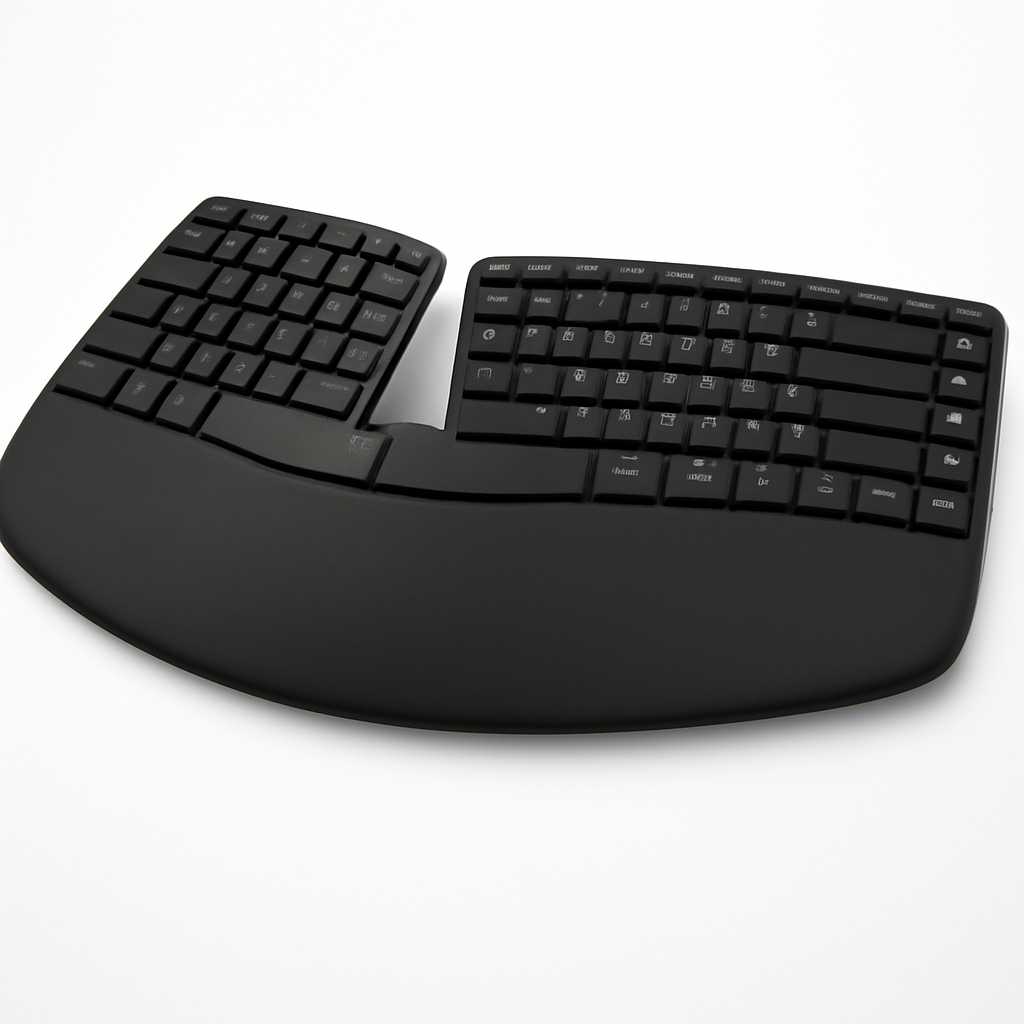
2. Microsoft Sculpt Ergonomic Keyboard
Best For: Transitioning users, office workers, those seeking better ergonomics without a steep learning curve
Microsoft’s Sculpt is the Goldilocks option—not as extreme as the Kinesis, but leagues ahead of a standard keyboard.
What Sets It Apart:
– Split design at a comfortable angle (not extreme)
– Curved key layout that’s gentler than flat boards
– Includes a separate numeric keypad
– Wireless (2.4GHz) with 2-year battery life
– Lighter learning curve—most users adapt in 2-3 days
Pros:
– Smooth transition from traditional keyboards
– Wireless connectivity without lag
– Comfortable arch that reduces wrist twist
– Budget-friendly compared to premium options
– Compatible with Windows, Mac, and Linux
Cons:
– Key wells are shallow compared to Kinesis (less finger support)
– Numeric keypad adds desk clutter if you don’t use it
– Not programmable (fixed key layout)
– Battery-powered (though battery life is excellent)
Who Should Buy: Ideal if you’re testing the ergonomic keyboard waters or want meaningful comfort improvement without a $400+ investment. Office workers and general users will see real benefits without the learning curve.
—
3. Logitech Wave Pro
Best For: Budget-conscious buyers, casual users, those wanting wireless convenience
The Logitech Wave Pro sits in the sweet spot of affordability and actual ergonomic benefit.
What Sets It Apart:
– Gentle wave design (keys rise toward the center, encouraging natural finger angle)
– Wireless with 2-year battery
– Integrated palm rest
– Compact, portable design
– entry price point
Pros:
– Affordable without sacrificing comfort
– No learning curve—works like a traditional keyboard
– Palm rest reduces wrist hyperextension
– Reliable Logitech build quality
– Works across all operating systems
Cons:
– Wave design is mild—not a “true” split
– Not customizable
– Smaller profile (compact keys) may not suit all hand sizes
– Less aggressive ergonomic correction than Kinesis or Sculpt
Who Should Buy: If you’re not sure you need a full split keyboard, or if you want an affordable upgrade that’s immediately usable, the Wave Pro is a no-regrets choice. Great for students, freelancers, and budget-conscious professionals.
—
4. Herman Miller × Logitech Cosm Keyboard
Best For: Premium buyers, design-conscious offices, those who prioritize aesthetics and ergonomics equally
A collaboration between two design-focused companies, the Cosm Keyboard is the luxury option.
What Sets It Apart:
– Genuinely split design with 30° angle
– Integrated trackpad (eliminates mouse reaching)
– Mechanical switches for responsive typing
– Premium materials (aluminum, glass)
– Wireless and plug-and-play setup
– Height-adjustable feet for optimal desk integration
Pros:
– Stunning design (actually attractive on your desk)
– Trackpad integration eliminates wrist rotation for mouse movement
– Quiet mechanical switches
– Excellent build quality and warranty
– Perfect for minimalist, design-forward offices
Cons:
– Premium pricing ($)
– Learning curve with trackpad integration
– Heavier than competition (not portable)
– Integrated trackpad not customizable (all-in-one approach)
Who Should Buy: If budget isn’t a constraint and you want a keyboard that’s as beautiful as it is functional, the Cosm delivers. Especially great for video production, design, and office settings where aesthetics matter.
—
Key Features to Compare Before Buying
Not all split keyboards are equal. Here’s what to evaluate:
Splitting Angle & Depth
| Feature | Benefit | Best For |
| 0-10° split | Minimal change from traditional layout | First-time ergonomic buyers |
| 15-25° split | Moderate ergonomic benefit | Most users; good balance |
| 25°+ split (true separation) | Maximum wrist alignment | Chronic pain sufferers; serious users |
| Key well depth | Reduces reach; more support | Long typing sessions; RSI |
| Tented design | Reduces wrist hyperextension | Users with wrist pain |
Connectivity Options
Wireless Advantages:
– Freedom to position keyboard anywhere
– Cleaner desk aesthetics
– Better for flexible work setups
Wired Advantages:
– No batteries to replace
– Zero latency (crucial for gaming/high-speed typing)
– No connectivity dropouts
For office work, wireless is fine. For data entry or gaming, wired is safer.
Key Switches & Feel
– Mechanical switches: Durable, satisfying feedback, last 50+ million keystrokes
– Rubber dome: Quieter, cheaper, common on most split keyboards
– Scissor switches: Thin, portable, low actuation distance
For comfort on long typing days, mechanical switches with good tactile feedback win.
Programmability
Programmable keyboards (like the Kinesis) let you reassign keys, create macros, and build custom layers—huge for developers and power users. Standard keyboards can’t do this, but they’re easier to learn.
Palm Rest & Support
An integrated or detachable palm rest dramatically reduces wrist strain. Make sure it’s:
– Cushioned (not hard plastic)
– Removable (for different desks)
– Sloped slightly downward (not flat)
—
Wireless vs. Wired: Which is Better?
Wireless (2.4GHz or Bluetooth)
Wins On:
– Desk flexibility and aesthetics
– Portability (if that matters to you)
– Cleaner cable management
– Battery life now reaches 2-3 years per charge
Loses On:
– Battery management (occasional replacement/charging)
– Tiny latency in budget models (though not noticeable for typing)
– Initial setup (pairing devices)
Verdict for 2026: Wireless technology is mature. Unless you’re a competitive gamer or do high-speed data entry, wireless is perfectly fine and actually preferable for ergonomics (better positioning flexibility).
Wired (USB-C or USB-A)
Wins On:
– Zero latency, zero dropouts
– Never need batteries
– Simpler setup (plug in, use)
– Slightly cheaper
Loses On:
– Cable clutter
– Less positional flexibility
– Takes up a USB port
Verdict for 2026: Wired is the safe choice if you’re worried about reliability, but honestly, wireless has become the standard for ergonomic keyboards, and rightfully so. The freedom to position the halves perfectly for your body is worth more than the minor hassle of occasional charging.
—
Split Keyboard Setup Tips for Maximum Comfort
Just buying an ergonomic keyboard isn’t enough. Your setup matters as much as the hardware.
Monitor & Desk Height
– Eye level: Top of monitor should be at eye level when you’re sitting upright
– Desk height: Elbows should be at 90° when arms rest naturally at your sides
– Keyboard position: Should be slightly lower than elbow level (about 2-3 inches)
If your desk is too high or low, no keyboard will save you.
Keyboard Positioning
1. Position each half under the corresponding shoulder—not closer to the center of your body
2. Angle: Start at 10-15° if transitioning from a standard keyboard; increase over time if needed
3. Distance from body: Leave 6-8 inches of space from the edge of your desk to the nearest edge of the keyboard
4. Tenting: If your board supports it, add 5-10° of vertical tent (inclined away from you)
Hand & Wrist Positioning
– Wrists should be neutral (straight, not bent up or down)
– Fingers rest lightly on home row
– Avoid resting your palm on the desk while typing—use the integrated rest or get an external wrist rest
– Type with your fingers, not your whole hand moving
Transition Timeline
Most people expect to transition to a split keyboard in 1-3 weeks, depending on the split severity:
Week 1:
– Typing speed: 30-50% of normal
– Expect muscle soreness in forearms (this is normal)
– Focus on accuracy, not speed
Week 2:
– Typing speed: 50-75% of normal
– Muscle soreness decreases
– New muscle patterns starting to form
Week 3+:
– Typing speed: 90-100% of normal
– New muscle memory is established
– Pain and fatigue improvement becomes noticeable
Pro tip: Don’t try to force the learning curve. If you’re dealing with a radical change (like Kinesis), give yourself 4-6 weeks. It’ll feel normal eventually, and the pain relief is worth it.
—
Price Comparison: Budget to Premium Options
| Product | Best For | Price Range | Type |
| Logitech Wave Pro | Budget & beginners | $ | Wired/wireless |
| Microsoft Sculpt Ergonomic | Office workers | $ | Wireless |
| Kinesis Advantage360 | Serious users & RSI sufferers | $ | Mechanical, wired/wireless |
| Herman Miller × Logitech Cosm | Premium & design-conscious | $ | Mechanical, wireless |
Value Analysis
Best Budget Pick: Logitech Wave Pro at under $
– Real ergonomic benefit for the price
– No learning curve
– Reliable brand
Best Mid-Range Pick: Microsoft Sculpt at $
– Meaningful split design
– Wireless convenience
– Smooth transition
Best Premium Pick: Kinesis Advantage360 at $
– Maximum ergonomic correction
– Lasts 10+ years (cost-per-year is actually reasonable)
– Best for chronic pain
Best Luxury Pick: Herman Miller × Logitech Cosm at $
– Design + function
– Trackpad integration saves wrist movement
– Premium workspace statement
—
How to Transition to a Split Keyboard Layout
Pre-Purchase Checklist
Before buying, ask yourself:
– [ ] Do I have wrist, neck, or shoulder pain right now?
– [ ] How much time do I spend typing daily? (More than 4 hours?)
– [ ] How important is portability vs. desktop performance?
– [ ] What’s my budget realistic range?
– [ ] Do I need macro programming, or is a standard layout fine?
– [ ] Wireless or wired preference?
Week-by-Week Transition Plan
Week 1: Get Used to the Layout
– Minimize typing deadlines this week if possible
– Practice on the new keyboard for short bursts (30-45 minutes)
– Don’t try to work at full speed
– Use a typing tutor app (TypingMaster, Keybr.com) for familiar practice
Week 2: Increase Typing Time Gradually
– 2-3 hours of new keyboard work per day
– Mix of new board + old keyboard if needed
– Focus on proper hand positioning, not speed
– Track your typing speed to measure improvement
Week 3: Make the Full Switch
– Commit to the new keyboard for all work
– By day 15-20, muscle memory solidifies
– Speed should return to 80-90% of baseline
– Pain/fatigue benefits start to show
Week 4+: Fine-Tune & Optimize
– Adjust tenting, angle, and position as needed
– By day 25-30, you should feel fully comfortable
– Speed returns to 100%+
If You’re Struggling
– Typing is too slow: This is normal. Don’t panic. Give it 2-3 more weeks.
– Wrists hurt: Make sure you’re not resting your palms on the desk while typing. Use the keyboard rest and keep wrists neutral.
– Fingers feel clumsy: Slow down. Speed returns after muscle memory catches up.
– It’s been 4 weeks and still uncomfortable: The split angle might be too aggressive for your body. Try a gentler option (like Wave Pro) instead, or adjust the angle.
—
Our Verdict: Which Split Keyboard Should You Actually Buy?
Your choice depends on your specific situation:
Buy the Logitech Wave Pro if:
– You’re on a tight budget
– You want to test if ergonomic keyboards help you
– You don’t have existing pain (prevention mode)
– You want something that works immediately with no learning curve
Why: It’s affordable, reliable, and provides real ergonomic benefits without the shock of a radical design change.
—
Buy the Microsoft Sculpt Ergonomic if:
– You want a genuine split design but smooth transition
– You spend 4-6 hours typing daily
– You have mild wrist or neck discomfort
– You want wireless convenience
Why: It’s the sweet spot between comfort improvement and ease of use. Most people see measurable pain reduction within 1-2 weeks, and the learning