Quick answer: If you spend hours typing and your wrists, forearms, or shoulders ache by the end of the day, a split ergonomic keyboard is one of the highest-impact upgrades you can make to a home office. For most people in 2026, the Logitech Ergo K860 hits the sweet spot of comfort, easy adoption, and price. If you want full adjustability and are willing to learn a new layout, the Kinesis Freestyle Edge RGB or a ZSA Moonlander will take you further. Keep reading for the full breakdown.
—
Why a Split Ergonomic Keyboard Beats a Standard Layout
A standard keyboard forces your hands into three unnatural positions at once, and most people never notice until the strain shows up as wrist pain or numb fingers.
Here’s what’s actually happening when you type on a flat, one-piece board:
– Ulnar deviation — your wrists bend outward to reach the keys, because your shoulders are wider than the keyboard.
– Pronation — your forearms rotate so your palms face fully down, twisting the muscles in your lower arm.
– Wrist extension — your hands tilt up to clear the front edge of the keyboard.
A split ergonomic keyboard attacks all three. By separating the two halves, you can position each hand directly in front of your shoulder, which straightens your wrists. Most split boards also let you tent (raise the inner edges) to reduce pronation, and many have a negative tilt to flatten wrist extension.
The payoff for a home office is real. You’re not in a corporate setup with an adjustable monitor arm and a sit-stand desk that IT configured for you — you’re at a desk you cobbled together. The keyboard is the one piece you touch literally all day, and getting it right does more for your comfort than almost any other single change.
The trade-off is honest: there’s an adjustment period. Plan on a week or two of slightly slower typing while your hands relearn where the halves sit. Nearly everyone reports it’s worth it.
Key Features to Look for in a Split Keyboard (Tenting, Tilt & Key Switches)
Not all “ergonomic” keyboards are created equal. Some are just curved one-piece boards; a true split gives you these levers to pull.
Tenting
Tenting raises the center of the keyboard so your thumbs sit higher than your pinkies — like resting your hands on the sides of a tent. This is the single most important ergonomic feature for reducing forearm twist.
– Fixed tenting (built into the case) is simple but locks you into one angle.
– Adjustable tenting lets you dial in anywhere from a gentle 10° to a steep 30°+. Look for this if you have existing wrist or forearm issues.
Tilt (and negative tilt)
Most keyboards tilt up at the back, which forces your wrists into extension. The better ergonomic move is a flat or negative tilt (front higher than back). Combined with a wrist rest, this keeps your wrists neutral.
Key switches
This is where split keyboards split into two camps:
– Membrane / scissor switches (like the Logitech Ergo K860) are quiet, low-profile, and feel familiar — close to a laptop. Great for easy adoption.
– Mechanical switches (Cherry MX, Kailh, Gateron, etc.) give you tactile feedback, durability, and often hot-swap sockets so you can change the feel. Found on boards like the Kinesis Freestyle Edge and ZSA Moonlander.
If you’ve never used mechanical switches, linear (smooth) and tactile (a bump you can feel) are the two most popular starting points. Don’t overthink it — most people are happy with a light tactile switch.
Thumb clusters & key count
Advanced split boards (Moonlander, Glove80) move common keys — Enter, Backspace, Space, modifiers — into thumb clusters, so your strongest digits do more of the work and your pinkies do less. Powerful, but it steepens the learning curve.
Wired vs. Wireless: Which Split Keyboard Fits Your Desk
For a home office, this decision comes down to cable tolerance and how often you rearrange your setup.
Wireless keeps your desk clean and lets you place the two halves wherever feels right without fighting cords. The downside: you’re managing batteries or charging, and there’s a connecting cable between the two halves on most split designs anyway.
Wired means zero battery anxiety and the lowest possible latency — which matters if you also game. The cost is cable clutter, and you’re tethered to USB ports.
| Setup priority | Better choice |
| Clean, minimal desk | Wireless (e.g., Logitech Ergo K860, ZSA Moonlander via add-on) |
| Never think about charging | Wired (Kinesis Freestyle Edge RGB) |
| Low latency / occasional gaming | Wired |
| Frequently repositioning halves | Wireless |
| Multiple devices (laptop + desktop) | Wireless with multi-device pairing (K860) |
One practical note for 2026: wireless split boards have matured a lot, and most flagship models now hold a charge for weeks. Battery anxiety is far less of a dealbreaker than it was a few years ago. If you genuinely hate cables, go wireless without much worry.
Top Split Ergonomic Keyboards Compared for 2026
Here are the picks worth your attention this year, across price points and skill levels.
Top Picks at a Glance
| Product | Best For | Price Range |
| Logitech Ergo K860 | Easiest switch from a normal keyboard | $ |
| Kinesis Freestyle Edge RGB | Adjustable tenting + mechanical feel | $$ |
| ZSA Moonlander | Power users who want full customization | $$$ |
| MoErgo Glove80 | Contoured comfort and thumb clusters | $$$ |
| Microsoft / Incase Ergonomic Keyboard | Budget split-style curve | $ |
Price tiers are relative ($ = entry, $$$ = premium). Check current listings for exact pricing.
Logitech Ergo K860 — Best for Easy Adoption
The K860 is a fixed split — the two halves are joined in one curved frame — so you get most of the wrist benefits without the steep learning curve of a fully separated board. The integrated wrist rest with negative tilt is genuinely good, the scissor keys feel familiar, and it pairs with up to three devices over Bluetooth or Logi Bolt.
This is the keyboard I’d hand to someone who has never used anything ergonomic and just wants relief without retraining their hands.
Pros
– Almost no learning curve — keys are in standard positions
– Excellent built-in wrist support with negative tilt
– Multi-device wireless pairing
– Quiet, office-friendly typing
Cons
– No adjustable tenting (fixed curve only)
– Halves can’t be separated to shoulder width
– Membrane feel won’t satisfy mechanical-keyboard fans
Kinesis Freestyle Edge RGB — Best Adjustable Mechanical Split
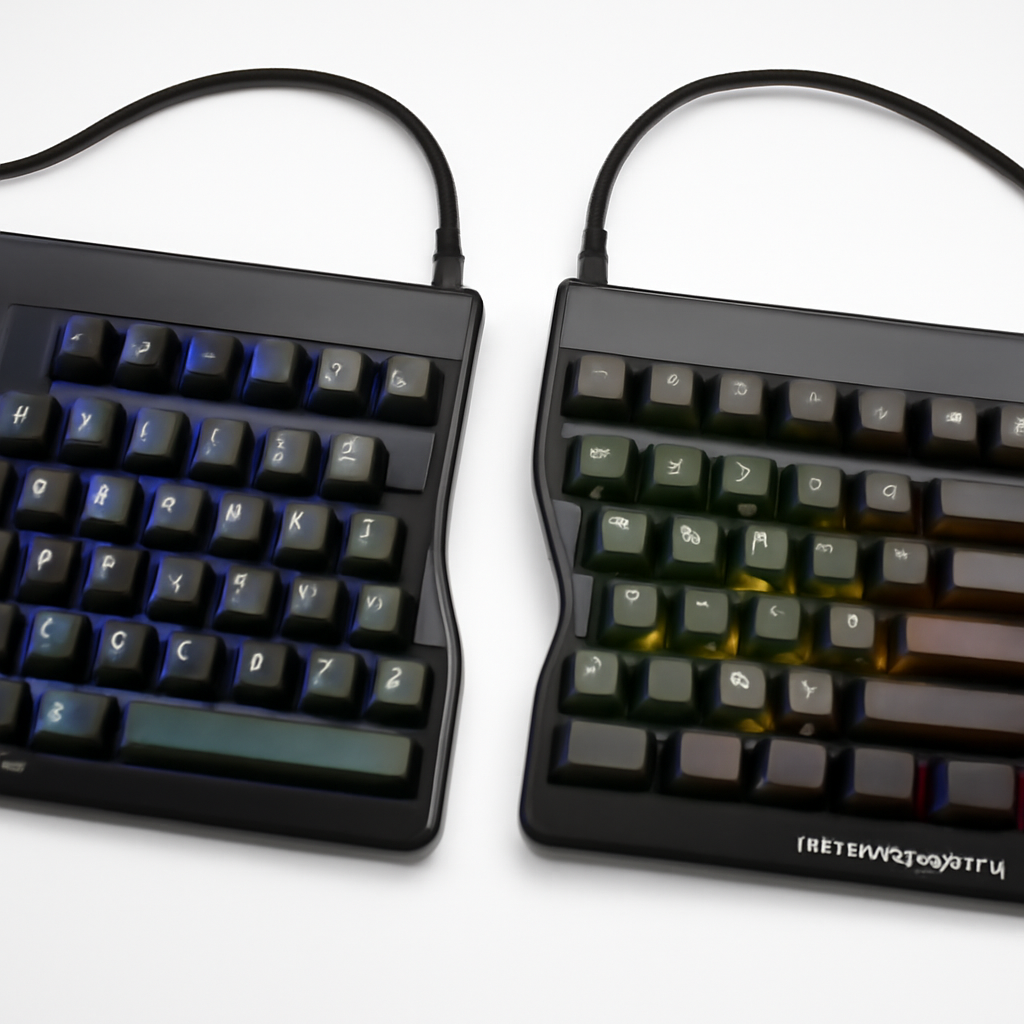
A true split: two fully separate halves connected by a cable, so you can space them as wide as your shoulders need. Pair it with the optional Lift Kit and you get 5°, 10°, or 15° tenting. It uses real mechanical Cherry MX switches and includes onboard programming — no software required. It’s marketed partly at gamers, which means low latency and solid build quality.
Pros
– Genuinely separable halves for true neutral wrist position
– Adjustable tenting via add-on Lift Kit
– Mechanical switches with onboard macros
– Wired reliability, no battery management
Cons
– Tenting requires a separate purchase
– Larger desk footprint
– Wired-only cable management
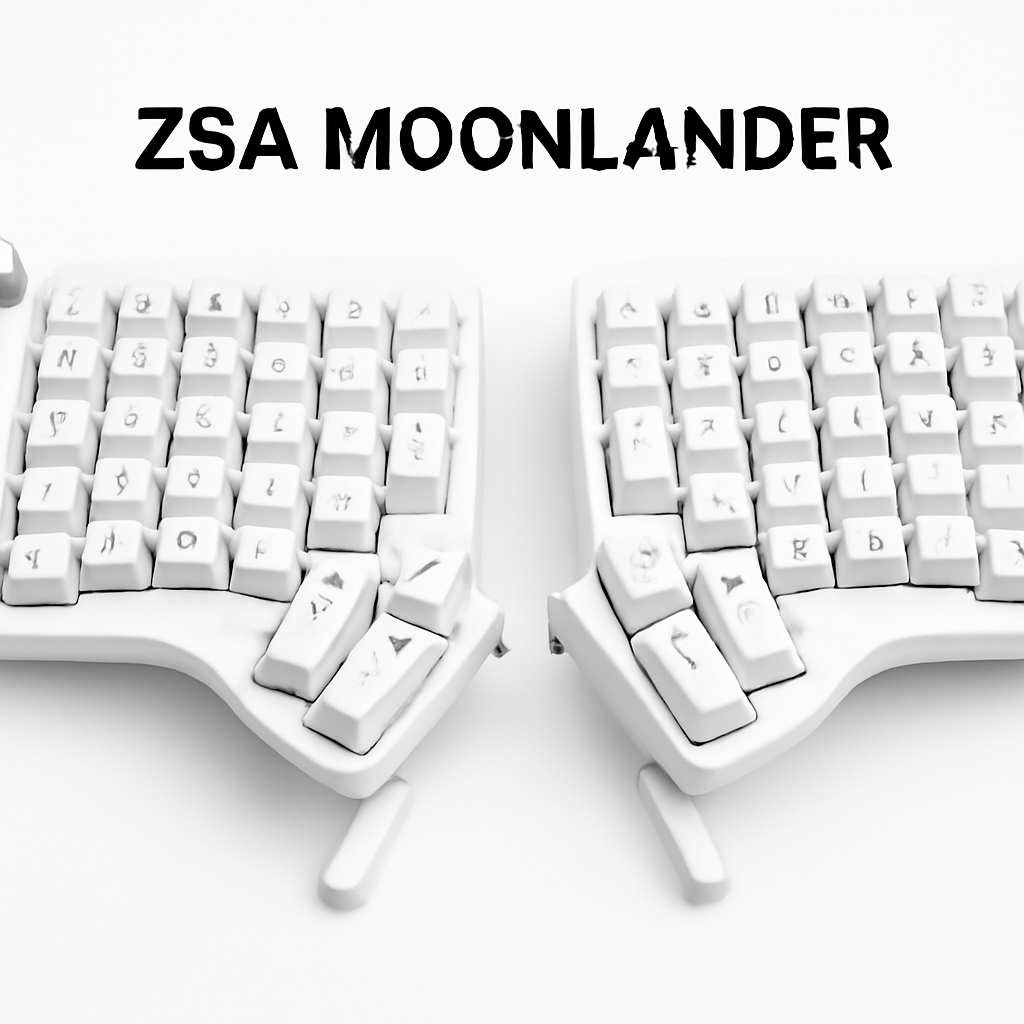
ZSA Moonlander — Best for Power Users
The Moonlander is a fully programmable, ortholinear (grid-layout) split with built-in adjustable tenting legs and thumb clusters. ZSA’s Oryx configurator lets you remap every key and build layers. It’s hot-swappable, beautifully built, and has a dedicated following. The catch is a real learning curve — the columnar layout and thumb keys take a couple of weeks to feel natural.
Pros
– Best-in-class customization and layer support
– Built-in tenting and thumb clusters
– Hot-swap switches — change the feel anytime
– Compact, portable halves
Cons
– Steep learning curve (ortholinear + thumb keys)
– Premium price
– Overkill if you just want basic wrist relief
Budget vs. Premium: What You Actually Get at Each Price Point
It’s tempting to assume more money equals more comfort. That’s only partly true — past a certain point you’re paying for adjustability and customization, not raw ergonomics.
Entry tier (budget): A fixed-curve “split” like the Microsoft/Incase Ergonomic Keyboard or the Logitech Ergo K860. You get a separated key zone, a wrist rest, and usually negative tilt. No tenting adjustment, no separable halves. For a lot of people with mild discomfort, this is genuinely enough — don’t let anyone upsell you past your actual needs.
Mid tier: Boards like the Kinesis Freestyle Edge RGB. Now you can separate the halves, add tenting, and you’re on mechanical switches. This is where you go if a fixed board didn’t fully solve your wrist pain.
Premium tier: The ZSA Moonlander and MoErgo Glove80. Full programmability, thumb clusters, contoured or columnar layouts, hot-swap switches. You’re buying long-term adjustability and the ability to fit the keyboard precisely to your hands — but you’re also signing up for a learning curve.
The honest take: Spend the minimum that solves your problem. If you have mild end-of-day wrist soreness, the budget tier likely fixes it. If you have diagnosed RSI or you type for a living and want to optimize everything, the premium tier earns its price.
Setup & Adjustment Tips for a Pain-Free Typing Posture
Buying the keyboard is half the job. How you set it up determines whether it actually helps.
1. Position each half in front of your shoulder. The whole point of a split is to stop your wrists deviating outward — so don’t crowd the halves together out of habit.
2. Get your elbows to roughly 90°. Your keyboard should sit at a height where your forearms are parallel to the floor or angled slightly down. Raise your chair or lower your desk to hit this.
3. Start tenting gentle, then increase. If your board tents, begin around 10°. Too much tenting too fast can cause its own strain. Increase only if it feels right.
4. Aim for neutral or negative tilt. Your wrists should be flat or angled slightly down — never bent up. Skip the flip-out feet that raise the back edge.
5. Use the wrist rest to rest, not to lean. Your palms should hover while typing and only rest during pauses. Don’t plant your wrists and pivot from them.
6. Give it two weeks. Your speed will dip at first, especially on a true split or ortholinear board. This is normal. Push through the dip — your accuracy and comfort climb back up.
7. Pair it with monitor and chair fixes. A great keyboard can’t fix a screen that’s too low or a chair with no lumbar support. The keyboard is one part of the posture chain.
How to Choose the Right Split Keyboard for Your Workflow
Match the board to how you actually work, not to the spec sheet that looks most impressive.
– You just want relief with minimal hassle → Logitech Ergo K860. Fixed split, familiar keys, plug in and go.
– A fixed board didn’t fully solve your pain → Kinesis Freestyle Edge RGB. Separate the halves, add tenting, dial in your exact position.
– You’re a developer, writer, or heavy keyboard user who loves customization → ZSA Moonlander or MoErgo Glove80. Layers, macros, thumb clusters, and a layout tuned to your hands.
– You’re on a tight budget but want the split benefit → Microsoft/Incase Ergonomic Keyboard. Entry-level curve that still beats a flat board.
– You switch between a laptop and desktop all day → Prioritize multi-device wireless pairing (the K860 handles this well).
Also weigh your desk space (true splits need more), your noise tolerance (membrane is quiet, mechanical clicks), and your patience for a learning curve (ortholinear boards are powerful but slow to learn).
Our Verdict
For most people setting up a 2026 home office, the Logitech Ergo K860 is the keyboard to start with. It delivers the core ergonomic wins — separated key zones, negative tilt, a solid wrist rest — with almost no learning curve and a reasonable price. It solves the problem for the majority of users without overcomplicating things.
If a fixed board has already let you down, or you know you want true separation and tenting, the Kinesis Freestyle Edge RGB is the best mid-tier upgrade: adjustable, mechanical, and reliable.
And if you’re a power user who treats your keyboard as a tool worth mastering, the ZSA Moonlander (or the contoured MoErgo Glove80) rewards the investment with customization nothing else matches.
Buy the least complicated board that fixes your specific discomfort — then give it two weeks before you judge it. Your wrists will thank you.