Quick Answer
If you spend 8+ hours a day typing, an ergonomic keyboard can be the difference between comfortable work and chronic wrist pain. The best work keyboards feature split designs, adjustable tilt, mechanical switches, and wrist support. Top picks for 2026 include the Kinesis Advantage2, Logitech Ergo K860, and Microsoft Sculpt Ergonomic—but the right choice depends on your budget, desk setup, and typing style.
—
What Makes a Keyboard Ergonomic for Work
An ergonomic keyboard isn’t just about comfort—it’s about preventing long-term injury. Here’s what separates a truly ergonomic keyboard from a regular one:
Natural Wrist Position
Your wrists should stay neutral (straight, not bent up or to the sides) while typing. Regular keyboards force your hands into a pronated position, meaning your palms rotate inward. This strains the tendons in your forearms and can lead to repetitive strain injury (RSI) and carpal tunnel syndrome.
Split or Curved Design
The keys are separated or curved so each hand operates at its natural angle. This reduces the distance your hands need to travel and keeps your shoulders from rotating inward.
Tilt and Tent Adjustment
Good ergonomic keyboards let you adjust the angle. Your wrists should be slightly extended (tilted up at the back), not flat or bent downward. The ability to “tent” the keyboard (raise the center higher than the edges) is especially valuable.
Key Travel and Actuation
Keys should require moderate, consistent pressure. Too light and you’ll make mistakes; too heavy and your fingers get fatigued. Mechanical switches tend to feel more consistent than membrane keyboards.
Wrist Rest Support
A quality wrist rest (usually memory foam or gel) reduces pressure on the underside of your wrists while typing. However, it should be used passively—resting your wrists between typing sessions, not during.
Build Quality
A keyboard that lasts 5+ years matters when you’re trying to prevent injury. Cheaper keyboards wear out, keys get stuck, and the ergonomic design falls apart.
—
Top Ergonomic Keyboards Compared (2026 Models)
| Product | Best For | Price Range | Typing Style |
| Kinesis Advantage2 | Programmers, power typists | $350–$400 | Mechanical, split |
| Logitech Ergo K860 | Most office workers | $100–$130 | Wireless, curved, membrane |
| Microsoft Sculpt Ergonomic | Budget-conscious users | $60–$80 | Wireless, curved, membrane |
| Herman Miller x Logitech G Cloud | Premium ergonomics + gaming | $200–$250 | Mechanical, customizable |
Kinesis Advantage2
Best for: Developers, writers, and anyone willing to invest in the gold standard of ergonomic keyboards.
The Advantage2 is the industry leader for a reason. It features:
– Deeply concave key wells (one for each hand) that position your fingers naturally
– Highly adjustable tent, tilt, and height
– Mechanical switches with crisp tactile feedback
– Programmable keys and macros
– Lifetime warranty
Pros:
– Dramatically reduces wrist strain once you adjust
– Durable enough for 10+ years of daily use
– Fully programmable for advanced workflows
– Excellent customer support
Cons:
– High price point ($350–$400)
– Steep learning curve; you’ll need 2–3 weeks to adjust
– Large desk footprint (not portable)
– Overkill if you only type 2–3 hours per day
—
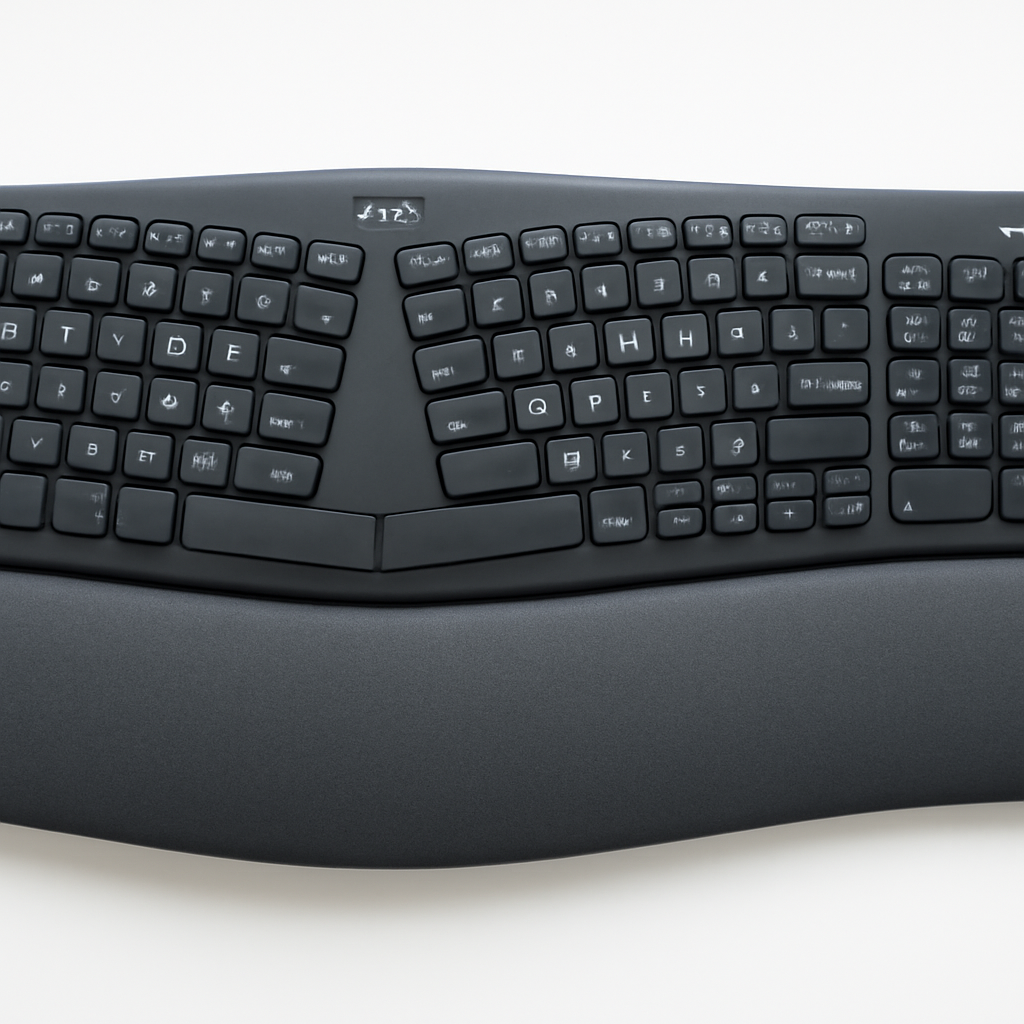
Logitech Ergo K860
Best for: Office workers who want genuine ergonomics without a learning curve or high price.
This is the sweet spot for most people. It combines:
– Curved key layout (reduces hand/wrist rotation)
– Split design with cushioned wrist rest
– Adjustable tent (0–5 degrees)
– Wireless connection (USB receiver or Bluetooth)
– Quiet membrane switches
Pros:
– No learning curve; feels familiar from day one
– Affordable ($100–$130)
– Quiet typing (good for open offices)
– Easy to move or pack for travel
– Works across Windows, Mac, and Linux
Cons:
– Membrane switches feel less satisfying than mechanical
– Less adjustable than premium options
– Wrist rest is curved but not as supportive as memory foam
– Moderate desk space requirement
—
Microsoft Sculpt Ergonomic
Best for: Budget-conscious workers or anyone with a small desk.
If the Logitech is out of budget:
– Curved key layout
– Integrated wrist rest
– Wireless dongle connection
– Slim profile (compact footprint)
– Quiet operation
Pros:
– Very affordable ($60–$80)
– Smaller than most ergonomic keyboards
– No batteries (USB power only)
– Immediate comfort improvement over flat keyboards
Cons:
– Less adjustable than pricier models
– Wrist rest isn’t as cushioned
– Keyboard height is fixed (no tilt options)
– Membrane switches are quieter but less responsive
—
Herman Miller x Logitech G Cloud
Best for: Remote workers and gamers who want premium ergonomics and design.
A collaboration between two design leaders:
– Premium mechanical switches (Cherry MX-style)
– Subtle split with palm rest
– Customizable RGB (if you care about that)
– Designed to match Herman Miller furniture
– Wireless connection with low-latency option
Pros:
– Beautiful design (looks professional on any desk)
– Mechanical switches feel excellent
– Great for extended typing and occasional gaming
– Highly adjustable via software
Cons:
– High price ($200–$250)
– Not as radical a split as Kinesis
– Still requires adjustment period (1–2 weeks)
—
Key Features to Look For in a Work Keyboard
When comparing ergonomic keyboards, focus on these non-negotiable features:
Adjustability
Can you adjust the tilt, height, and tent angle? The “best” ergonomic keyboard for you depends on your desk setup, chair height, and arm length. Look for:
– Tent adjustment (0–15 degrees) — raises the center ridge
– Tilt angle — typically 0–5 degrees, lifts the back edge
– Separate tilt for each half (advanced models)
If a keyboard doesn’t adjust, you’re betting it’s the right angle for your body. Most people aren’t that lucky.
Wrist Support Quality
Not all wrist rests are created equal. Check:
– Material — memory foam > gel > plastic
– Height — should align with your palm height (not too tall)
– Removability — you might want to adjust or remove it later
Key Switch Type
Mechanical switches (best for comfort and longevity):
– Consistent actuation force
– Better tactile feedback
– More expensive but last 50M+ keypresses
– Examples: Cherry MX, Gateron, Kailh
Membrane switches (best for budget):
– Quieter operation
– Lower cost
– Less satisfying feel
– Wear out after 5–7 years of heavy use
For work keyboards, mechanical slightly edges out membrane—the consistent feedback reduces typing errors and finger fatigue.
Quiet Operation
Open office? Shared workspace? Look for keyboards rated under 60 dB. Mechanical keyboards can be loud (65–75 dB); membrane keyboards are naturally quieter (50–60 dB). Some premium mechanical keyboards use dampening materials to reduce noise.
Wireless vs. Wired
– Wireless — freedom to reposition, fewer cables, but requires charging/batteries
– Wired — always powered, no latency, but tethered to your desk
For work, wireless is usually preferable unless you’re a competitive gamer.
Programmability
Can you remap keys or create macros? This matters if you use specific software (Photoshop, code editors, etc.). Most wireless ergonomic keyboards have basic remapping via software.
—
Mechanical vs. Membrane: Which is Better for Ergonomics
This comes up constantly. Here’s the honest comparison:
| Aspect | Mechanical | Membrane |
| Wrist fatigue | Lower (consistent feedback) | Higher (requires more pressure variance) |
| Noise level | Louder (65–75 dB) | Quieter (50–60 dB) |
| Lifespan | 10+ years (50M keypresses) | 5–7 years (20M keypresses) |
| Cost | $150–$400+ | $50–$150 |
| Learning curve | Minimal | None |
| Typing feel | Satisfying (tactile feedback) | Mushy (less feedback) |
| Best for work | Extended typing (8+ hours/day) | Light typing (2–4 hours/day) |
The verdict: If you type for 6+ hours daily and can afford it, mechanical is the better ergonomic choice. The consistent actuation reduces finger strain over time. If you’re on a tight budget or type casually, a quality membrane keyboard like the Logitech Ergo K860 is perfectly adequate.
—
Budget-Friendly Ergonomic Options
You don’t need to spend $300+ to protect your wrists.
Under $80: Microsoft Sculpt Ergonomic
The best value option. Curved design, wrist rest, wireless. It’s not adjustable, but it covers the ergonomic basics without breaking the bank. Good for:
– First-time ergonomic keyboard buyers
– Small desk spaces
– Occasional workers (part-time, freelance)
$80–$130: Logitech Ergo K860
Jump up to this if you have $20–$50 more. The Logitech adds adjustable tent, better wrist support, and more refined build quality. Worth it if you’re typing 5+ hours daily.
$130–$200: Kinesis Gaming Keyboard or similar split mechanical
Some mechanical keyboards with split designs fall into this mid-range. You get:
– Mechanical switches (better feel, more durable)
– Basic split design (wrist health improvement)
– Less adjustability than premium models, but more than budget options
Money-saving tip: Check refurbished or open-box listings for premium keyboards. A refurbished Kinesis Advantage2 might cost $250 instead of $350.
—
How to Set Up Your Keyboard for Optimal Comfort
Having the right keyboard means nothing if you’re using it wrong. Follow these setup steps:
1. Desk Height
Your desk should be at elbow height when your arms hang naturally at your sides. Your elbows should form a 90-degree angle when your hands are on the keyboard.
Too high? You’ll shrug your shoulders and strain your neck.
Too low? Your wrists will bend downward, causing pressure on the median nerve.
If your desk is fixed and wrong height, use an adjustable keyboard tray (clamped under your desk) to correct it.
2. Monitor Position
Keyboard comfort is only half the battle. Your monitor should be:
– Distance: 20–26 inches from your eyes
– Height: Top of screen at or slightly below eye level
– Angle: Tilted slightly upward (10–20 degrees)
If your monitor is too low, you’ll bend your neck down and round your shoulders forward—which pulls your hands into a pronated position, ruining your keyboard ergonomics.
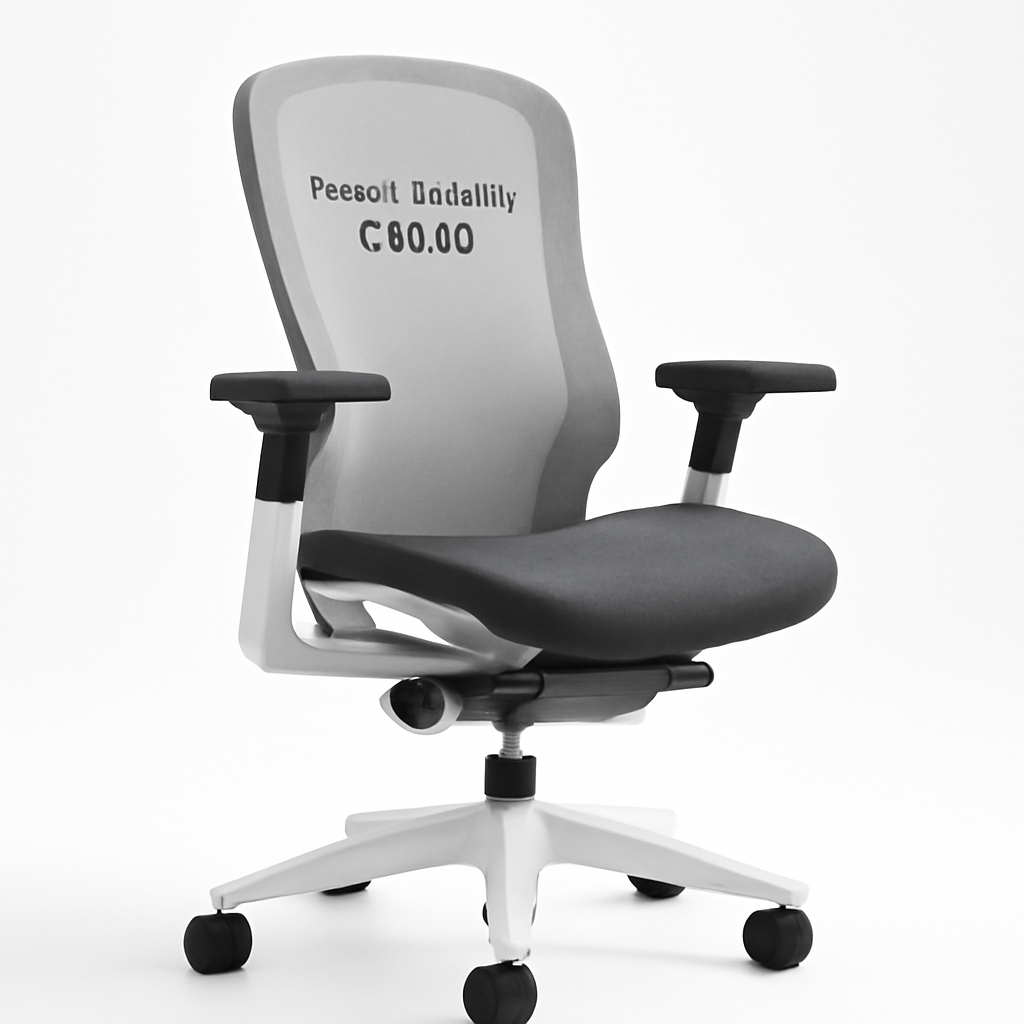
3. Chair Support
You need a chair with:
– Lumbar support (lower back curve)
– Seat depth that doesn’t press behind your knees
– Adjustable height (for proper elbow position)
– Armrests that support your forearms without forcing your shoulders up
Your chair matters as much as your keyboard.
4. Keyboard Angle
Once you have an ergonomic keyboard:
– Start with slight tent (5–10 degrees, raising the center)
– Minimal tilt (1–3 degrees, back slightly higher)
– Adjust gradually — small changes make a big difference
Don’t assume “maximum tent” is best. Many people find moderate tent (8 degrees) more comfortable than extreme angles.
5. Wrist Rest Usage
This is critical: use the wrist rest between typing sessions, not during active typing.
Resting your wrists while typing reduces mobility and can actually cause problems. The wrist rest is for those moments when your hands are idle (checking email, thinking, short breaks).
6. Break Schedule
Even with perfect ergonomics, typing for 8 straight hours is risky. Follow the 20-20-20 rule:
Every 20 minutes, take a 20-second break and look at something 20 feet away. Stand up, stretch, and let your wrists rest for 2–3 minutes every hour.
—
Common Mistakes That Cause Wrist Pain at Your Desk
Mistake #1: Assuming a Flat Keyboard is Fine
Flat keyboards (like MacBook-style) force your wrists into pronation (palms inward). This is one of the leading causes of RSI. Fix: Get an ergonomic keyboard with split or curved design.
Mistake #2: Keyboard Too High
If your keyboard sits above elbow height, your shoulders shrug upward and your wrists bend down. Fix: Use a keyboard tray that hangs below your desk, or lower your chair and adjust your monitor.
Mistake #3: Ignoring Wrist Pain Early
“It’s just a little sore” turns into tendonitis quickly. Pain is your body’s warning system. Fix: Address discomfort immediately with keyboard changes or breaks. See a physical therapist if pain persists beyond a few days.
Mistake #4: Cheap Keyboard + Long Hours
A $20 rubber dome keyboard might feel fine for 2 hours. For 8 hours daily? The inconsistent key feedback and uncomfortable angle will fatigue your hands. Fix: Invest in a quality ergonomic keyboard if you type full-time.
Mistake #5: Wrong Monitor Height
You can have the perfect keyboard but if your monitor forces you to look down or reach forward, your wrists will suffer. Fix: Monitor should be at eye level, 20–26 inches away.
Mistake #6: No Breaks
Even ergonomic keyboards don’t prevent injury if you never give your hands rest. Fix: Take breaks every 30–60 minutes. Stretch your forearms, wrists, and shoulders.
Mistake #7: Resting Wrists While Typing
Leaning your wrists on the wrist rest during active typing increases strain by limiting hand mobility. Fix: Use the wrist rest only between typing sessions.
—
Our Verdict
If you have the budget ($300–$400): Get the Kinesis Advantage2. It’s the most effective ergonomic keyboard available, with a learning curve that’s worth the investment. Best for programmers, writers, and anyone with chronic wrist issues.
If you’re a typical office worker ($100–$150): Choose the Logitech Ergo K860. It offers genuine ergonomic benefits (split design, adjustable tent, wrist rest) without a learning curve. Great balance of price and performance.
If you’re on a tight budget ($60–$80): Go with the Microsoft Sculpt Ergonomic. It covers the ergonomic basics and is significantly better than a flat keyboard. Not adjustable, but solid for light to moderate typing.
If you want premium design + mechanical switches ($200–$250): Consider the Herman Miller x Logitech G Cloud. Beautiful, durable, and mechanically satisfying.
—
Final Recommendation
The “best” ergonomic keyboard for your work depends on three factors:
1. Your typing volume — Heavy typists (6+ hours/day) benefit more from premium options and mechanical switches.
2. Your budget — Even a $70 ergonomic keyboard beats a flat $40 keyboard for wrist health. Don’t feel pressured to max out.
3. Your desk setup — Spend equal energy on monitor height, chair support, and keyboard tilt. No keyboard is ergonomic if your desk isn’t set up right.
Start here: If you’re unsure, buy the Logitech Ergo K860. It’s affordable, effective, has no learning curve, and works for 90% of office workers. If you experience improvement in