# Best Ergonomic Keyboards 2026 | Top Picks Reviewed
Quick Answer
If your wrists hurt after a few hours at your desk, an ergonomic keyboard is one of the smartest investments you can make for your health. In 2026, the best options range from split designs like the Kinesis Advantage360 CHECK PRICE] to mainstream picks like the [Logitech MX Keys CHECK PRICE]. Budget buyers should look at the [Microsoft Sculpt Ergonomic Keyboard CHECK PRICE], while those wanting the ultimate in customization should consider the [Keychron Q14 Pro [CHECK PRICE].
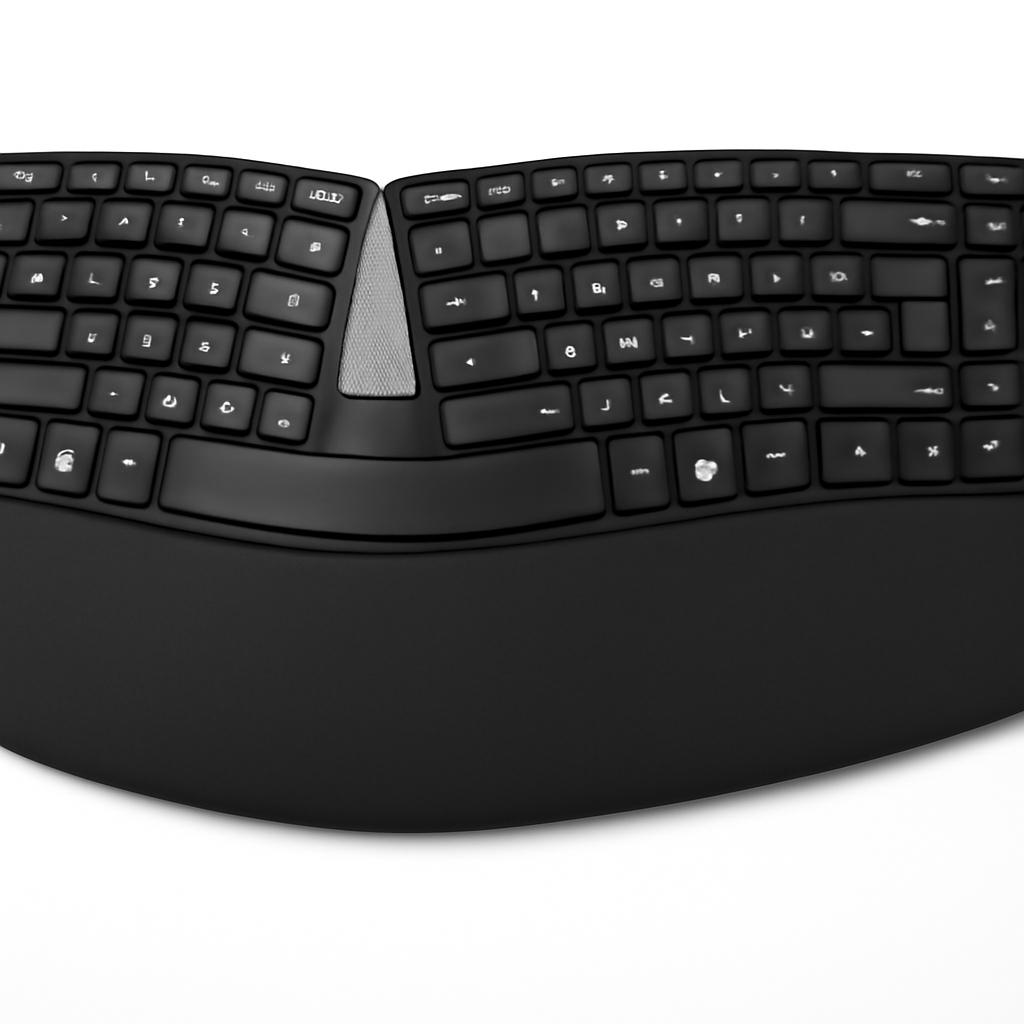
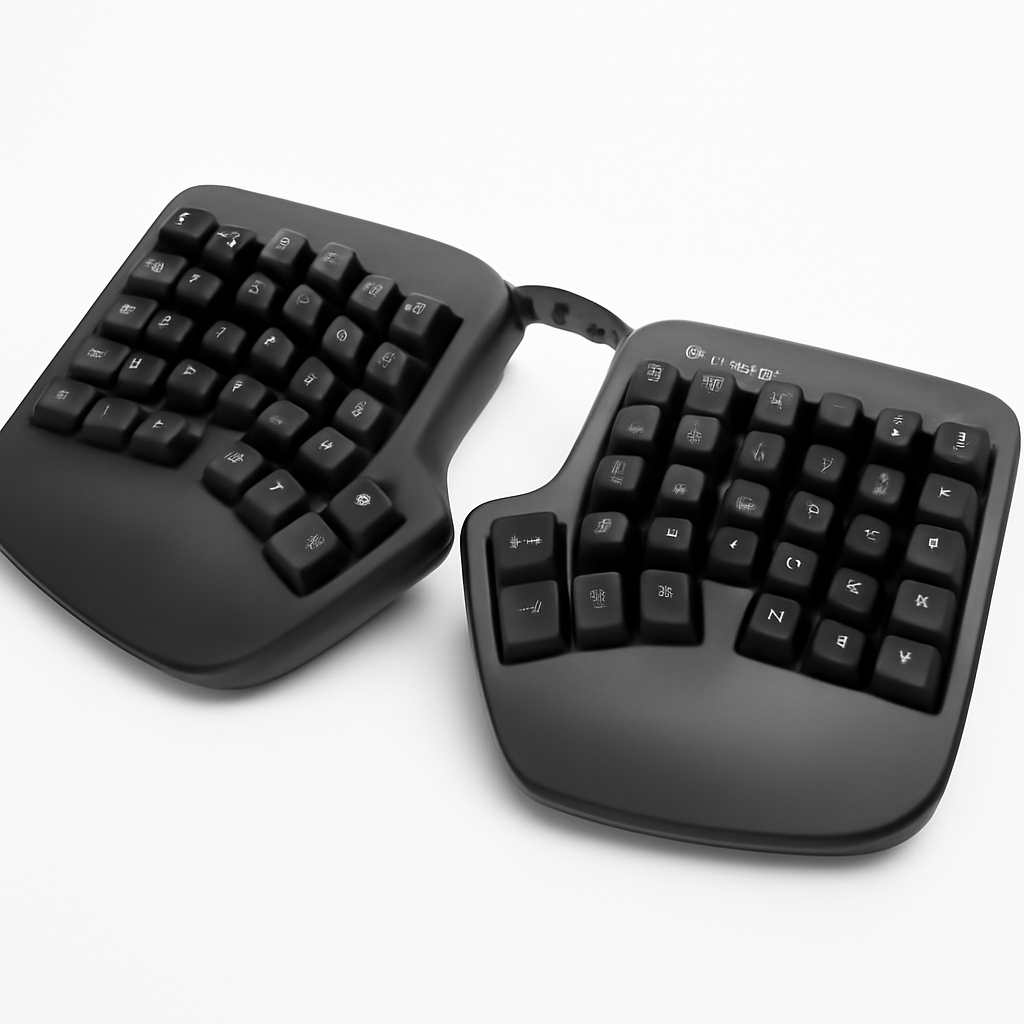
The right ergonomic keyboard combines proper wrist support, intuitive key placement, and build quality that lasts years. This guide breaks down what actually matters, shows you the keyboards that deliver, and helps you avoid wasting money on uncomfortable designs.
—
What Makes an Ergonomic Keyboard Worth the Investment
If you spend 6+ hours daily typing, an ergonomic keyboard isn’t a luxury—it’s preventive healthcare.
Here’s the reality: standard flat keyboards force your wrists into an unnatural position. Over months and years, this contributes to repetitive strain injury (RSI), carpal tunnel syndrome, and general hand fatigue. An ergonomic keyboard addresses these issues by:
– Reducing wrist extension: Angled or split designs keep your wrists straighter, not bent backward
– Lowering overall profile: Modern ergonomic keyboards sit lower, so you don’t reach upward to type
– Distributing finger load: Split designs mean your hands aren’t forced together unnaturally
– Adding palm support: Built-in wrist rests reduce pressure on your tendons
Studies from ergonomic researchers consistently show that people switching to split or curved keyboards report less pain within 2-3 weeks of regular use.
The catch? Not every “ergonomic” label means quality. Some keyboards are just curved for show. The best ones combine thoughtful design with solid build quality and tactile feedback that makes typing feel good, not just feel less painful.
—
Best Overall Ergonomic Keyboards for 2026
Logitech MX Keys [CHECK PRICE]
Best for: Remote workers and professionals who want style + comfort
The Logitech MX Keys remains the gold standard for people who want genuine ergonomics without looking like they’re working in a lab. It’s not a radical split design—instead, it uses a curved key layout, low profile, and subtle wrist elevation to reduce strain.
Key Features:
– Ultra-low profile (20mm) reduces reaching distance
– Curved layout naturally guides finger placement
– Backlit keys for low-light typing
– Multi-device connectivity (switches between Mac, Windows, tablets)
– Premium aluminum frame with real durability
Pros:
– Typing feel is excellent—responsive, fast feedback
– Looks professional (works on any desk aesthetic)
– Long battery life (rechargeable, ~10 days per charge)
– Linux, Mac, and Windows compatible
Cons:
– More expensive than budget alternatives
– Not a true split design (better for prevention than recovery from existing pain)
– Key travel is relatively shallow (2mm) if you prefer mechanical feedback
– Can’t disable backlighting (drains battery faster in dark environments)
—
Kinesis Advantage360 [CHECK PRICE]
Best for: People with existing wrist pain or those serious about injury prevention
If you’re looking at an ergonomic keyboard because you already have pain, the Kinesis Advantage360 is built for you. This is a radical departure from standard keyboards—it’s a full split design with sculpted wells for each hand and a learning curve that’s real but worth it.
Key Features:
– Contoured key wells (your hands rest in sculpted cups)
– 70-degree angle naturally aligns your wrists
– Programmable keys and macros
– Hot-swap mechanical switches (customize your actuation)
– Vertical thumb clusters for space bar and modifiers
Pros:
– Eliminates wrist extension almost entirely
– Customizable to your exact hand size and typing style
– Mechanical switches feel premium and responsive
– Truly addresses pain, not just prevents it
Cons:
– Steep learning curve (expect 2-3 weeks of slower typing)
– Expensive investment
– Bulky (not portable, desk-bound only)
– Overkill if you’re just looking for minor prevention
– Vertical thumb clusters take time to master
—
Microsoft Sculpt Ergonomic Keyboard [CHECK PRICE]
Best for: Budget-conscious users who still want real ergonomic benefits
The Microsoft Sculpt proves you don’t need to spend $400+ for a solid ergonomic keyboard. This mid-curve design offers genuine wrist support at a fraction of premium prices.
Key Features:
– Raised palm rest reduces wrist extension
– Curved key layout guides hand position
– Scissor-switch mechanism is quiet and reliable
– Wireless connection (2.4GHz dongle)
– Included numeric pad integration (rarely seen at this price)
Pros:
– Affordable ($40-60 range)
– Real ergonomic improvements, not just marketing
– Quiet typing (good for shared spaces)
– Comfortable palm rest
Cons:
– Not a true split (hands still somewhat forced together)
– Wireless signal occasionally drops (rare but frustrating)
– No backlighting
– Plastic build feels less premium than competitor options
—
Budget-Friendly Options Without Sacrificing Comfort
You don’t need to spend $200+ to get ergonomic benefits. These keyboards deliver comfort at accessible prices:
Key Budget Considerations
Under $50: The Microsoft Sculpt is still the best value here. Alternatives like the Kensington Pro Fit often feel plasticky and cheap.
$50-100: This is where you find solid mechanical options. Look for:
– Wireless ergonomic options with real build quality
– Keyboards with adjustable legs (height matters)
– Models with decent key travel (at least 1.5mm)
Red flags at budget prices:
– “Ergonomic” labels with no actual wrist support
– Flimsy plastic that flexes when typing
– Wireless keyboards with unreliable connections
– No palm rest or minimal padding
—
Split and Curved Keyboards: Which Style Suits You
The two main ergonomic designs solve different problems. Understanding the difference helps you choose right.
Split Keyboards
A split keyboard divides left and right halves so each hand has its own space.
Best for:
– Shoulder and neck tension (spreading hands wide reduces shoulder shrugging)
– Existing wrist pain or RSI
– People with longer arms (can position halves for personal width)
Examples: Kinesis Advantage360, Mistel Barocco, Ultimate Hacking Keyboard
Learning curve: Expect 1-3 weeks of adjustment
Downsides: Expensive, space-intensive, not portable
Curved Keyboards
A curved design keeps hands together but uses a gentle arc to reduce strain.
Best for:
– Prevention (stopping pain before it starts)
– People who travel or work in different locations
– Those wanting ergonomics without learning something new
– Professionals who can’t look like they’re working in a spaceship
Examples: Logitech MX Keys, Microsoft Sculpt
Learning curve: None—feels natural immediately
Downsides: Less aggressive than split designs (doesn’t help as much if pain already exists)
Quick Comparison
| Design Type | Wrist Relief | Shoulder Relief | Portability | Learning Curve | Price Range |
| Curved | Good | Minimal | High | None | $40-150 |
| Split | Excellent | Excellent | Low | 2-3 weeks | $200-400 |
—
Key Features to Look For When Choosing Your Keyboard
1. Wrist Rest Design
Not all palm rests are created equal. The best ones:
– Are made of memory foam or gel (not hard plastic)
– Match the keyboard height exactly (no gaps)
– Angle slightly to follow your hand’s natural position
Cheap wrist rests add pressure rather than relief. If you try a keyboard with an uncomfortable rest, look elsewhere.
2. Key Travel and Switch Type
– Mechanical switches (3-4mm travel): Better tactile feedback, lasts longer (80+ million keystrokes)
– Scissor switches (1.5-2mm travel): Quieter, lower profile, sufficient for most people
– Membrane (rubber dome): Avoid—cheap feel and high failure rates
For ergonomic keyboards, scissor or low-travel mechanical switches are fine. You don’t need gaming-level key travel for office work.
3. Adjustability
Look for:
– Adjustable height legs: Let you angle the keyboard to your exact desk setup
– Programmable keys: Reduce reaching for frequently used keys
– Removable palm rest: Different people need different support
4. Connectivity
– Wireless: Cleaner desk, more freedom to position the keyboard
– Bluetooth: Works across multiple devices
– Wired: Stable connection, no batteries needed
For ergonomic keyboards, wireless is nice but not essential. Stability matters more than removing a cable.
5. Build Quality
Budget keyboards feel mushy. Mid-range and premium options use:
– Aluminum or reinforced plastic frames
– Stabilized spacebar (doesn’t rattle)
– Consistent key response across the entire board
Spend 5 minutes typing on any keyboard before buying. Bad build quality ruins ergonomic benefits.
—
How to Set Up Your Keyboard for Maximum Ergonomics
Even the best ergonomic keyboard won’t help if your desk setup is wrong. Here’s what actually matters:
1. Keyboard Height
Your keyboard should sit so your:
– Elbows bend at 90 degrees (not reaching down or up to type)
– Wrists stay neutral (straight, not bent upward or downward)
– Forearms are parallel to the ground
Most desks are too high. Your keyboard should be 2-4 inches lower than a standard desk surface. Many people need a keyboard tray to achieve this.
2. Distance from Your Body
– Position the keyboard directly in front of you, not off to one side
– Keep it 12-20 inches away (roughly an arm’s length)
– Close enough that you’re not reaching, far enough that you’re not cramped
3. Monitor Height
This matters as much as keyboard height. Your monitor should be:
– Eye level when you look straight ahead
– 20-26 inches from your eyes
– Slightly tilted up (10-15 degrees)
If your monitor is too low, you’ll hunch forward, creating tension that no keyboard can fix.
4. Chair Position
An ergonomic keyboard is only half the battle:
– Back support matters: Get a chair with lumbar support
– Seat height: Feet flat on floor, knees at 90 degrees
– Armrests: Should support your arms at keyboard height (elbows at 90 degrees)
—
Ergonomic Keyboard Comparison Chart
| Product | Best For | Key Features | Price Range | Best Suited To |
| Logitech MX Keys [CHECK PRICE] | Remote workers | Low profile, curved, multi-device | $80-120 | Prevention, style-conscious professionals |
| Kinesis Advantage360 [CHECK PRICE] | Wrist pain recovery | Split, sculpted, mechanical | $300-400 | Serious RSI/pain treatment |
| Microsoft Sculpt [CHECK PRICE] | Budget buyers | Curved, palm rest, affordable | $40-60 | Budget-conscious prevention |
| Keychron Q14 Pro [CHECK PRICE] | Customization | Mechanical, hot-swappable, compact | $150-220 | Tech enthusiasts, home office |
| Mistel Barocco | Split design seekers | Split, compact, mechanical | $200-300 | Portable split keyboard users |
—
Common Mistakes People Make When Buying Ergonomic Keyboards
1. Assuming price = comfort: A $400 keyboard won’t help if your desk setup is wrong
2. Ignoring the learning curve: Split keyboards need 2-3 weeks; expecting instant comfort leads to returning them
3. Buying too aggressive a design: If you just want prevention, a Kinesis Advantage360 is overkill
4. Forgetting about desk setup: Keyboard is only one piece—monitor height, chair, and desk height matter equally
5. Choosing based on reviews alone: What works for someone else’s pain might not work for yours; try before buying if possible
—
Our Verdict: Which Keyboard Should You Actually Buy?
If you have existing wrist pain or RSI: Go with the Kinesis Advantage360 [CHECK PRICE]. Yes, it’s expensive. Yes, there’s a learning curve. But it’s specifically designed to address pain, and the investment pays off in reduced discomfort and faster recovery.
If you want solid ergonomics without breaking the bank: The Logitech MX Keys [CHECK PRICE] is the best all-rounder. It genuinely reduces strain, looks professional, and the typing experience is excellent. You’ll notice the difference within a week.
If your budget is tight but you still want real benefits: Microsoft Sculpt Ergonomic Keyboard [CHECK PRICE] delivers surprising comfort for $40-60. It won’t fix existing pain, but it prevents problems from developing.
If you love mechanical keyboards and want to customize everything: Keychron Q14 Pro [CHECK PRICE] gives you hot-swappable switches, programmable keys, and a curved layout. It’s mechanical without being gaming-focused.
The Bottom Line
Ergonomic keyboards work, but they’re not magic. They’re one tool among several that includes proper desk setup, monitor height, chair support, and taking movement breaks. If you spend 40+ hours weekly at your desk, investing in a good ergonomic keyboard and setting up your desk correctly will reduce pain, improve typing speed, and protect your long-term hand health.
Start with one that matches your needs (prevention vs. pain recovery, budget vs. premium) and give yourself 2-3 weeks to adjust. Your wrists will thank you.