Quick Answer
If wrist pain is slowing down your work, an ergonomic keyboard is one of the fastest fixes you can make. In 2026, the best options combine split designs, mechanical switches, and adjustable angles to keep your wrists neutral while typing. The Logitech Ergo K860 remains a top choice for most home office workers, while the Kinesis Advantage Pro offers the most advanced split design for serious pain relief. Budget-conscious typists should consider the Microsoft Sculpt Ergonomic Keyboard, which delivers solid ergonomic benefits without breaking the bank.
—
Why Ergonomic Keyboards Matter for Remote Workers
Remote work has created a silent epidemic: keyboard-induced wrist pain. You’re typing for 7-8 hours a day, often on flat laptop keyboards or standard straight boards. Your wrists aren’t meant to stay in a pronated (palms-down) position all day—that’s the posture that causes carpal tunnel syndrome, tendonitis, and chronic pain.
An ergonomic keyboard fixes this by:
– Spreading your hands naturally – Split designs let each hand rest at its own angle rather than forcing both toward the center
– Reducing wrist deviation – Your wrists stay straight instead of bent sideways
– Lowering your hands – Proper positioning reduces shoulder strain and keeps your arms parallel to the desk
– Distributing pressure – Better key placement means less repetitive stress on the same tendons
The data backs this up. Workers who switched to ergonomic keyboards reported less wrist discomfort within two weeks and significant improvement after 4-6 weeks. If you’re working from home and typing is your primary task, this investment pays for itself in comfort and productivity.
—
Top Ergonomic Keyboard Models of 2026
Logitech Ergo K860
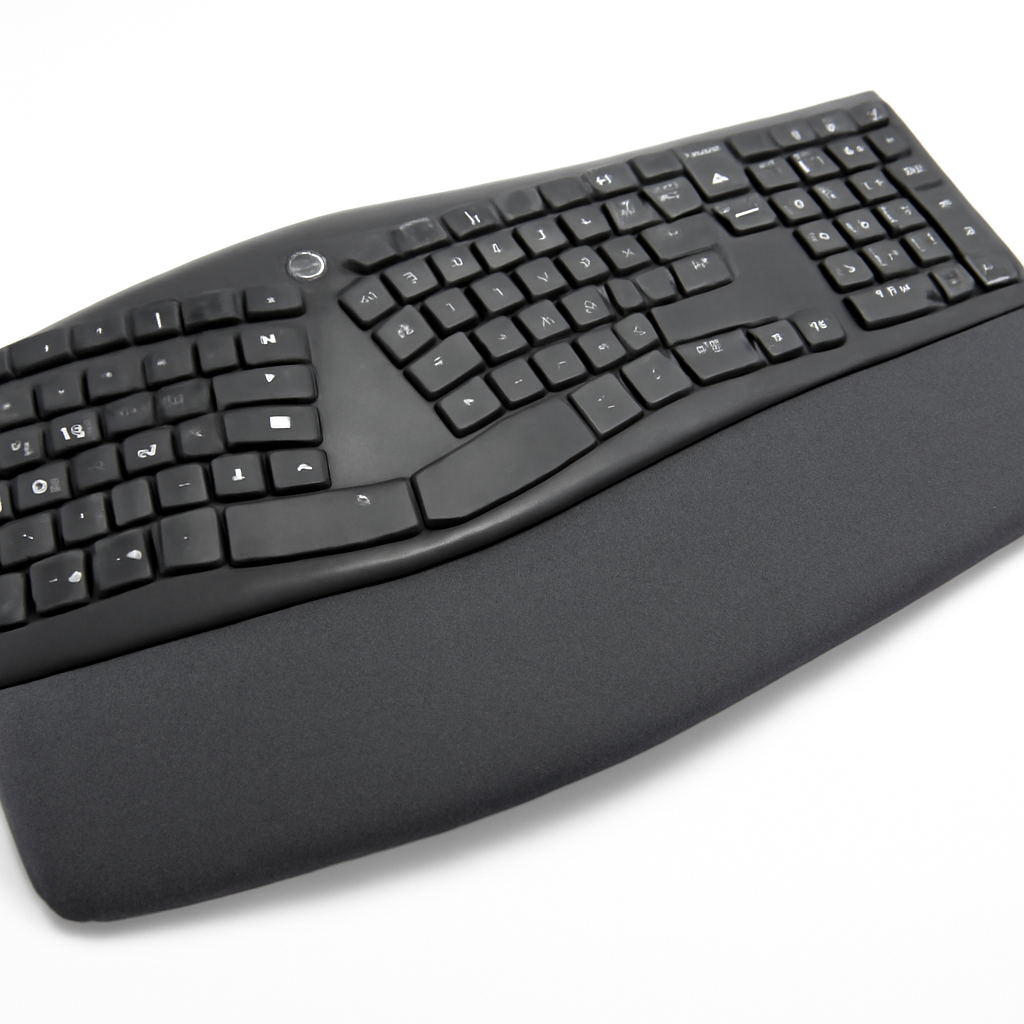
The K860 is the most popular ergonomic keyboard among home office workers for good reason. It features a curved design with a gentle split down the middle—not as aggressive as a full split, but enough to keep wrists neutral for most people.
What makes it stand out:
– Adjustable height with three angle settings
– Built-in palm rest that’s soft and supportive
– Quiet keys (great for shared spaces)
– Both wired and wireless options
– Compatible with Windows, Mac, iOS, and Android
Best for: First-time ergonomic keyboard buyers, office environments, laptop users looking to upgrade
—
Kinesis Advantage Pro
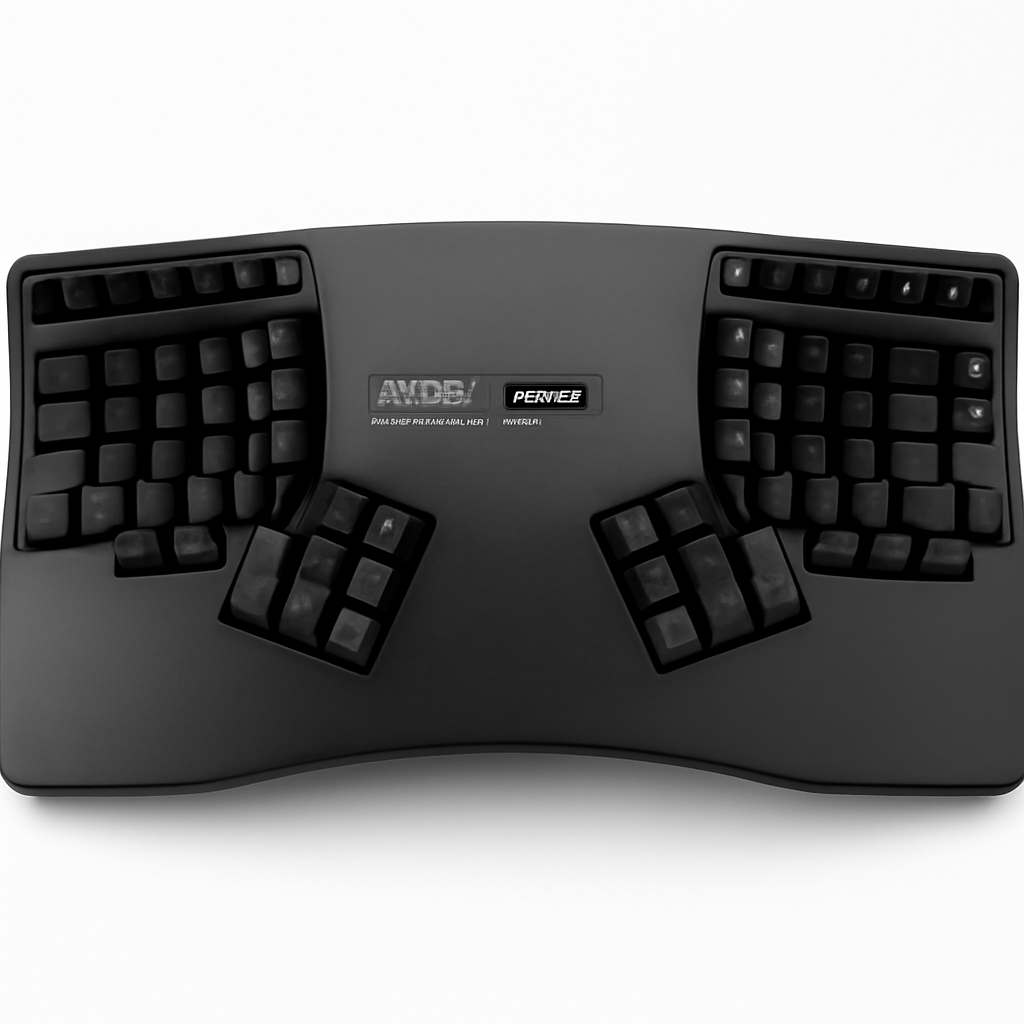
This is the Rolex of ergonomic keyboards. The Advantage Pro features a dramatically split, contoured design that takes getting used to, but delivers unmatched comfort for heavy typists.
What makes it stand out:
– Aggressive split (each hand has its own key dome)
– Mechanical switches with excellent tactile feedback
– Programmable macros and key remapping
– Built with durability in mind (20+ year lifespan typical)
– Steep learning curve (expect 1-2 weeks of adjustment)
Best for: Users with existing wrist pain, programmers, power users who type 8+ hours daily, anyone willing to invest in the long-term solution
—
Microsoft Sculpt Ergonomic Keyboard
Microsoft’s offering is the budget-conscious choice without feeling cheap. It has a subtle split, comfortable arc, and good build quality at a lower price point.
What makes it stand out:
– Affordable entry point to ergonomic typing
– Curved design without being too aggressive
– Separate number pad (customizable for your workflow)
– Quiet, low-profile keys
– Good for standard desks without major repositioning
Best for: Budget-conscious home office workers, typists who want comfort without major adjustment, anyone switching from a regular keyboard for the first time
—
Herman Miller x Logitech Enspire
A newer 2026 collaboration that brings premium office design principles to keyboards. This is ergonomic design meets aesthetic sensibility.
What makes it stand out:
– Minimalist split design (modern and elegant)
– Premium materials and finish
– Optimized wrist rest positioning
– Wireless with excellent connectivity
– Designed in consultation with ergonomists and designers
Best for: Premium home office setups, designers and creatives, professionals who want ergonomics that also look professional
—
Top Ergonomic Keyboard Models at a Glance
| Product | Best For | Price Range | Key Feature |
| Logitech Ergo K860 | First-time buyers, general users | $80–$120 | Adjustable height, palm rest, quiet keys |
| Kinesis Advantage Pro | Heavy typists, pain relief priority | $300–$400 | Aggressive split, mechanical, programmable |
| Microsoft Sculpt | Budget buyers, minimal adjustment | $40–$60 | Affordable, subtle curve, number pad |
| Herman Miller Enspire | Premium setups, design-conscious users | $150–$200 | Premium materials, modern aesthetic |
—
Key Features to Look for in an Ergonomic Keyboard
When shopping for an ergonomic keyboard in 2026, focus on these non-negotiable features:
1. Split Design (or Angled)
A true split keyboard separates the left and right sides so each hand finds its natural angle. You don’t need a dramatic split—even a subtle curve helps. Avoid keyboards that are just “curved” with no actual separation.
2. Palm Rest
Look for a supportive, not too-squishy palm rest. Memory foam is popular, but even firm plastic works if it keeps your wrist straight. The rest should elevate your hands slightly above your fingers.
3. Key Height and Profile
Low-profile keys are easier on wrists because you don’t have to reach as far. Mechanical switches offer better tactile feedback, which reduces the force needed to register keystrokes—meaning less finger fatigue.
4. Adjustability
Ideally, your keyboard should have:
– Adjustable tilt (negative, flat, and positive angles)
– Removable feet for angle control
– Detachable palm rest (so you can adjust as needed)
5. Wireless Connectivity (Optional but Nice)
A wireless keyboard gives you freedom to position it exactly where it feels most comfortable. Logitech and Microsoft have excellent 2.4GHz wireless options with minimal lag.
6. Weight and Build Quality
An ergonomic keyboard is an investment, so look for solid construction. It should feel stable on your desk and not shift around while typing. Heavier keyboards (2+ pounds) tend to be more stable.
—
Ergonomic Keyboard Styles: Split, Curved, and Mechanical
Different approaches work for different bodies. Here’s how to decide:
Split Keyboards
What they are: Two separate sections, one for each hand.
Pros:
– Best for complete wrist neutrality
– Allows maximum hand positioning flexibility
– Best for severe wrist pain
– Professional look in home offices
Cons:
– Steeper learning curve (typically 1-2 weeks adjustment)
– Takes more desk space
– More expensive ($200+)
– Harder to travel with
Best if: You have existing wrist pain or want maximum comfort investment. The Kinesis Advantage Pro is the gold standard here.
—
Curved/Contoured Keyboards
What they are: Single unit with a curved arch or subtle split (like the Logitech Ergo K860).
Pros:
– Easier transition from standard keyboards
– Still provides real ergonomic benefit
– Takes less desk space
– More affordable ($60–$150)
– Looks similar to regular keyboards
Cons:
– Not as much wrist neutrality as a full split
– May not be enough for severe pain
– Less customizable hand positioning
Best if: You’re new to ergonomic keyboards or have mild discomfort. This is where most people start, and it’s where they stay—because it works.
—
Mechanical Ergonomic Keyboards
What they are: Ergonomic keyboards with mechanical switches instead of rubber domes.
Pros:
– Better tactile feedback (you know when a key registers)
– Less force needed per keystroke
– Highly customizable (switch types, key caps)
– More durable
Cons:
– Noisier (though gaming switches are quieter than typing switches)
– More expensive
– Requires learning switch types if you want to customize
Best if: You touch-type a lot and appreciate the mechanical feel. The Kinesis Advantage Pro with mechanical switches is exceptional for this.
—
How to Set Up Your Keyboard for Maximum Comfort
Buying the right keyboard is step one. Setting it up correctly is step two—and just as important.
The Ideal Typing Position
1. Elbows at 90 degrees – Your arms should be parallel to the ground, not reaching forward or down
2. Wrists straight – Not bent up, down, or sideways. Think of your forearm and hand as one straight line
3. Shoulders relaxed – Not elevated or tensed
4. Feet on floor – Your lower back should have support; avoid dangling feet
5. Keyboard at elbow height – Your keyboard should be slightly lower than your elbows, not higher
Desk Height Matters
If your desk is too high or too low, even the best ergonomic keyboard won’t help. Your ideal desk height is:
– Elbow height when sitting with arms at 90°
– Typically 28–30 inches for standard chairs
– Adjust your chair first, then your keyboard position
Monitor and Keyboard Positioning
1. Monitor at eye level – The top of your screen should align with your eyes when looking straight ahead
2. Keyboard directly below monitor – Not off to one side (that causes you to twist)
3. Distance: 20–28 inches from your eyes to the screen
Palm Rest Setup
– Don’t rest your palms while typing – Use the palm rest only between typing sessions
– Rest your palms gently, not with pressure
– Keep wrists elevated above your hands, not sunk into the rest
—
Ergonomic Keyboard Buying Guide: Price vs. Performance
Budget Option: $40–$80
Microsoft Sculpt Ergonomic Keyboard or similar brands
What you get:
– Curved design, decent palm rest
– Quiet keys
– Basic but solid build
– Real ergonomic improvement over standard keyboards
Best for: Budget-conscious typists, first-time ergonomic users, office environments
Trade-offs: Less aggressive split, fewer customization options, fewer additional features
—
Mid-Range Option: $80–$150
Logitech Ergo K860 or similar tier
What you get:
– Better split design and curve
– Adjustable height
– Premium build quality
– Wireless options
– Better palm rest
Best for: Most home office workers, serious typists who type 6+ hours daily, anyone with mild-to-moderate wrist pain
Trade-offs: Not as aggressive as premium splits, fewer macro options, fewer switch customizations
—
Premium Option: $200–$450
Kinesis Advantage Pro, Herman Miller Enspire, or similar tier
What you get:
– Maximum ergonomic benefit
– Mechanical switches (if applicable)
– Programmable macros
– Premium materials
– Exceptional durability
– Full adjustability
Best for: Professionals with existing pain, heavy daily typists, anyone needing the best-of-the-best, long-term investment
Trade-offs: Steep learning curve, takes desk space, expensive upfront, overkill if you only type a few hours daily
—
The Value Sweet Spot (2026)
For most people, the Logitech Ergo K860 at $80–$120 offers the best balance of comfort, affordability, and ease of use. It solves 80% of the ergonomic problem at 30% of the premium price. Only upgrade to a Kinesis Advantage Pro if you have chronic pain or type professionally for 8+ hours daily.
—
Expert Tips for Reducing Wrist Pain and Strain
An ergonomic keyboard is powerful, but combine it with these habits for maximum relief:
1. Take Micro-Breaks
Every 30 minutes, pause for 60 seconds. Shake out your hands, stretch your wrists, look away from the screen. This single habit reduces wrist pain by up to 40%.
2. Stretch Daily
– Wrist flexor stretch: Extend your arm, palm up, and gently press the back of your hand down with your other hand. Hold 20 seconds, each side.
– Prayer stretch: Press your palms together in front of your chest, then slowly lower your hands toward your waist while keeping palms together.
– Wrist circles: Slowly rotate your wrists in circles, 10 times each direction.
Do these 2-3 times daily, especially if you already have pain.
3. Strengthen Your Forearms
Weak forearms put extra stress on your wrists. Simple exercises like squeezing a stress ball or using a hand strengthener for 2 minutes daily helps.
4. Adjust Your Typing Speed and Force
If you’re a heavy-handed typist, you’re creating unnecessary strain. Mechanical keyboards help here—they require less force to register. Practice lighter keystrokes; you don’t need to bottom out the key.
5. Use a Keyboard Tray (If Needed)
If your desk is too high and can’t be adjusted, a keyboard tray that mounts under your desk brings your keyboard to the perfect height.
6. Consider an External Monitor for Laptops
Laptop keyboards are nearly universally bad for ergonomics. If you work from a laptop, add an external keyboard and monitor (or monitor stand) immediately. This is non-negotiable for pain prevention.
7. Invest in Your Chair
A bad chair ruins even the best keyboard setup. Your chair should have:
– Adjustable height
– Lumbar support
– Armrests that allow your elbows to be at 90°
– Seat depth that supports your thighs without cutting off circulation
8. Watch for Warning Signs
Stop before pain starts. Tingling, numbness, or sharp pain in your wrists, hands, or fingers is a sign to:
– Stop typing immediately
– Adjust your setup
– See a physical therapist or doctor
– Consider whether you need a more aggressive ergonomic solution
—
Pros and Cons of Top Picks
Logitech Ergo K860
Pros:
– Affordable ($80–$120)
– Effective for most users
– Great build quality
– Quiet typing
– Works with multiple devices
– Easy to adjust and position
– No learning curve
Cons:
– Not aggressive enough for severe pain
– Not fully split
– Not programmable
– Quieter keys mean less feedback for some typists
—
Kinesis Advantage Pro
Pros:
– Best-in-class ergonomic design
– Programmable macros and key remapping
– Mechanical switches for great feel
– Extreme durability (20+ year lifespan)
– Excellent for pain relief
– Professional-grade build
Cons:
– Expensive ($300–$400)
– Steep learning curve (1-2 weeks adjustment)
– Takes significant desk space
– Overkill for casual typing
– Louder than curved alternatives
– Harder to find in stores
—
Microsoft Sculpt Ergonomic Keyboard
Pros:
– Very affordable ($40–$60)
– Attractive, modern design
– Curved design still effective
– Quiet operation
– Reliable build quality
– Great for shared spaces
Cons:
– Less aggressive split than premium options
– Smaller palm rest
– Not programmable
– Fewer customization options
– May need to upgrade if pain persists
—
Our Verdict: Which Ergonomic Keyboard Should You Buy in 2026?
For most people: Get the Logitech Ergo K860. It’s the Goldilocks solution—not too expensive, not too advanced, but genuinely effective. Pair it with proper desk setup (monitor at eye level, elbows at 90°) and daily stretches, and you’ll see wrist pain improvement within 2-4 weeks.
If you have existing pain or type 8+ hours daily: Invest in the Kinesis Advantage Pro. Yes, it’s $300+, but the ergonomic benefit is dramatically superior. The learning curve is real, but once you’re past it, your wrists will thank you. This keyboard can literally prevent or reverse carpal tunnel syndrome.
If budget is your primary concern: The Microsoft Sculpt Ergonomic Keyboard is your starting point. It’s not