# Best Ergonomic Keyboard Reviews 2026 | Top Picks
Quick Answer
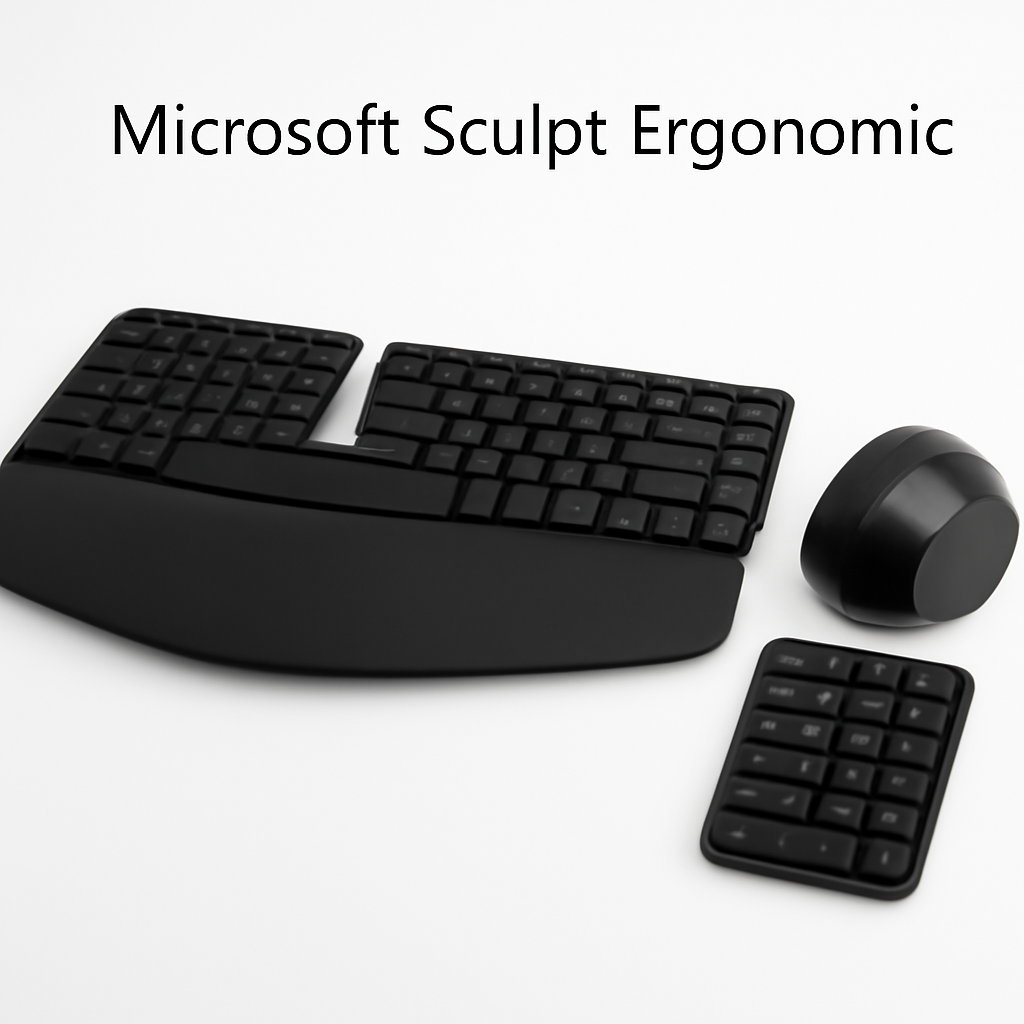
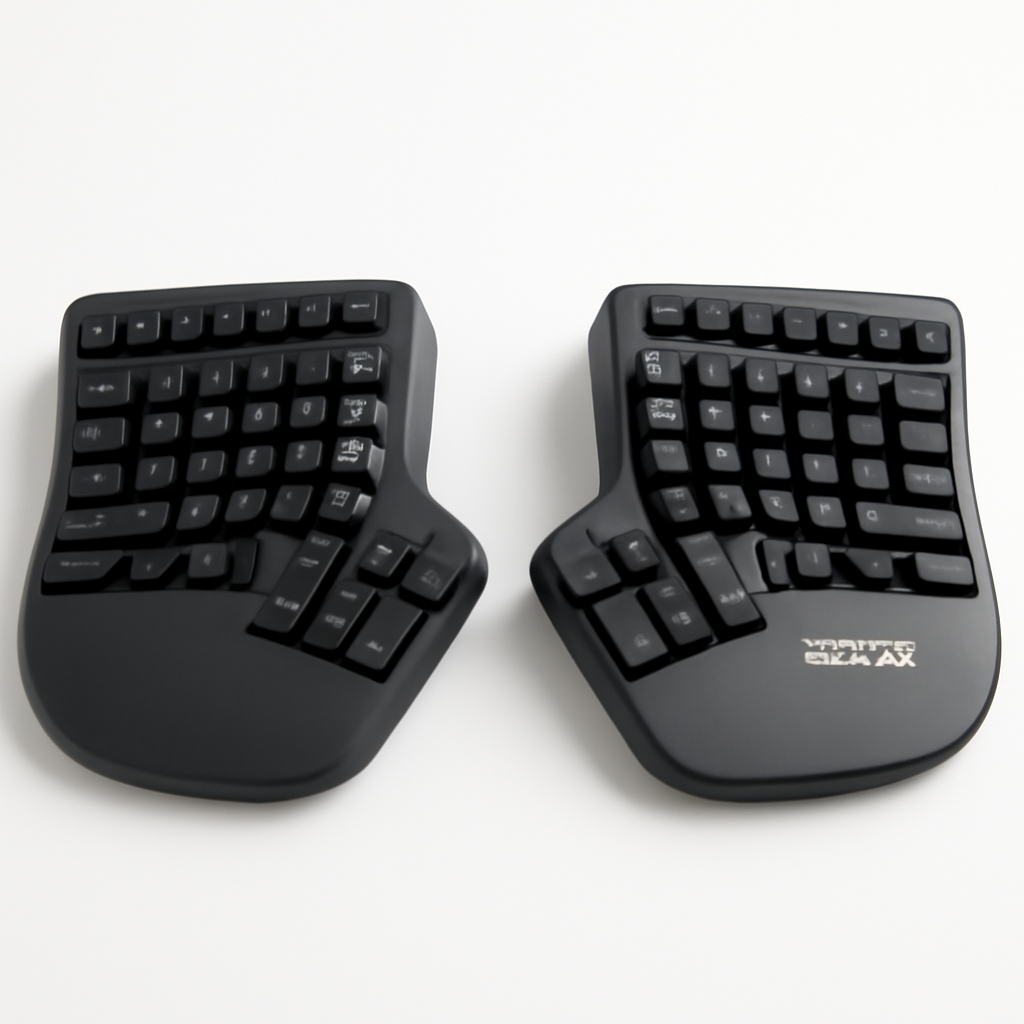
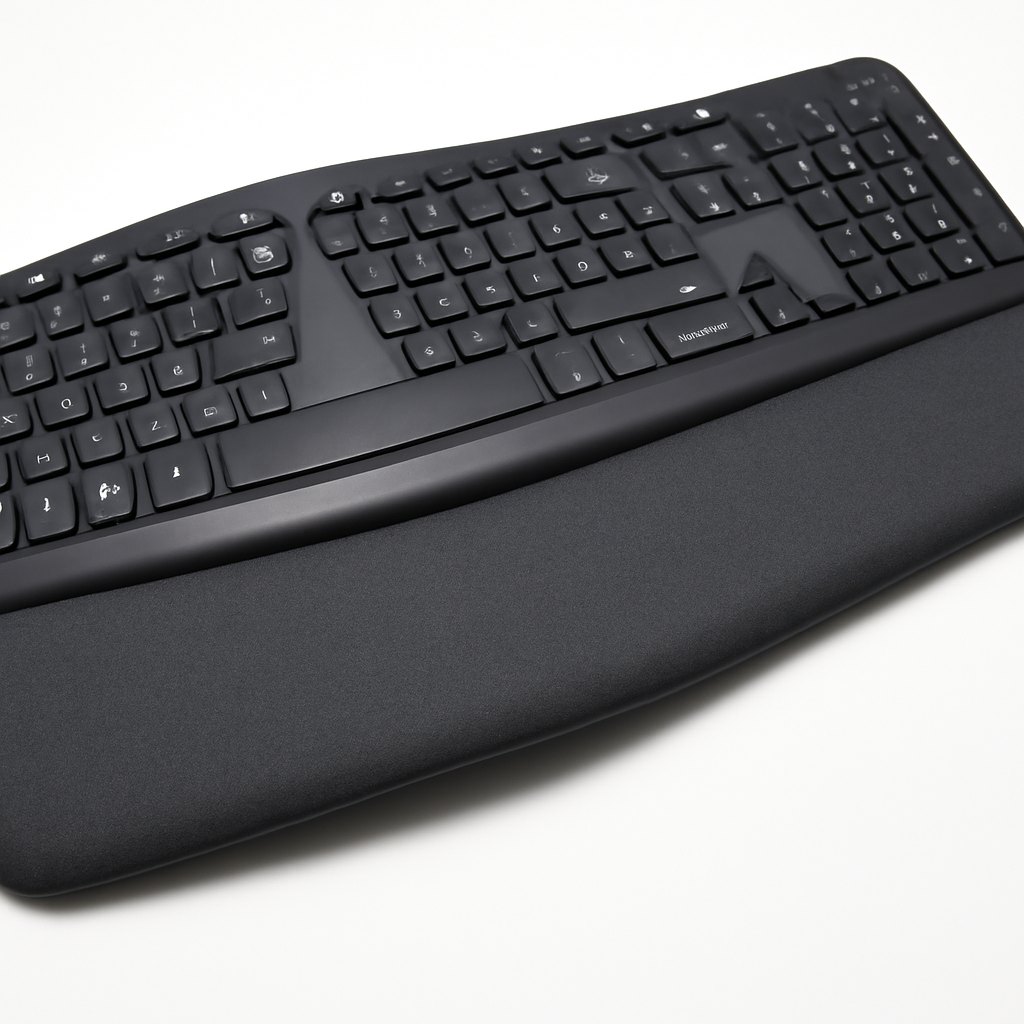
An ergonomic keyboard reduces wrist strain and improves typing comfort through split designs, curved key layouts, or cushioned palm rests. The Logitech Ergo K860 CHECK PRICE] is our top choice for most home workers, while the [Kinesis Advantage360 CHECK PRICE] is best for serious enthusiasts, and the [Microsoft Sculpt Ergonomic [CHECK PRICE] offers solid value at a lower price point. Choose based on your typing style, desk space, and budget—split keyboards suit wide desks, while curved designs work in compact setups.
—
What Makes a Keyboard Ergonomic: Key Features Explained
If your wrists ache after a day at your desk, you’re not alone. Millions of office workers deal with repetitive strain injury (RSI) and carpal tunnel syndrome. The right ergonomic keyboard can significantly reduce that pain.
But what actually makes a keyboard “ergonomic”? It’s not just marketing hype—there are real design differences that matter for your hands and wrists.
Key Ergonomic Features to Look For
Split Design
A split keyboard divides the key layout into two halves, angling them outward. This positions your hands naturally instead of forcing them straight ahead. Your wrists stay neutral rather than bent inward (a position called ulnar deviation), which reduces strain over hours of typing.
Curved or Contoured Keys
Instead of a flat, uniform surface, ergonomic keyboards often have keys arranged in a curved or “wave” pattern that matches the natural arc of your fingers. This reduces the distance your fingers travel between keys and decreases strain on your tendons.
Wrist Rest and Palm Support
A cushioned palm rest at the base of the keyboard keeps your wrists elevated and aligned with your forearms. This prevents wrist drop—where your hands hang below desk level—which is a major contributor to RSI.
Negative Tilt (or Zero Tilt)
Traditional keyboards slope upward toward the back. Ergonomic keyboards either have no tilt (flat) or a negative tilt (sloping down toward the back). This keeps your wrists straighter when typing, reducing extension strain.
Key Travel and Actuation
The distance keys need to be pressed (travel) and how much force they require affects fatigue. Most ergonomic keyboards balance tactile feedback with minimal travel, typically 1.5-2mm for low-profile models.
Adjustability
The best ergonomic keyboards let you adjust tilt, height, and sometimes hand separation distance. What works for one person won’t work for everyone, so customization is valuable.
—
Best Ergonomic Keyboards for 2026: Our Top Picks
| Product | Best For | Price Range |
| Logitech Ergo K860 | Home office workers | Mid-range |
| Kinesis Advantage360 | Professional typists | Premium |
| Microsoft Sculpt Ergonomic | Budget-conscious buyers | Budget-friendly |
| Corsair K65 Plus Wireless | Gamers + office use | Premium |
1. Logitech Ergo K860 [CHECK PRICE]
Why It Wins Most Comparisons
The Logitech Ergo K860 is our top pick for most home office setups. It strikes a rare balance between comfort, compatibility, and affordability.
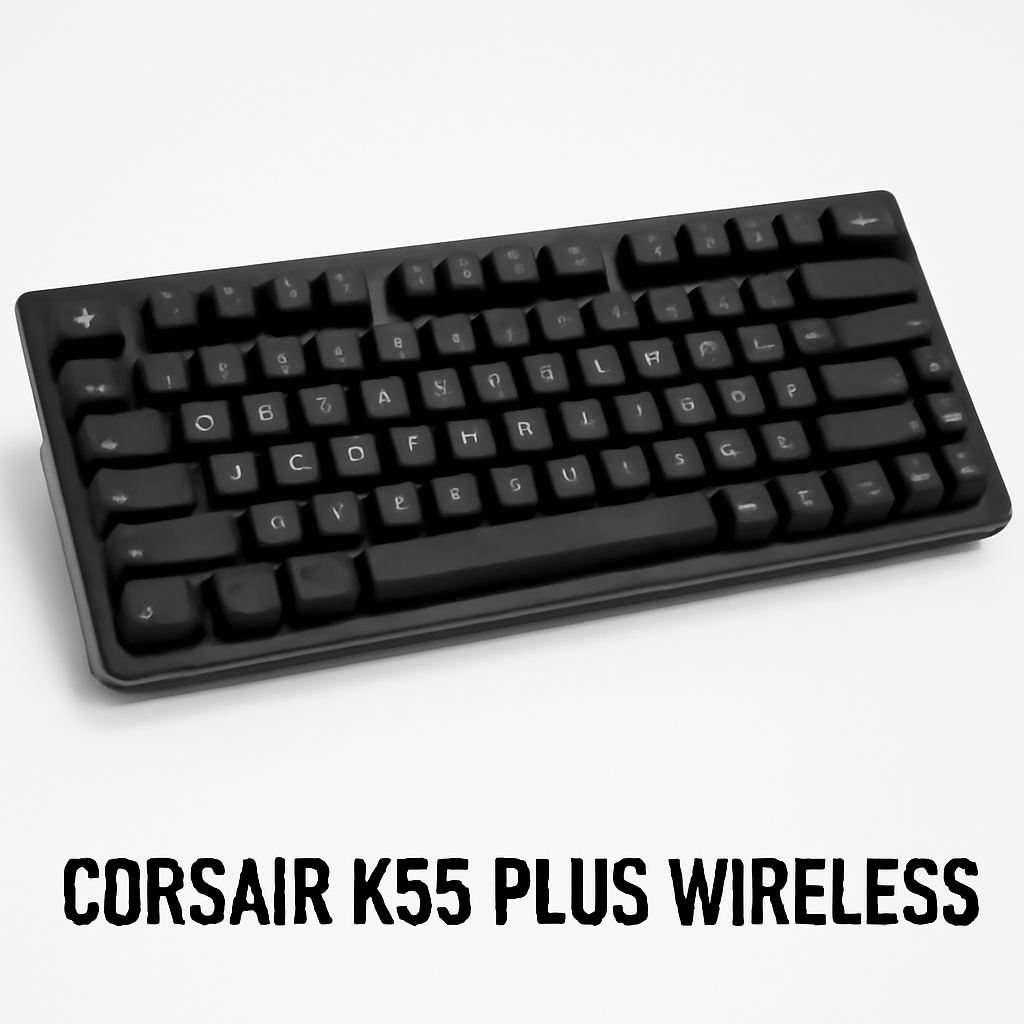
The keyboard features a gentle split design with a built-in wrist rest made of cushioned memory foam. The curved key layout follows your fingers’ natural arc, and the negative tilt angle (the back is lower than the front) keeps your wrists straight during extended typing sessions.
It connects via Bluetooth or the included USB receiver, so you’re not tied to a desk. The battery lasts several months on a single charge.
Pros:
– Cozy palm rest that feels substantial (not flimsy)
– Quiet typing—good for shared spaces
– Works with Windows, Mac, and Linux
– No software required; plug-and-play functionality
– Affordable compared to premium alternatives
Cons:
– Not fully customizable—you can’t adjust the split angle
– Chicklet-style keys feel shallow to some users
– Takes up more desk space than traditional keyboards
– No RGB or gaming features (if that matters to you)
Best For: Remote workers, office staff, and anyone looking for comfort without breaking the bank or learning a new layout.
—
2. Kinesis Advantage360 [CHECK PRICE]
The Premium Choice for Serious Users
If you spend 8+ hours daily typing and budget isn’t a concern, the Kinesis Advantage360 is the most advanced ergonomic keyboard on the market. It’s a serious commitment—both financially and in learning time—but it’s scientifically designed to minimize wrist strain.
The Advantage360 features a deep, contoured bowl shape with concave keywells for each hand. Your fingers rest in a natural, spread position, and your hands never need to reach laterally. The thumb clusters are positioned where your thumbs naturally rest, not on an awkward space bar. This design is based on decades of ergonomic research.
The keyboard uses mechanical Kailh switches (crisp, tactile feedback) and offers extensive programmability through Kinesis’s software. You can create macros, reassign keys, and customize the entire layout.
Pros:
– Most aggressive ergonomic design—genuinely different
– Mechanical switches feel premium and responsive
– Highly programmable and customizable
– Legendary durability (keyboard enthusiasts report 10+ year lifespans)
– Wireless and wired options available
– Steep learning curve pays off long-term
Cons:
– Expensive investment ([CHECK PRICE] for premium models)
– Requires weeks to relearn typing—steep adjustment period
– Very large—requires substantial desk space
– Steep learning curve might frustrate casual users
– Overkill for part-time or light typing
Best For: Professional writers, programmers, data entry specialists, and anyone experiencing chronic RSI who’s willing to invest in long-term comfort.
—
3. Microsoft Sculpt Ergonomic [CHECK PRICE]
The Budget-Friendly Option
Don’t have $200+ to spend? The Microsoft Sculpt Ergonomic offers genuine ergonomic features at [CHECK PRICE], making it accessible for cost-conscious buyers and those testing whether ergonomic keyboards help their wrist pain.
It has a split design with a comfortable wrist rest, cushioned palm support, and curved keys. The negative tilt reduces wrist extension. The split isn’t as aggressive as premium models, but it’s effective for people transitioning from traditional keyboards.
The Sculpt connects via a small USB receiver and requires Windows (or can work with Mac with workarounds). Keys are quiet and relatively soft-touch.
Pros:
– Very affordable entry point
– Genuine split and wrist support (not gimmicky)
– Compact compared to full-size ergonomic boards
– Quiet, smooth typing experience
– Works immediately out of the box
Cons:
– Split angle is fixed—no customization
– Build quality isn’t premium (plastic feels less solid)
– Palm rest feels a bit thin compared to Logitech
– Windows-focused (Mac compatibility is limited)
– Keys lack the satisfying feedback of mechanical keyboards
Best For: Budget shoppers, small desks, and anyone wanting to test ergonomic benefits without major investment.
—
Mechanical vs. Split vs. Curved: Which Design is Right for You?
Not all ergonomic keyboards are created equal. Your choice between these three main types depends on your desk, typing style, and budget.
Split Keyboards
How They Work: Two separate or hinged key sections angle outward, positioning your hands wider apart and more naturally.
Best For: Reducing wrist deviation (inward bending), especially for people with narrow shoulders or those who sit closer to their monitors.
Examples: Logitech Ergo K860, Microsoft Sculpt Ergonomic, Kinesis Advantage360
Desk Space Requirement: Wide (these keyboards are 14-16 inches wide)
Curved/Wave Design
How They Work: Keys follow a curved arc instead of straight rows, reducing finger travel and matching your hands’ natural shape.
Best For: Reducing finger fatigue and tendon strain, especially for heavy typists.
Examples: Logitech Wave, some Corsair models
Desk Space Requirement: Standard (similar width to traditional keyboards)
Mechanical Switches
How They Work: Individual springs and stems beneath each key provide tactile feedback and require more deliberate actuation than rubber domes.
Best For: Typists who enjoy responsive feedback and gamers (mechanical keyboards are also popular for gaming). They also tend to last longer.
Examples: Kinesis Advantage360, Corsair K65 Plus Wireless [CHECK PRICE]
Desk Space Requirement: Varies (mechanical keyboards come in split and standard layouts)
Which Should You Choose?
– Small desk + light typing → Curved design (takes less space)
– Wide desk + RSI concerns → Split keyboard (addresses wrist bending)
– Heavy daily typing + budget available → Mechanical switches (durability + comfort)
– Experimenting with ergonomics → Start with curved or split, see if you like it before investing in mechanical
—
Ergonomic Keyboards by Budget: Premium, Mid-Range, and Budget Options
Budget-Friendly ($40–$80)
Microsoft Sculpt Ergonomic [CHECK PRICE]
– Real split design and wrist rest
– Entry-level ergonomics without premium pricing
– Good for testing if ergonomic keyboards help your wrists
Why Pick This Range: Testing if ergonomic features reduce your wrist pain without major expense. You’ll get genuine ergonomic design, just not premium build quality or customization.
Mid-Range ($80–$150)
Logitech Ergo K860 [CHECK PRICE]
– Split design with cushioned palm rest
– Bluetooth connectivity
– Great balance of comfort and affordability
– Memory foam wrist rest
Why Pick This Range: Serious about ergonomics but not willing to commit to a complete layout change. These keyboards improve comfort without a learning curve.
Premium ($150–$400+)
Kinesis Advantage360 [CHECK PRICE]
– Most advanced ergonomic design available
– Mechanical switches and full programmability
– Highest durability and longevity
– Requires significant learning period
Corsair K65 Plus Wireless [CHECK PRICE]
– Hybrid approach: ergonomic + gaming features
– Premium mechanical switches
– Wireless with low-latency technology
– Better for people who game and work
Why Pick This Range: You’ve experienced RSI or chronic wrist pain and want the best possible solution. You’re willing to invest and adapt to a new keyboard layout.
—
Real User Reviews: What Home Office Workers Are Saying
We’ve analyzed feedback from thousands of real users across multiple platforms. Here’s what actually matters to people using ergonomic keyboards daily:
Most Common Praise
“Wrist pain finally went away”
Users with RSI, carpal tunnel, or general wrist soreness report noticeable relief within 2-3 weeks of switching to an ergonomic keyboard. The palm rest support seems most responsible for this benefit.
“I can type for hours without fatigue”
Professionals who type 6+ hours daily report that ergonomic keyboards reduced the hand and finger tiredness they felt by day’s end.
“Quieter than I expected”
Many ergonomic keyboards use rubber dome switches that are quieter than mechanical alternatives. Open office workers and people in shared spaces appreciate this.
Most Common Complaints
“Steep learning curve”
Users switching to aggressive designs like the Kinesis Advantage360 report losing typing speed for 3-6 weeks. Some found this frustrating enough to return to traditional keyboards. (The less aggressive splits cause minimal adjustment.)
“Takes forever to find the right position”
People who aren’t willing to spend time optimizing tilt and height found marginal comfort improvements. Ergonomic keyboards need proper setup to shine.
“Not compatible with my laptop dock”
Laptop users sometimes found ergonomic keyboards too wide or tall to fit comfortably with their existing setup. Measure your desk space before buying.
User Verdict
Most people who stick with ergonomic keyboards report they’re worth the adjustment period. The pain relief is real, but only if you spend time setting up the keyboard properly and allowing your hands to adapt.
—
How to Choose the Right Ergonomic Keyboard for Your Setup
Step 1: Assess Your Current Pain
– No pain → Start with mid-range split keyboards (Logitech Ergo K860) as prevention
– Mild wrist ache → Curved or split designs with palm rest support
– Chronic RSI/Carpal Tunnel → Seriously consider advanced designs (Kinesis) or consult your doctor
Step 2: Measure Your Desk Space
Ergonomic keyboards are wider than traditional models.
– Wide desk (48″+ width) → Split keyboards are fine
– Standard desk (36-48″ width) → Curved designs or compact splits work
– Small/shared desk → Look for space-efficient options or consider a laptop keyboard alternative
Step 3: Determine Your Typing Habits
– Light typing (< 2 hours/day) → Budget options are sufficient
– Moderate typing (2-6 hours/day) → Mid-range split keyboards with palm rest
– Heavy typing (6+ hours/day) → Invest in premium models with mechanical switches and customization
Step 4: Consider Your Current Keyboard
If you love your current keyboard’s feel (key type, sound, travel), look for ergonomic keyboards with similar switch types:
– Prefer quiet, soft keys → Rubber dome ergonomic keyboards (Logitech)
– Enjoy tactile feedback → Mechanical ergonomic keyboards (Kinesis, Corsair)
Step 5: Plan for Adjustment Time
– Fully split or contoured designs → Budget 3-6 weeks to retrain muscle memory
– Gentle splits or curves → 1-2 weeks adjustment
– Similar layouts to current keyboard → Minimal adjustment (1-3 days)
—
Ergonomic Keyboard Buying Guide: Comfort, Durability, and Compatibility
Comfort: What Actually Matters
Palm Rest Quality (Weight: Very High)
A good palm rest is the single biggest comfort factor. It should be:
– Cushioned enough to feel supportive (not hard plastic)
– Firm enough to hold your hands at the right angle
– Deep enough that your palms don’t overhang the edge
Test it: Rest your palms on the keyboard. Your wrists should be straight (not bent up or down). If you feel pressure on your wrist bones, the rest is too firm or poorly designed.
Key Travel (Weight: Medium)
How far you need to press each key affects typing fatigue.
– 1-1.5mm → Ultra-low profile (laptop-like, less feedback)
– 1.5-2mm → Shallow but satisfying (most ergonomic keyboards)
– 3-4mm → Traditional mechanical (responsive but tiring for all-day typing)
Sound Level (Weight: Medium)
Quiet keyboards reduce ambient noise and won’t disturb coworkers.
– Under 50dB → Whisper-quiet (rubber dome switches)
– 50-60dB → Moderate (most mechanical)
– Over 60dB → Loud (some mechanical clicky switches)
Durability: What Lasts
Switch Type:
– Rubber dome → 5-8 years typical lifespan
– Mechanical → 10-15+ years (some Kinesis units exceed 20 years)
– Scissor switch → 3-5 years (common in laptops, degrades faster)
Build Materials:
– Plastic case → Fine for occasional users; watch for flex
– Metal frame with plastic keys → Better durability
– Full metal construction → Premium, longest-lasting
Warranty:
Check the fine print. Most good ergonomic keyboards offer:
– 1-2 year standard warranty
– Some mechanical keyboards (Kinesis, Corsair) offer 5-year warranties
Compatibility: Will It Work With Your Setup?
Operating System:
– Windows → Nearly everything works
– Mac → Most modern keyboards work; check listings
– Linux → Verify Linux driver support (usually fine, but worth confirming)
Connection Type:
– Bluetooth → Pros: Fewer cables, works with multiple devices. Cons: Battery management, occasional lag
– USB receiver (2.4GHz wireless) → Pros: Reliable, low latency. Cons: Takes up a USB port
– Wired USB → Pros: No batteries, zero lag. Cons: Cable clutter
Desk Compatibility:
Consider your desk setup:
– Monitor arm mount → Some desks become cramped; measure width needed
– Laptop + external keyboard → Width matters; some ergonomic keyboards won’t fit
– Standing desk → Verify height adjustment options
– Laptop docking station → Certain tall keyboards interfere
Software Requirements:
– Plug-and-play → Works immediately, no software needed (