# Best Ergonomic Keyboards 2026 | Top Rated for Home Office
Quick Answer
If you’re shopping for an ergonomic keyboard in 2026, you’re making a smart investment in your health. An ergonomic keyboard reduces strain on your wrists, shoulders, and neck by positioning your hands in a more natural, neutral angle. The best options combine split designs, adjustable features, and quality build—with top picks including the Logitech ERGO K860 CHECK PRICE], [Kinesis Advantage360 CHECK PRICE], and [Microsoft Sculpt Ergonomic [CHECK PRICE]. Most quality ergonomic keyboards run between $80–$400, and yes, they’re worth every penny if you type 8+ hours daily.
—
What Makes an Ergonomic Keyboard Different?
A standard keyboard forces your hands and wrists into an unnatural position. Your palms press downward, your wrists bend inward (ulnar deviation), and your shoulders roll forward. Do this for eight hours a day, five days a week, and you’ll understand why office workers complain of carpal tunnel, tendonitis, and chronic neck pain.
An ergonomic keyboard flips the script.
The core differences:
– Split design: Keys are separated into two angled sections, so each hand rests in a neutral, straight position
– Curved or wave shape: Mimics the natural arc of your fingers, reducing stretching
– Raised palm rests: Keep your wrists aligned with your forearms, preventing the downward bend
– Adjustable tenting: Allows you to angle the keyboard so your palms face slightly inward (like a handshake position)
– Lower profile keys: Reduce the distance your fingers travel and the upward angle of your wrists
The result? Less strain, less pain, and—surprisingly—faster, more accurate typing once you adjust.
—
Top Ergonomic Keyboards for 2026
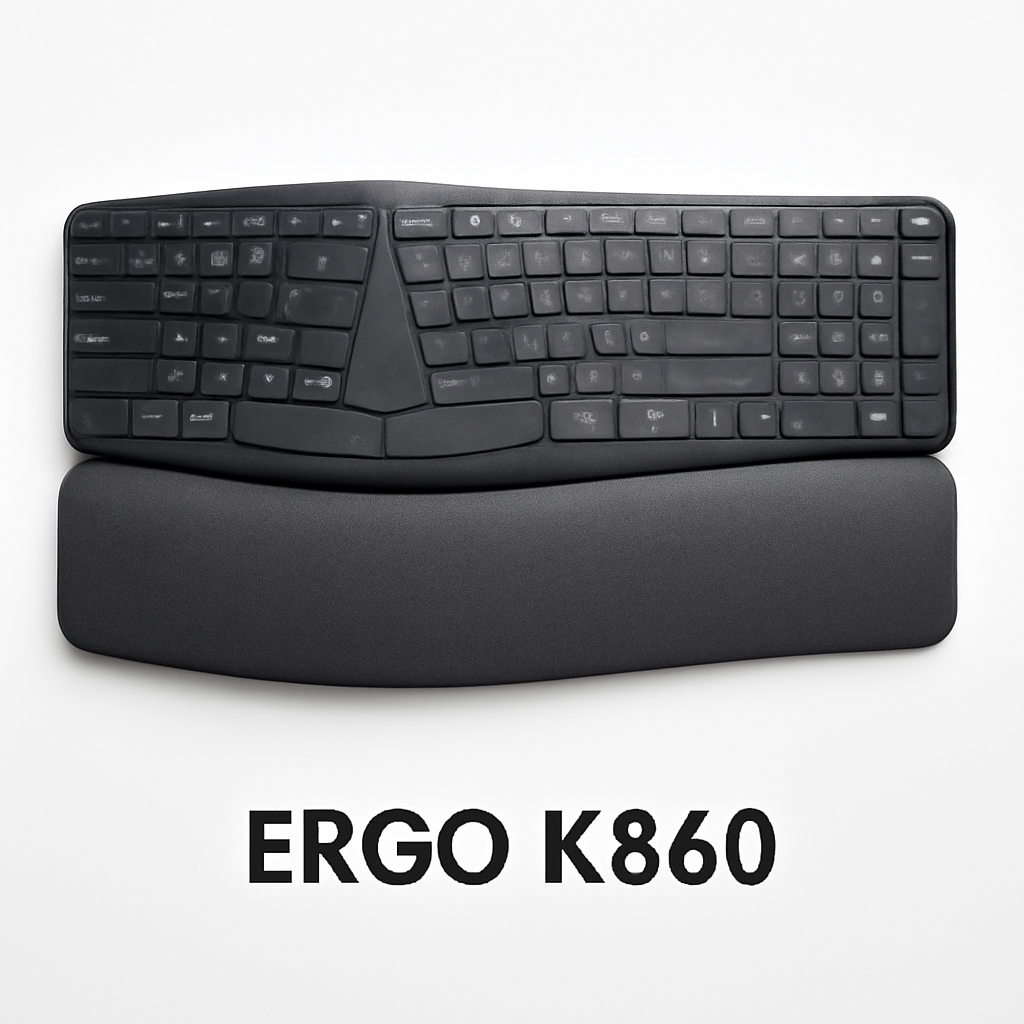
1. Logitech ERGO K860 — Best Overall for Home Office
Price Range: $80–$110 [CHECK PRICE]
The Logitech ERGO K860 is the sweet spot between affordability and serious ergonomic design. It features a curved split layout with a cushioned palm rest that keeps wrists straight. The keyboard connects via Bluetooth or USB receiver, works with Windows, Mac, and Linux, and has a quiet, responsive mechanical-style keystroke.
Pros:
– Gently curved split design feels natural after 2–3 days
– Cushioned palm rest is genuinely comfortable for long sessions
– Multi-device pairing (switch between three devices with a button)
– Quiet keys—won’t annoy coworkers
– Solid build quality; lasts 3–5+ years
Cons:
– Fixed tenting angle (can’t adjust the tent); not ideal if you want full customization
– Takes 1–2 weeks to fully adjust; muscle memory is real
– Not mechanical (feels more like high-end rubber dome)
Who it’s for: Remote workers, writers, and anyone new to ergonomic keyboards who wants a reliable, proven option without the premium price tag.
—
2. Kinesis Advantage360 — Best for Serious Typists
Price Range: $300–$350 [CHECK PRICE]
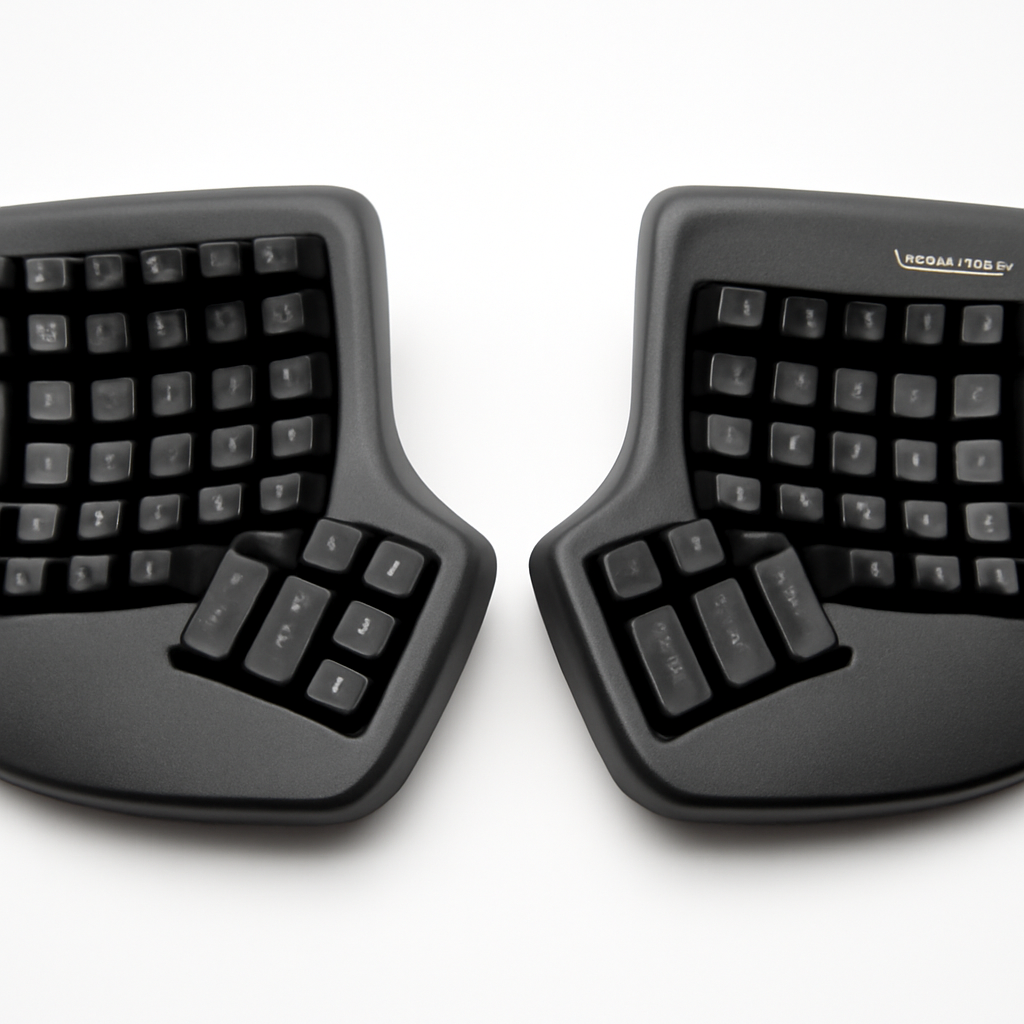
The Kinesis Advantage360 is the answer if you’re ready to go all-in on ergonomics. It’s a ortholinear split keyboard with extreme tenting (up to 60 degrees), concave key wells (your fingers rest in cups), and programmable keys. It’s built for people with chronic pain or those who type 10,000+ words daily.
Pros:
– Concave key wells genuinely support natural finger positioning
– Adjustable tenting in multiple positions—truly customizable
– Programmable macros and layers reduce finger travel
– Built to last; high-quality aluminum construction
– Wired and wireless options available
– Excellent for programmers and writers who benefit from macro customization
Cons:
– Steep learning curve; expect 2–4 weeks of adjustment
– Premium price tag puts it out of reach for casual users
– Bulky and heavy; not portable
– Steep design is polarizing (some people love it, others find it too extreme)
Who it’s for: Remote workers with existing wrist/hand pain, programmers, and professional writers who spend their entire day typing.
—
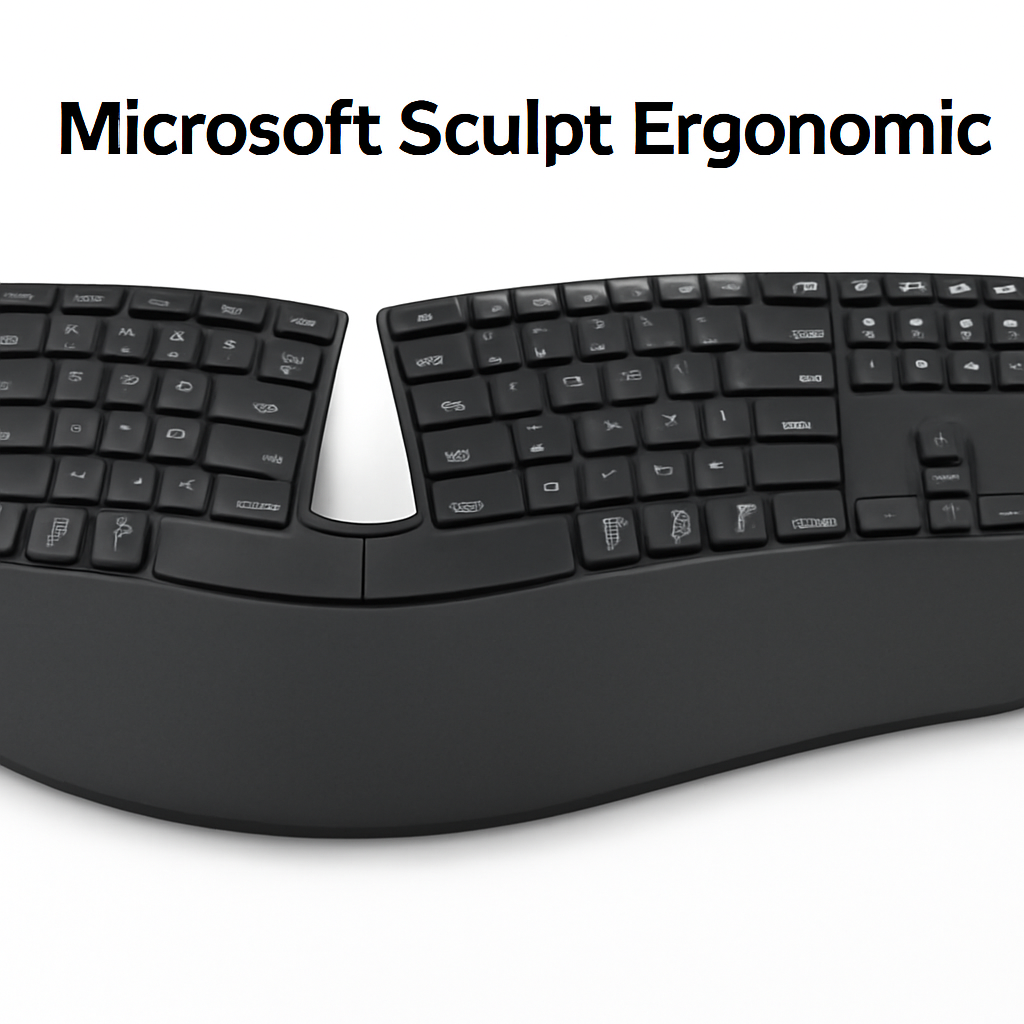
3. Microsoft Sculpt Ergonomic — Best Budget Option
Price Range: $50–$70 [CHECK PRICE]
Don’t let the low price fool you. The Microsoft Sculpt Ergonomic offers legitimate ergonomic benefits at a fraction of the cost of competitors. It features a curved split design, cushioned palm rest, and a slight tent that improves wrist alignment. The separate numeric keypad gives you flexibility in positioning.
Pros:
– Affordable entry point for testing if ergonomic keyboards help you
– Curved split layout reduces wrist strain
– Light and portable enough for travel
– Cushioned palm rest is surprisingly comfortable
– Wireless connectivity with good range
Cons:
– Keys are quieter but feel mushy compared to mechanical alternatives
– No adjustable tenting (fixed angle)
– Numeric keypad is separate, which adds to desk clutter
– Won’t satisfy people who want maximum customization
Who it’s for: Budget-conscious home office workers, people trying ergonomic keyboards for the first time, and those who occasionally work from coffee shops or travel.
—
4. Herman Miller x Logitech Enspire — Premium Wellness Choice
Price Range: $200–$250 [CHECK PRICE]
This is a collaboration between Herman Miller (the ergonomic furniture legend) and Logitech. The Enspire keyboard is designed to work in tandem with Herman Miller desks and chairs, with integrated wellness tracking and posture coaching. It offers a curved split design and smart reminders to adjust your position throughout the day.
Pros:
– Herman Miller’s design expertise ensures true ergonomic benefits
– Smart posture tracking and wellness app integration
– Premium build quality
– Works beautifully with Herman Miller sit-stand desks
– Cushioned palm rest and quiet, responsive keys
Cons:
– Expensive; best value if you already own Herman Miller furniture
– Wellness features require a connected ecosystem; standalone, it’s just a good keyboard
– App integration can feel gimmicky to some users
Who it’s for: People investing in a complete ergonomic workspace, teams with Herman Miller furniture, and companies prioritizing employee wellness.
—
Comparison Table: Top Ergonomic Keyboards at a Glance
| Product | Best For | Price Range | Adjustable Tenting | Split Design | Palm Rest |
| Logitech ERGO K860 | Home office, beginners | $80–$110 | Fixed | Yes | Cushioned |
| Kinesis Advantage360 | Serious typists, pain relief | $300–$350 | Yes (60°) | Yes, extreme | Concave wells |
| Microsoft Sculpt Ergonomic | Budget-conscious users | $50–$70 | Fixed | Yes | Cushioned |
| Herman Miller x Logitech Enspire | Wellness-focused teams | $200–$250 | Adjustable | Yes | Cushioned |
—
Key Features to Look For
1. Split Design
Look for keyboards that separate the left and right key sections by at least 2–3 inches. This allows your hands to rest in a straight, neutral position rather than angled inward. The best split keyboards go much further, creating a true V-shape that matches shoulder width.
2. Adjustable Tenting
“Tenting” refers to the angle at which the keyboard is raised in the center. Adjustable tenting (ideally 0–60 degrees) lets you customize the keyboard to your specific hand position. Start with 0 degrees, then gradually increase if you feel strain.
3. Cushioned or Contoured Palm Rest
Your wrists should be in a neutral, straight line from forearm to hand while typing. A good palm rest prevents your wrists from bending downward. Cushioned rests are more comfortable; contoured or concave rests (like on the Kinesis) provide additional support.
4. Key Switches (Mechanical vs. Membrane)
– Mechanical: Individual switches under each key; crisp, responsive, but louder
– Rubber dome/membrane: Quieter, cheaper, but can feel mushy and require more finger pressure
For ergonomic keyboards, either works, but mechanical tends to feel more premium.
5. Low Profile
Keys shouldn’t require a big stretch. Lower-profile keys reduce the distance your fingers travel and the angle of your wrists. This is especially important if you don’t use a keyboard tray.
6. Programmable Keys
If you spend 6+ hours daily typing, programmable keys let you create macros that reduce repetitive motions. Programmable keyboards add cost but pay dividends for power users.
7. Wireless Connectivity
Wireless keyboards give you flexibility to position the keyboard anywhere on your desk. Bluetooth is ideal (no USB receiver taking up a port). Look for low-latency options if you’re a gamer or need instant responsiveness.
—
Ergonomic Keyboards by Budget
Under $75: Microsoft Sculpt Ergonomic, Nuphy Air75
For casual users or those testing the waters, budget ergonomic keyboards offer surprising value. You’ll get split design and palm rests, though likely fixed tenting and fewer customization options.
Best pick under $75: Microsoft Sculpt Ergonomic [CHECK PRICE]
$75–$150: Logitech ERGO K860, Anker ErgonomicPro
This is the sweet spot. You’re paying for proven design, quality build, and enough features to genuinely reduce strain. Most people find their best-value match here.
Best pick in this range: Logitech ERGO K860 [CHECK PRICE]
$150–$300: Kinesis Freestyle Pro, Ergodox
In this range, you’re getting customizable tenting, better build quality, and sometimes programmable keys. Expect a more serious learning curve but significantly better long-term comfort.
$300+: Kinesis Advantage360, Herman Miller Enspire
Premium keyboards with extreme customization, concave key wells, and wellness integrations. Only recommended if you have existing pain, spend 8+ hours daily typing, or need maximum productivity gains.
—
How to Set Up Your Keyboard for Maximum Comfort
Even the best ergonomic keyboard won’t help if you set it up wrong. Follow these steps:
1. Adjust Your Desk Height
Your elbows should be at 90 degrees when your hands are on the keyboard. If your desk is too high, use a keyboard tray; if too low, add a desk riser.
2. Position the Keyboard at Arm’s Length
The keyboard should be about 12–15 inches from your body (roughly the distance of your forearm). Not closer, not farther.
3. Keep Your Wrists Neutral
Your wrists should be straight—neither bent up, down, or to the side. Think “neutral position,” like holding your hands in front of you as if handing someone an invisible ball.
4. Start with Zero Tenting
If your keyboard is adjustable, begin flat or nearly flat. Gradually increase the tent angle (if available) only if you feel strain. Many people do fine with 0–15 degrees.
5. Use the Palm Rest
Position your palms on the rest when typing, but lift your palms slightly when resting (don’t press them in the entire time). This prevents pressure buildup.
6. Take Regular Breaks
Even a perfect setup can’t replace movement. Stand up every 30–60 minutes, stretch, and look away from the screen. Your eyes, neck, and back need breaks as much as your wrists.
7. Give Yourself 2–3 Weeks to Adjust
Muscle memory is real. Your hands will feel clumsy on a split keyboard at first. Stick with it; most people are typing normally again within 14–21 days.
—
Common Ergonomic Keyboard Mistakes to Avoid
Mistake #1: Buying Without Testing
The best ergonomic keyboard for someone else might not be the best for you. If possible, try a friend’s keyboard first, or buy from a retailer with a good return policy.
Mistake #2: Too Much Tenting Too Soon
A 60-degree tent feels amazing in reviews but can overcorrect and strain your forearms. Start low (0–15 degrees) and increase gradually if needed.
Mistake #3: Ignoring Your Monitor Position
An ergonomic keyboard won’t help if your monitor is too low or too far away. Your monitor top should be at eye level, about 20–30 inches away. A bad monitor setup negates a good keyboard setup.
Mistake #4: Keeping Your Wrists Resting on the Palm Rest While Typing
This is backwards. The palm rest should support your wrists between keystrokes, not while you’re typing. Your wrists should be slightly elevated and floating while your fingers move.
Mistake #5: Giving Up Too Early
Split keyboards feel weird for the first few days. Your brain is rewiring muscle memory. Don’t judge an ergonomic keyboard until week two.
Mistake #6: Not Pairing It with Other Ergonomic Improvements
A great keyboard can’t fix a terrible chair, desk, or monitor setup. Ergonomics is a system. Fix the basics (desk height, chair height, monitor position) before spending $300 on a premium keyboard.
Mistake #7: Buying Based on Aesthetics Alone
An ergonomic keyboard that looks cool but doesn’t fit your hand size or typing style won’t help. Prioritize function over form (though many good ergonomic keyboards look great anyway).
—
Ergonomic Keyboard FAQs
Do I Really Need an Ergonomic Keyboard if I Don’t Have Wrist Pain?
Yes. Ergonomic keyboards are preventative. If you type 6+ hours daily and you’re using a standard keyboard, you’re accumulating micro-strain. Prevent pain now rather than treat it later.
How Long Does It Take to Adjust to a Split Keyboard?
Most people adapt within 2–3 weeks. Some adjust in days; others take 4–6 weeks. Be patient. Your typing speed might drop 10–20% initially, but it returns once your muscle memory adjusts.
Will an Ergonomic Keyboard Fix Existing Wrist Pain?
It can help, but it’s not a cure. If you have diagnosed carpal tunnel or tendonitis, you need physical therapy, stretching, and possibly splinting alongside an ergonomic keyboard. Talk to a doctor.
Is a Split Keyboard Worth It for Occasional Typing?
Probably not. If you type 1–2 hours daily, a standard keyboard is fine. Ergonomic keyboards shine for people who live at their keyboards.
Should I Get a Mechanical Ergonomic Keyboard?
Mechanical ergonomic keyboards are less common (and more expensive) than rubber-dome versions, but they’re excellent if you like mechanical switches. The trade-off is usually noise—mechanical switches are louder.
Can I Use an Ergonomic Keyboard with a Laptop?
Yes, but it’s bulky. Most ergonomic keyboards are full-size and need desk space. If you travel a lot, consider a smaller option like the Microsoft Sculpt (which has a separate numeric keypad you can leave behind).
What About Ergonomic Keyboard Trays?
Keyboard trays can help if your desk is the wrong height, but they’re not necessary if your desk is already at the right height. A good keyboard + good desk setup beats an average keyboard + tray.
Are Ergonomic Keyboards Worth the Extra Cost?
If you type 8+ hours daily, yes. The long-term health benefits and productivity gains justify $80–$150. Premium options ($300+) are worth it only if you have chronic pain or specific professional needs.
Do I Need Wrist Exercises If I Use an Ergonomic Keyboard?
Stretching and strengthening exercises are beneficial regardless of your keyboard type. Ergonomic keyboards reduce strain, but movement breaks and stretches prevent fatigue.
Which Ergonomic Keyboard Is Best for Gaming?
Most ergonomic keyboards prioritize comfort over gaming performance. For gaming, look for low-latency wireless connections and mechanical switches. The Logitech ERGO K860 is acceptable for casual gaming, but dedicated gaming keyboards will feel more responsive.
—
Our Verdict
Best Overall (2026): Logitech ERGO K860 [CHECK PRICE]
If you’re buying one ergonomic keyboard and want a proven, affordable option that works for most people, this is it. The curved split design is genuinely comfortable, the palm rest is cushioned, and the price ($80–$110) won’t break the bank. It’s the keyboard we’d recommend to a friend.
Best for Serious Pain or All-Day Work: Kinesis Advantage360 [CHECK PRICE]
If you’re dealing with existing wrist or hand pain, or you’re typing 10,000+ words daily, the Kinesis Advantage360 is worth the