Quick Answer
If your wrists hurt after a day of typing, an ergonomic keyboard can genuinely help. The best options under $100 balance comfort features—split designs, wrist rests, and proper key slope—without the premium price tag of high-end models. The Microsoft Sculpt Ergonomic Keyboard remains the top affordable pick, while Logitech Ergo K860 offers wireless convenience. For mechanical enthusiasts, Kinesis Freestyle Edge splits the difference between price and customization. This guide breaks down what actually matters, which features you don’t need to pay for, and how to pick the right keyboard for your wrists and workflow.
—
What Makes a Keyboard Ergonomic? Key Features to Look For
Before you start comparing products, let’s nail down what “ergonomic” actually means. It’s not just marketing fluff—proper keyboard design genuinely reduces strain on your wrists, hands, and shoulders.
Key Ergonomic Features Explained
Split Design (or Tent Shape)
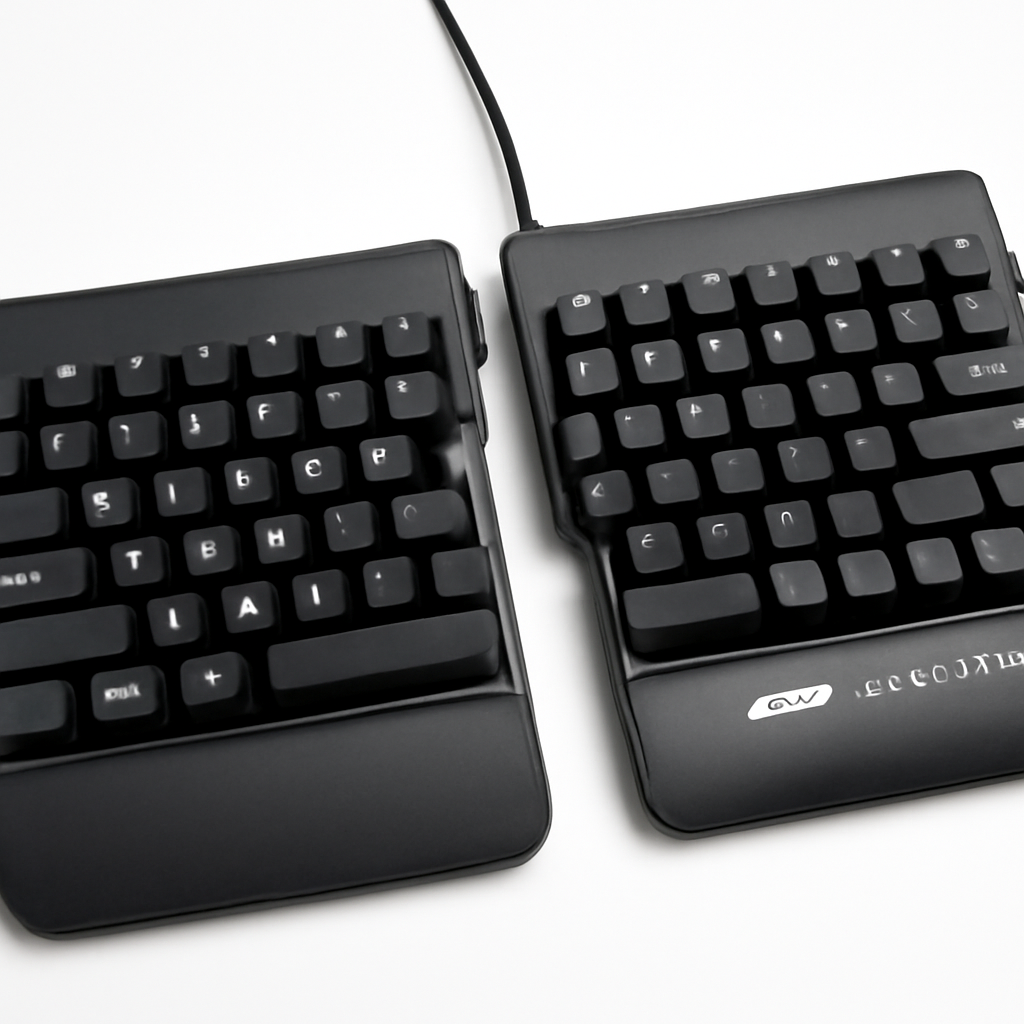
A split keyboard separates the left and right key clusters at an angle. This lets your hands rest in a more natural, neutral position rather than turning your wrists inward. If you type for 6+ hours daily, this feature makes a real difference. Your forearms stay parallel instead of twisted.
Negative Tilt or Flat Layout
Many people assume keyboards should slope up toward you (positive tilt). It’s actually the opposite—ergonomic keyboards should be flat or slightly angled away. This keeps your wrists in a neutral position and prevents the downward bend that causes carpal tunnel strain.
Integrated Wrist Rest
A built-in cushioned rest at the base of the keyboard supports your wrist during breaks. This isn’t for active typing (your hands should float while you type), but it prevents your wrists from hanging in the air when you pause between emails.
Key Switch Type
Mechanical switches require less finger force than membrane switches, reducing fatigue on longer typing sessions. However, good ergonomic keyboards exist in both mechanical and membrane varieties.
Curved or Contoured Key Layout
Some keys sit lower or higher to match finger reach distance. Your pinky can’t stretch as far as your index finger, so ergonomic designs compensate for this natural limitation.
Adjustability
The best ergonomic keyboards let you customize height, tilt, and separation distance. This moves the keyboard from one-size-fits-all to one-size-fits-you.
—
Top Ergonomic Keyboards Under $100 (2026 Reviews)
1. Microsoft Sculpt Ergonomic Keyboard
** | Best overall value under $100
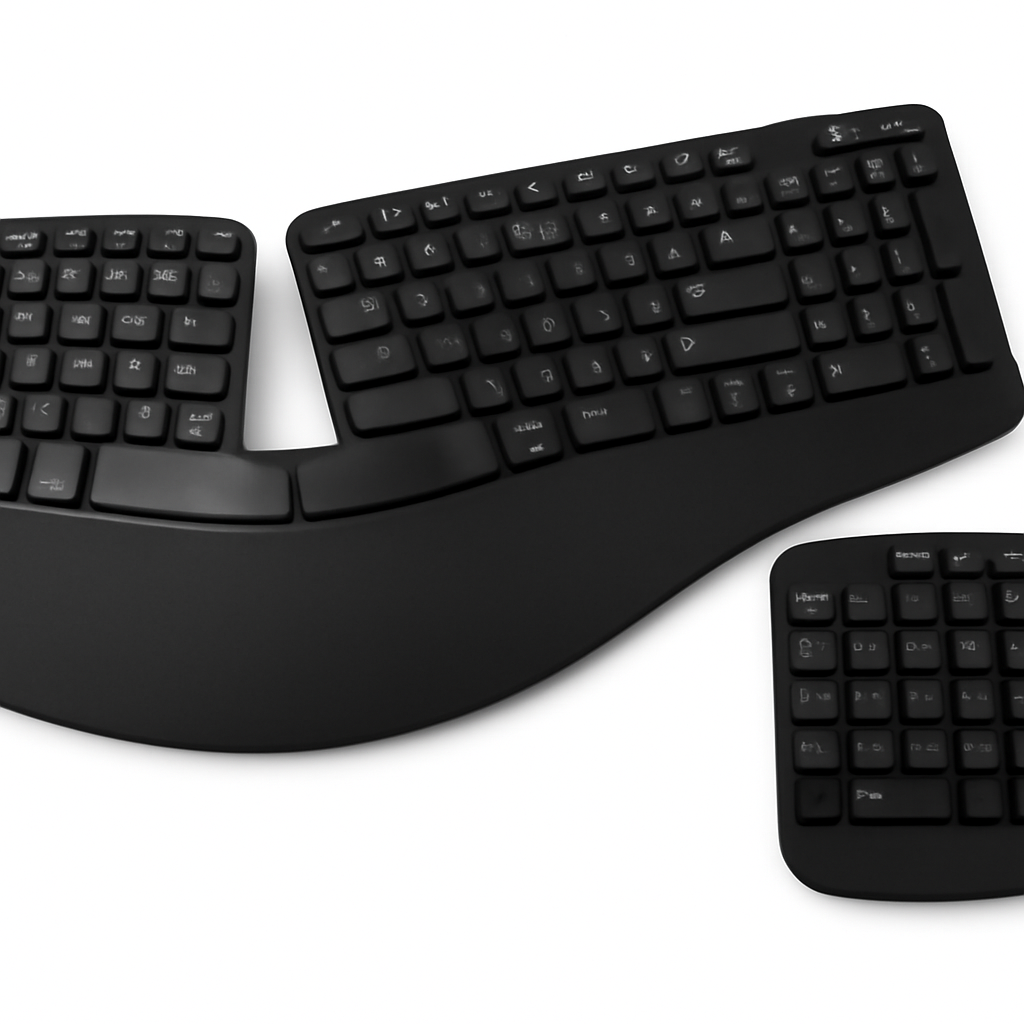
The Sculpt has been around for years, and it’s still one of the most popular ergonomic options. Here’s why it works:
– Split design with a natural tent angle that reduces wrist rotation
– Cushioned wrist rest that actually feels supportive, not cheap
– Low profile with negative tilt, which is genuinely ergonomic (not the sloped-up style of normal keyboards)
– Wireless 2.4GHz connection—no Bluetooth pairing headaches
– Full-size layout with number pad for accountants and spreadsheet warriors
Pros:
– Immediately comfortable for most hand sizes
– Wireless with 2+ year battery life per set of AA batteries
– Quiet typing experience (membrane switches)
– Widely available and affordable
Cons:
– Not adjustable—it’s one fixed angle for everyone
– Membrane switches feel mushy compared to mechanical alternatives
– Requires USB receiver (takes up a port, though wireless eliminates cable clutter)
– Key layout takes 2-3 days to adjust to
Best for: Remote workers typing 6-8 hours daily, people with mild wrist strain, anyone wanting a no-fuss solution.
—
2. Logitech Ergo K860
** | Best wireless ergonomic option
Logitech’s entry into split keyboards is newer and more refined than older Logitech membrane boards.
– Vertical split design with a curved middle hump separating left and right sides
– Cushioned palm rest along the entire bottom edge
– Adjustable height with a subtle slope adjustment
– Wireless with Logi Unifying receiver or Bluetooth connectivity
– Multi-device support quickly switch between laptop, desktop, and tablet
Pros:
– More natural palm support than competitors (the wrist rest is thicker and more comfortable)
– Wireless range is solid (30+ feet with USB receiver)
– Built for people switching between devices regularly
– Quieter typing than mechanical competitors
Cons:
– Heavier than some alternatives (requires desk space)
– Not adjustable enough if you want extreme customization
– Membrane switches lack the tactile feedback some typists prefer
– Battery indicator could be clearer
Best for: Multi-device users (work laptop + home desktop + iPad), people who want a thick, supportive wrist rest, workers with moderate-to-severe wrist pain.
—
3. Kinesis Freestyle Edge
** | Best mechanical + split option
If you want both ergonomics and the satisfying mechanical switch experience, Kinesis punches above its weight class at this price point.
– Fully split design with individual halves that separate up to 18 inches apart
– Mechanical switches (Cherry MX or equivalent, options vary)
– Tenting legs for angle adjustment on each half independently
– Integrated cushioned palm rests on both left and right sections
– USB wired connection for gamers and professionals wanting zero latency
Pros:
– Individual adjustability for each hand (left and right halves are separate)
– Mechanical switches reduce finger fatigue on heavy typing days
– Very customizable—you can position each half exactly where you need it
– Less common than mainstream options, so you’ll get tech credibility points
Cons:
– Wired connection (no wireless option)
– Takes up more desk space due to separation
– Steeper learning curve—you’ll mistype for the first week
– More expensive than Microsoft/Logitech alternatives (closer to $100 ceiling)
– Mechanical switches are louder (not ideal for open offices)
Best for: Mechanical switch enthusiasts, people with severe wrist pain who need maximum customization, writers and developers who type 8+ hours daily.
—
4. Anker Ergonomic Keyboard
** | Best budget-friendly option
When you absolutely need ergonomic comfort but have a tight budget, Anker delivers solid basics without unnecessary features.
– Curved split design with a gentle tent angle
– Quiet membrane switches (not mechanical, but more responsive than average)
– Lightweight and portable (around 1.5 pounds)
– USB wired connection with no batteries needed
– Compact layout with chiclet-style keys
Pros:
– Cheapest option on this list (usually $40-60)
– Requires no batteries or charging
– Works with any device with USB port (Mac, Windows, Linux, even some tablets)
– Small enough for travel
– Silent typing
Cons:
– Fixed position (no adjustability)
– Switches are shallow and don’t have mechanical feedback
– No wrist rest
– May feel cramped for people with large hands
– Build quality feels less durable than Logitech/Microsoft
Best for: Budget-conscious buyers, people with smaller hands, travelers who need a portable ergonomic option, light typists (under 4 hours daily).
—
Top Picks at a Glance
| Product | Best For | Price Range | Design Type |
| Microsoft Sculpt Ergonomic Keyboard | Overall value, wireless convenience | $ | Split with wrist rest |
| Logitech Ergo K860 | Multi-device users, maximum comfort | $ | Curved split with thick rest |
| Kinesis Freestyle Edge | Mechanical switch lovers, customization | $ | Fully adjustable split |
| Anker Ergonomic Keyboard | Budget buyers, portability | $ | Curved split, compact |
—
Mechanical vs. Split vs. Curved: Which Design Suits You?
You’ve probably seen these terms thrown around. Here’s the actual difference and why it matters for your wrists.
Split Keyboards (Microsoft Sculpt, Logitech K860, Kinesis Freestyle)
What it is: Two separate key sections angled away from each other, like your hands naturally rest.
Best if:
– Your wrists feel twisted after typing
– You want to reduce the angle your hands make during typing
– You have mild-to-severe carpal tunnel or RSI symptoms
Skip if:
– You type fast and rely on muscle memory (you’ll mistype for weeks)
– Your desk space is limited
– You switch between laptop and keyboard frequently (re-learning curve each time)
Curved Keyboards (Anker, some Logitech models)
What it is: A single unified keyboard with a curved or domed shape instead of flat. The center is higher than the edges.
Best if:
– You want ergonomic benefits without a learning curve
– Your desk space is tight
– You travel frequently
Skip if:
– You have serious wrist pain (split designs are objectively better for severe strain)
– You want customizable positioning
Mechanical Switches (Kinesis Freestyle Edge, custom builds)
What it is: Individual switches under each key that register the keystroke physically, not just electronically.
Best if:
– You type 6+ hours daily (less finger fatigue)
– You like tactile feedback while typing
– You’re willing to invest more upfront
Skip if:
– You work in a quiet office (mechanical switches are audible)
– You have arthritis (requires more finger force to activate)
– Budget is your primary concern
—
Wrist Support and Comfort: Why It Matters for Remote Workers
Here’s something keyboard manufacturers don’t always explain: a good wrist rest isn’t for active typing. It’s for the moments when you’re thinking, reading emails, or between tasks.
How Wrist Support Actually Helps
When you’re actively typing, your hands should float above the keyboard. Your forearms and wrists should be straight, not bent up or down. This is the neutral position that prevents strain injuries.
However, when you stop typing and pause to think or read, a wrist rest prevents your hands from hanging in midair. This micro-support throughout your workday adds up—it prevents the constant micro-strain that builds into pain over weeks and months.
What Makes a Good Wrist Rest?
– Cushioning density: Firm enough to actually support weight, but soft enough not to create pressure points. The Logitech K860’s rest is noticeably better than Microsoft Sculpt’s.
– Material: Memory foam > regular foam > hard plastic. Fabric covering should be replaceable since it gets grimy.
– Height: Should align with your keyboard, roughly 0.5 inches below the top of the keys.
– Width: Should run the entire length of the keyboard for continuous support.
The Microsoft Sculpt and Logitech K860 both nail this. The Anker and Kinesis require you to buy a separate wrist rest if you want one.
The Desk Setup That Matters Even More Than the Keyboard
Here’s the honest truth: even the best ergonomic keyboard won’t help if your desk height is wrong.
– Proper setup: Forearms parallel to the ground, elbows at 90 degrees, keyboard directly in front of you at elbow height.
– Common mistake: Monitor too low, keyboard too high, chair too tall or short.
Spend 5 minutes adjusting your desk height and monitor position. This matters more than which keyboard you buy. Seriously.
—
Compatibility & Connectivity: Wireless, Wired, and Multi-Device
Your keyboard needs to work with your actual setup, not a theoretical perfect workspace.
Wireless (Logitech K860, Microsoft Sculpt, Anker)
Pros:
– No cable clutter on your desk
– Easier to rearrange your setup
– One less thing to plug in
Cons:
– Requires batteries (recurring cost) or charging (cable anyway, so hybrid solution)
– Tiny latency that competitive gamers notice (not relevant for office work)
– Can interfere with other wireless devices if using shared frequency
Best for: People with clean desk preference, multi-device switching, office workers.
Wired (Kinesis Freestyle Edge, Anker when using USB)
Pros:
– Zero latency (not that you’ll notice for normal typing)
– No battery management
– More stable connection
– Direct power means you can use powered USB hub
Cons:
– Cable takes desk space
– Can’t rearrange keyboard easily
– Cable can get tangled or damaged
Best for: Gamers, people with cable management obsessions, anyone allergic to batteries.
Multi-Device Support
If you switch between laptop, desktop, and tablet:
– Logitech K860: Best multi-device support. Bluetooth pairs with multiple devices and switches quickly.
– Microsoft Sculpt: Requires separate USB receiver (one per device if you don’t have hub).
– Kinesis Freestyle Edge: Wired, so you’d need USB extension or hub for portability.
– Anker: USB connection only.
The Logitech K860 is clearly better if you’re switching devices frequently. Microsoft Sculpt works but requires more setup.
—
Budget Breakdown: Where Your $100 Gets You the Best Value
Here’s what different price points actually buy you:
Under $50
– Basic ergonomic shape (curved or slightly split)
– Membrane switches
– Fixed angle (no adjustability)
– Wired or cheap wireless
– Example: Anker Ergonomic Keyboard
Trade-offs: Less comfortable for long sessions, less durable, poor wrist support.
$50-75
– Split design
– Better membrane switches
– Integrated wrist rest
– Reliable wireless
– Example: Microsoft Sculpt
Trade-offs: Not adjustable, not mechanical, less premium feel, but genuinely good for the price.
$75-100
– Fully split design
– Mechanical switches or premium membrane
– Thick wrist rests
– Adjustable positioning
– Example: Logitech K860, Kinesis Freestyle Edge
Trade-offs: You’re hitting the ceiling of this budget category. Better options exist over $100, but you’re getting solid ergonomic value here.
The Math
Don’t fall for the trap of “spending $200+ for ergonomics.” Under $100 options solve 80% of ergonomic problems. The remaining 20% requires specialty chairs, standing desks, and physical therapy—not keyboard upgrades.
If you spend $70 on Microsoft Sculpt and your wrist pain drops 60%, that’s excellent ROI. Don’t wait for the “perfect” $300 keyboard.
—
Mechanical vs. Membrane: The Real Difference for Your Wrists
This gets confusing because marketing departments use different terms. Let’s clarify.
Membrane switches: Keys press down and complete an electrical circuit underneath. Most office keyboards work this way. Quieter, cheaper, but requires more bottom-out force (your finger has to press all the way down to register).
Mechanical switches: Individual switches under each key with springs and stems. Keystroke registers partway down (usually 60-80% of the way). Less finger fatigue, more audible.
For wrist health: Mechanical is objectively better because you use less finger force. But membrane isn’t bad—it’s just not as ideal for people with tendonitis or carpal tunnel.
At this price range ($100 and under), you get:
– Mechanical: Kinesis Freestyle Edge (if you find a deal)
– High-quality membrane: Microsoft Sculpt, Logitech K860, Anker
Both can be ergonomic. Mechanical is the premium experience.
—
How to Test an Ergonomic Keyboard Before Buying
Here’s the challenge: you can’t truly know if a keyboard will work for your hands until you use it for days.
Before You Buy
1. Check return policies: Amazon and retail stores offer 30-day returns. Use this window. If your wrists don’t improve after a week of heavy use, return it.
2. Try in-store if possible: Best Buy usually has Microsoft Sculpt and Logitech options on display. Spend 5 minutes typing. Does it feel natural? Does your wrist bend?
3. Research for YOUR hand size: People with very large hands often struggle with compact keyboards. Check reviews mentioning hand size (people leave surprisingly detailed comments about this).
4. Watch video reviews: Typing demonstrations show real-world noise levels and key travel distance better than specs.
After You Buy (The Critical Week)
Don’t judge a keyboard after one session. Your hands need to adjust.
– Days 1-3: Everything feels weird. You’ll mistype. This