# Best Dual Monitor Stand Reviews 2026 | Top Picks
Quick Answer
If you work with two monitors, a quality dual monitor stand saves desk space, improves posture, and boosts productivity. The Ergotron LX Dual Monitor Arm CHECK PRICE] is our top pick for versatility and build quality, while the [HUANUO Dual Monitor Stand CHECK PRICE] offers excellent value for budget-conscious users. Premium buyers should consider the [Herman Miller Ollin Monitor Arm [CHECK PRICE], which combines luxury materials with exceptional adjustability.
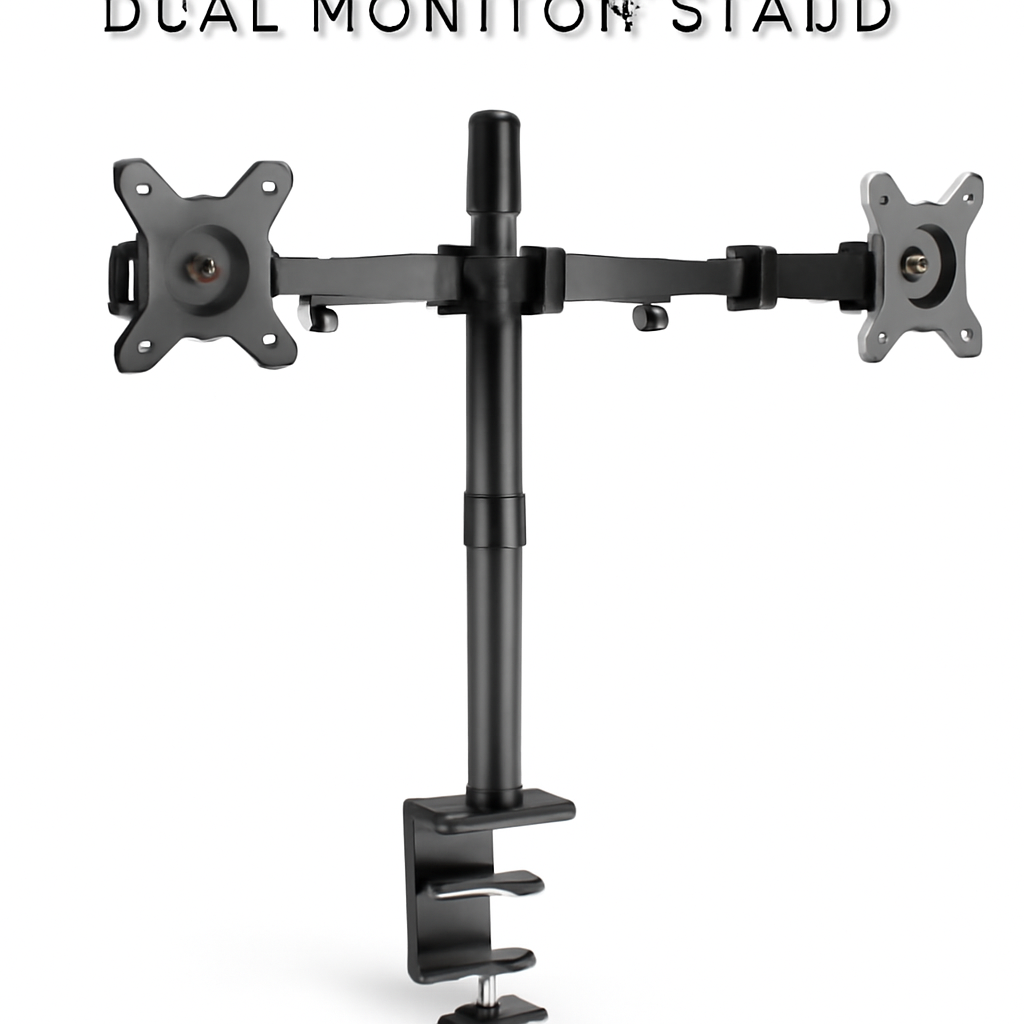
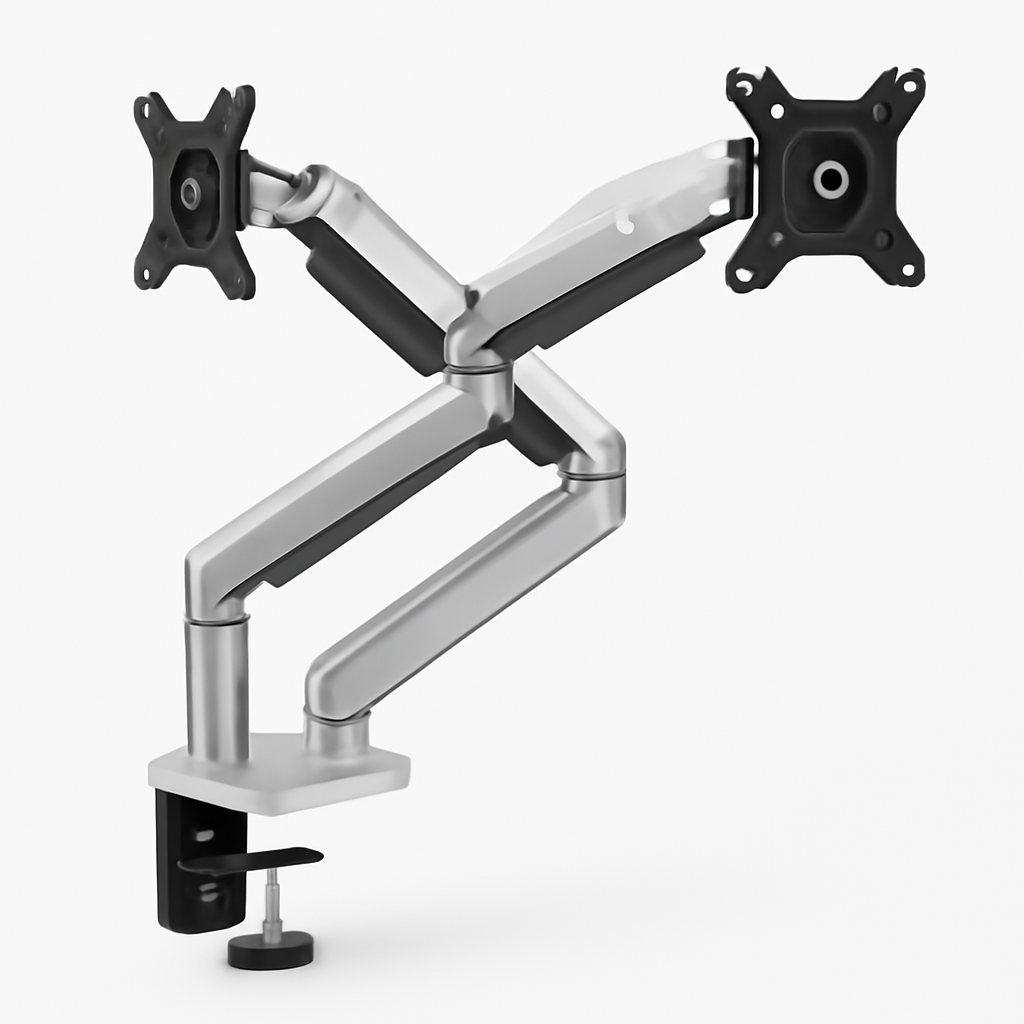
Keep reading for detailed reviews, feature comparisons, and expert guidance on choosing the right stand for your setup.
—
What to Look for in a Dual Monitor Stand
Before diving into specific products, let’s cover the essential features that separate good dual monitor stands from great ones.
Monitor Compatibility & Weight Capacity
The first consideration is whether the stand will actually support your monitors. Most dual stands accommodate screens between 17–32 inches, but always verify:
– Weight capacity (typically 22–40 lbs total)
– VESA mounting patterns (the standard 75mm or 100mm hole spacing on the back of monitors)
– Whether your monitors are curved, flat-panel, or ultrawide
If you have two large 4K monitors, you’ll need a stand rated for at least 35+ lbs. Lightweight ultrawide monitors might need less robust support.
Adjustability & Ergonomics
The best dual monitor stands offer multiple adjustment axes:
– Height adjustment (critical for neck and eye strain prevention)
– Tilt and swivel (side-to-side rotation and forward/backward angle)
– Rotation capability (switching between landscape and portrait modes)
– Arm articulation (independent movement of each monitor arm)
Poor ergonomics lead to neck pain, eye fatigue, and decreased productivity. Look for stands that let you position both screens at eye level, approximately 20–26 inches from your face.
Desk Space & Installation
Dual monitors require either:
– Clamp-based mounting (tightens to your desk edge—no drilling required)
– Grommet installation (passes through a hole in your desk)
– Freestanding base (sits on your desk surface)
Clamp mounts are most flexible and work with any desk thickness. Freestanding bases take up floor or desk space but require zero installation. Consider cable management too—quality stands bundle cables or offer integrated routing.
Build Quality & Stability
A wobbly stand defeats the purpose. Premium materials like aluminum and steel provide better stability than plastic. Pay attention to:
– Bearing quality (smooth adjustments without resistance or drift)
– Cable management systems (preventing tangled wires)
– Warranty and durability reputation
—
Best Overall Dual Monitor Stands for 2026
Ergotron LX Dual Monitor Arm
Best for: Professionals requiring maximum adjustability and reliability
The Ergotron LX Dual Monitor Arm [CHECK PRICE] remains the industry gold standard. This is what you’ll find in high-end corporate offices and professional studios.
Key Features:
– Independent movement of each monitor arm
– Supports 32 lbs total weight (up to two 27″ monitors)
– Infinite positioning with smooth bearings
– Full range tilt, swivel, and rotation
– Integrated cable management
– Clamp or grommet installation options
Pros:
– Exceptionally smooth adjustments with no drift
– Lifetime warranty on structural parts
– Premium build quality justifies the investment
– Nearly indestructible with proper installation
Cons:
– Higher price point than alternatives
– Requires professional-grade desk (30mm+ thickness for optimal clamping)
– Learning curve for first-time users on adjustment range
—
HUANUO Dual Monitor Stand
Best for: Budget-conscious users and basic office setups
The HUANUO Dual Monitor Stand [CHECK PRICE] proves you don’t need to spend $500 to get a functional dual monitor solution.
Key Features:
– Freestanding base with dual articulating arms
– Supports up to 26 lbs total
– Tilt, swivel, and rotation on each arm
– Fits 13–32″ monitors (VESA 75/100)
– No tools required for assembly
– Desktop footprint approximately 28″ wide
Pros:
– Excellent value—typically under $100
– Quick setup (15–20 minutes)
– Stable base prevents tipping
– Works with any desk type
Cons:
– Takes up floor/desk space (not ideal for small workstations)
– Plastic construction feels less premium
– Less fine-tuning control than arm-based mounts
—
Top Picks at a Glance
| Product | Best For | Type | Price Range |
| Ergotron LX Dual Monitor Arm | Professional ergonomics | Dual-arm clamp/grommet | $400–$500 |
| HUANUO Dual Monitor Stand | Budget-friendly setups | Freestanding base | $80–$130 |
| Herman Miller Ollin Monitor Arm | Premium aesthetics + function | Single/dual articulating arm | $600–$800 |
| North Bayou F80 | Gaming/creative professionals | Full-motion dual arm | $150–$220 |
—
Budget-Friendly Dual Monitor Stand Options
North Bayou F80 Dual Monitor Arm
Best for: Gamers, content creators on a moderate budget
The North Bayou F80 [CHECK PRICE] balances affordability with professional-grade motion. It’s a solid mid-range option.
Key Features:
– Supports up to 44 lbs (two heavy monitors)
– Full articulation with desk clamp mount
– VESA 75/100 compatibility
– Ball-joint design allows 360° rotation
– Cost-effective compared to Ergotron
Pros:
– Excellent weight capacity
– Smooth articulation at this price point
– Handles larger or heavier monitor combinations
– Good cable routing
Cons:
– Not quite as smooth as premium brands
– Clamp installation requires ~2 inches of clearance
– Limited height adjustment range compared to premium models
—
AmazonBasics Monitor Stand
If you’re looking for the absolute lowest entry point, the AmazonBasics dual monitor stand [CHECK PRICE] exists and functions. However, it’s primarily plastic, offers limited adjustability, and is best suited for temporary setups or secondary workstations. We’d recommend stretching your budget to the HUANUO or North Bayou options for reliability.
—
Premium Dual Monitor Stands with Advanced Features
Herman Miller Ollin Monitor Arm
Best for: Design-focused professionals and luxury office environments
The Herman Miller Ollin Monitor Arm [CHECK PRICE] is the design-forward choice. Herman Miller is renowned for ergonomic furniture, and the Ollin proves their expertise extends to monitor mounting.
Key Features:
– Precision-engineered aluminum construction
– Supports up to 30 lbs per arm
– Integrated cable management with clips
– Adjusts height 5.75 inches
– Available in multiple finishes (white, black, aluminum)
– 12-year warranty
Pros:
– Stunning aesthetic—looks intentional, not an afterthought
– Flawless engineering and smooth adjustments
– Premium materials (aluminum, not plastic)
– Excellent cable routing prevents spaghetti mess
– Long warranty backs the investment
Cons:
– Premium price reflects brand prestige
– May be overkill if ergonomics alone are your concern
– Limited to 30 lbs per arm (good for standard monitors, tight for dual 32″ setups)
—
Dual Monitor Stand Setup & Installation Guide
Pre-Installation Checklist
Before mounting anything, gather:
– Monitor VESA pattern (check your manual or back of monitor)
– Exact monitor weight (not manufacturer estimate—verify specs)
– Desk measurements (thickness, depth, available width)
– Allen wrenches (usually included with quality stands)
– Helper (three hands beat two for secure installation)
Step-by-Step Installation (Clamp Mount Example)
1. Attach VESA brackets to monitors
– Locate the four threaded holes on the back of each monitor
– Screw the VESA mounting plate (usually included) into these holes
– Ensure brackets are level before fully tightening
2. Assemble the mounting arms
– Connect arm segments together following package instructions
– Don’t overtighten connections—you want smooth articulation, not immobile joints
3. Clamp to desk
– Position the clamp at your desk’s rear corner or edge
– Insert the clamp bar through the desk opening
– Tighten the lever or screw until the clamp grips firmly (not crushing the desk)
– Verify the stand is level before proceeding
4. Mount monitors to arms
– Attach the first monitor to the left arm
– Attach the second to the right arm
– Use all provided screws; missing one compromises stability
5. Route cables
– Use included cable ties or clips to bundle power and display cables
– Route cables behind the arms to hide them from view
– Secure cables loosely enough to allow arm movement
6. Test adjustments
– Slowly move each arm through its full range
– Listen for grinding or rough spots (indicates misalignment)
– Make micro-adjustments to ensure smooth operation
—
Freestanding Base Installation
Freestanding options like the HUANUO are simpler:
1. Unpack and identify all base components
2. Assemble the weighted base (usually snaps together)
3. Attach monitor arms to the base post
4. Position on your desk or floor
5. Attach monitors and route cables
Installation time: typically 15–20 minutes with no tools required.
—
How to Choose the Right Stand for Your Desk Space
Measure Your Desk Dimensions
Dual monitor stands have different spatial demands:
Arm-based mounts (Ergotron, North Bayou):
– Require ~24–30″ of desk width at the back
– Minimal depth impact (arms swing forward/back)
– Suitable for desks as small as 36″ wide with careful positioning
Freestanding bases (HUANUO):
– Need 28–36″ of width at floor level
– Require 18–24″ of depth
– Best for larger desks (48″+)
Account for Monitor Size & Weight
– Smaller monitors (17–24″): Budget options work fine
– Large monitors (27–32″): Need heavier-duty mounts (Ergotron, Herman Miller, North Bayou)
– Curved ultrawide monitors: Verify compatibility; some stands struggle with curved VESA compatibility
Consider Your Cable Management Needs
– Integrated routing (Ergotron, Herman Miller): Cables stay hidden during adjustments
– Minimal routing (HUANUO, North Bayou): You manually organize cables behind the stand
– If you frequently adjust monitor positions, integrated routing saves headaches
Evaluate Installation Type
| Installation Type | Pros | Cons | Best For |
| Clamp Mount | No drilling, fits any desk, adjustable positioning | Requires desk edge clearance, tightening maintenance | Most office environments |
| Grommet | Permanent, clean look, maximizes desk space | Requires hole in desk, difficult to relocate | Built-in desk holes, fixed setups |
| Freestanding | No installation, portable, renter-friendly | Takes up space, less stable, heavier | Renters, mobile offices, flexibility priority |
—
Dual Monitor Stand FAQs & Troubleshooting
Q: Can I use a single-monitor arm to mount two monitors?
A: Yes, but with caveats. Many single-monitor arms support dual mounting if you buy two separate arms and position them side-by-side. However, purpose-built dual stands are more stable and offer better weight distribution. If space allows, dual arms are recommended.
Q: Will a monitor stand work with my ultrawide monitor?
A: Most will, but verify VESA compatibility first. Ultrawide monitors have standard VESA patterns (usually 100mm), and weight is often lighter than expected. Check the stand’s weight capacity—if your ultrawide is 27 lbs and the stand supports 30 lbs per side, you’re fine. For dual ultrawides, you’ll need high-capacity stands like the Ergotron or North Bayou.
Q: My monitor keeps drifting downward. How do I fix it?
A: This is common with arm-based mounts. Most designs use friction bearings that can weaken over time or need adjustment. Try:
1. Loosen the monitor attachment by 1–2 turns
2. Reposition the monitor and retighten firmly
3. Check that your monitor isn’t heavier than the stand’s rating
4. Contact the manufacturer—high-quality stands (Ergotron) offer spring adjustments
Q: Can I rotate one monitor to portrait mode independently?
A: Depends on the stand. Quality dual-arm stands like the Ergotron allow independent rotation on each arm. Budget models and freestanding bases may only allow synchronized rotation. Check product specifications if portrait mode is important to you.
Q: What if my desk is too thin for a clamp mount?
A: Desks under 1 inch thick can’t reliably clamp. Your options:
– Use a grommet mount (requires drilling a hole)
– Switch to a freestanding base
– Add shims or wood blocks under the clamp to provide more material
– Consider a desk extender or monitor arm with a floor-standing base
Q: Is VESA compatibility really important?
A: Yes. VESA is the international standard for monitor mounting (75mm or 100mm hole spacing). Nearly all modern monitors have VESA compatibility, but older or specialty monitors might not. Always verify your monitor’s VESA pattern before purchasing a stand. If unsure, check the monitor’s manual or manufacturer website.
Q: How much does professional installation cost?
A: Most retailers offer installation for $50–$150, depending on complexity. For straightforward clamp installations, DIY is usually feasible. Grommet mounting (requires drilling) is worth outsourcing if you’re uncomfortable with power tools.
—
Comparison: Top 2 Picks Side-by-Side
Ergotron LX vs. HUANUO
| Feature | Ergotron LX | HUANUO |
| Price | $400–$500 | $80–$130 |
| Weight Capacity | 32 lbs total | 26 lbs total |
| Adjustability | Infinite positioning | Tilt, swivel, rotation |
| Installation | Clamp/grommet | Freestanding |
| Desk Space | Minimal footprint | 28″ width required |
| Cable Management | Integrated routing | Basic (manual) |
| Warranty | Lifetime (structural) | 1–2 years |
| Learning Curve | Moderate | None |
| Best For | Professionals, heavy use | Budget-conscious, light use |
Verdict: If you spend 8+ hours daily at your desk and value precision adjustments, the Ergotron justifies its cost. For casual setups or secondary workstations, HUANUO offers excellent bang-for-buck.
—
Our Verdict
Choose the Ergotron LX Dual Monitor Arm [CHECK PRICE] if you prioritize ergonomics, adjustability, and durability. The smooth articulation, lifetime warranty, and cable management justify the premium price for professionals.
Choose the HUANUO Dual Monitor Stand [CHECK PRICE] if you want functional dual-monitor support without breaking your budget. It’s stable, quick to install, and handles most monitor combinations reliably.
Choose the Herman Miller Ollin Monitor Arm [CHECK PRICE] if your office aesthetic matters as much as functionality. It’s the luxury choice for design-forward workspaces.
Choose the North Bayou F80 [CHECK PRICE] if you need professional-grade motion and weight capacity at a mid-range price point—ideal for gamers and creative professionals.
—
Final Recommendations
The “best” dual monitor stand depends on three factors:
1. Your budget: $80–$130 (HUANUO), $150–$220 (North Bayou), $400–$500 (Ergotron), or $600–$800 (Herman Miller)
2. Your workspace: Apartment/renter (freestanding), permanent desk (clamp/grommet), limited space (arm-based)
3. Your usage: Casual work (budget options), daily professional use (Ergotron), aesthetics-focused (Herman Miller)
Most buyers fall into the “professional daily use” category and should seriously consider the Ergotron LX. It’s an investment that lasts 10+ years and prevents ergonomic pain that costs far more in the long run.
Whatever you